FM Terminals
EN

Remote access for Windows, organized by client.

A remote access and connection manager for Windows: RDP, SSH, SFTP, VNC, Serial, web consoles and databases (SQL Server, PostgreSQL, MySQL, Oracle) in tabs, with an encrypted password vault. Built for people who manage many clients and environments.

1 month free trial with everything unlocked · Windows 10 and 11
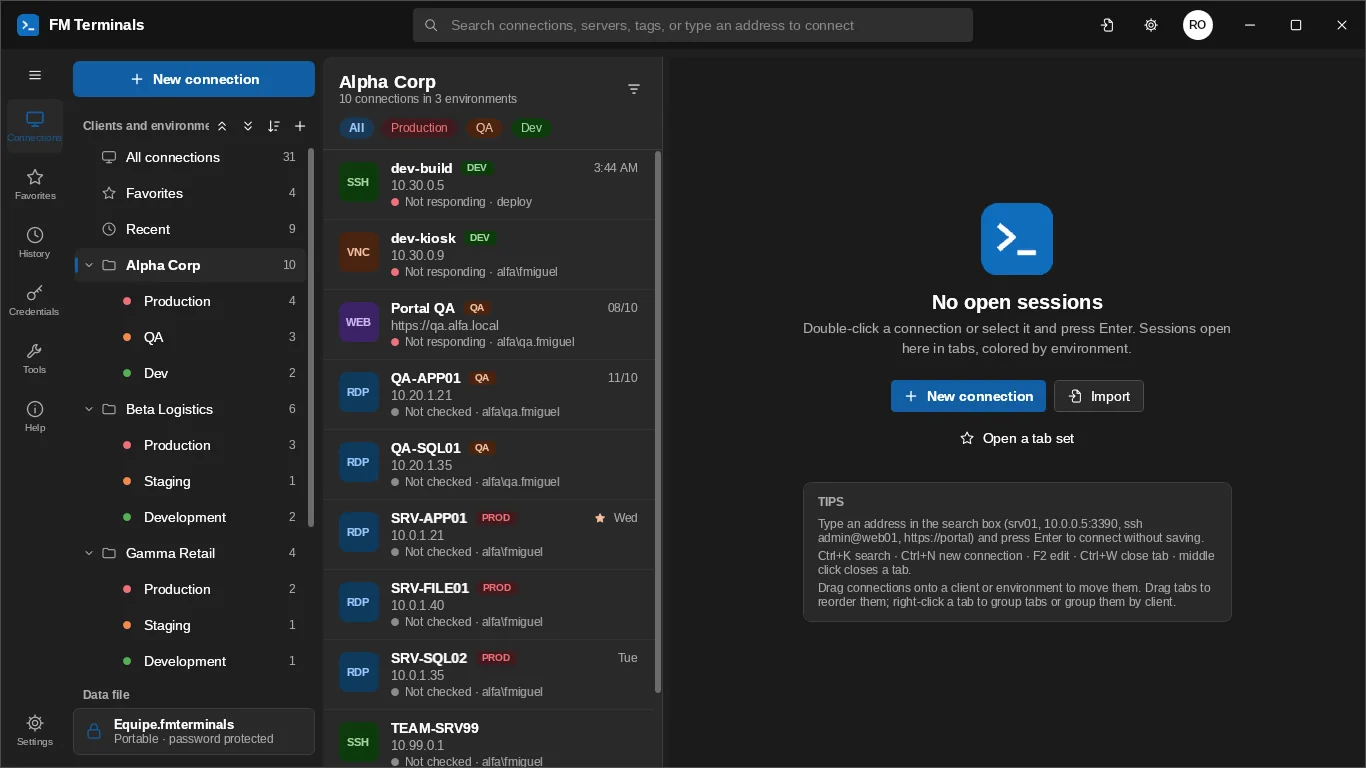
FM Terminals in the dark theme: clients and environments on the left, sessions in tabs
  • 8 protocols and 5 databases in tabsRDP, SSH, SFTP, FTP, Telnet, Serial, VNC and Web · SQL Server, PostgreSQL, MySQL/MariaDB, Oracle and Cloudflare D1
  • Encrypted passwords (AES)Only you hold the key
  • Works for teamsThrough your company SQL Server or Cloudflare D1
  • 13 languagesPortuguese (BR and PT), English, Español, Français, Deutsch, Italiano, Nederlands, Dansk, Norsk, Polski, Русский and 中文 · light and dark theme

What is FM Terminals?

FM Terminals is a remote access and connection manager for Windows 10 and 11, including Windows 11 on ARM. It opens RDP, SSH, Telnet, Serial (COM), VNC, web consoles, SFTP/FTP and databases (SQL Server, PostgreSQL, MySQL/MariaDB, Oracle and Cloudflare D1) in tabs, organized by client and environment (Production, QA, Development), with an AES-256 encrypted credential vault.

It is made for sysadmins, DBAs, support teams and consultants who connect to many servers of many clients every day. A team can share the same connections through the company SQL Server or a Cloudflare D1 database, with each person's credentials encrypted end to end.

FM Terminals is sold through the Microsoft Store: a 1-month (30-day) trial with everything unlocked, then up to 3 connections without a subscription, or unlimited connections with the Individual license at US$ 19.99 a year (the Store shows the price in your currency). It imports connections from mRemoteNG, RDCMan, MobaXterm and Terminals. See the comparison and the manual.

Everything your connection routine needs

Designed for people who work with many clients and environments every day.

Organized by client and environment

Production, Staging and Development with colors; production asks for confirmation before connecting.

Credential vault

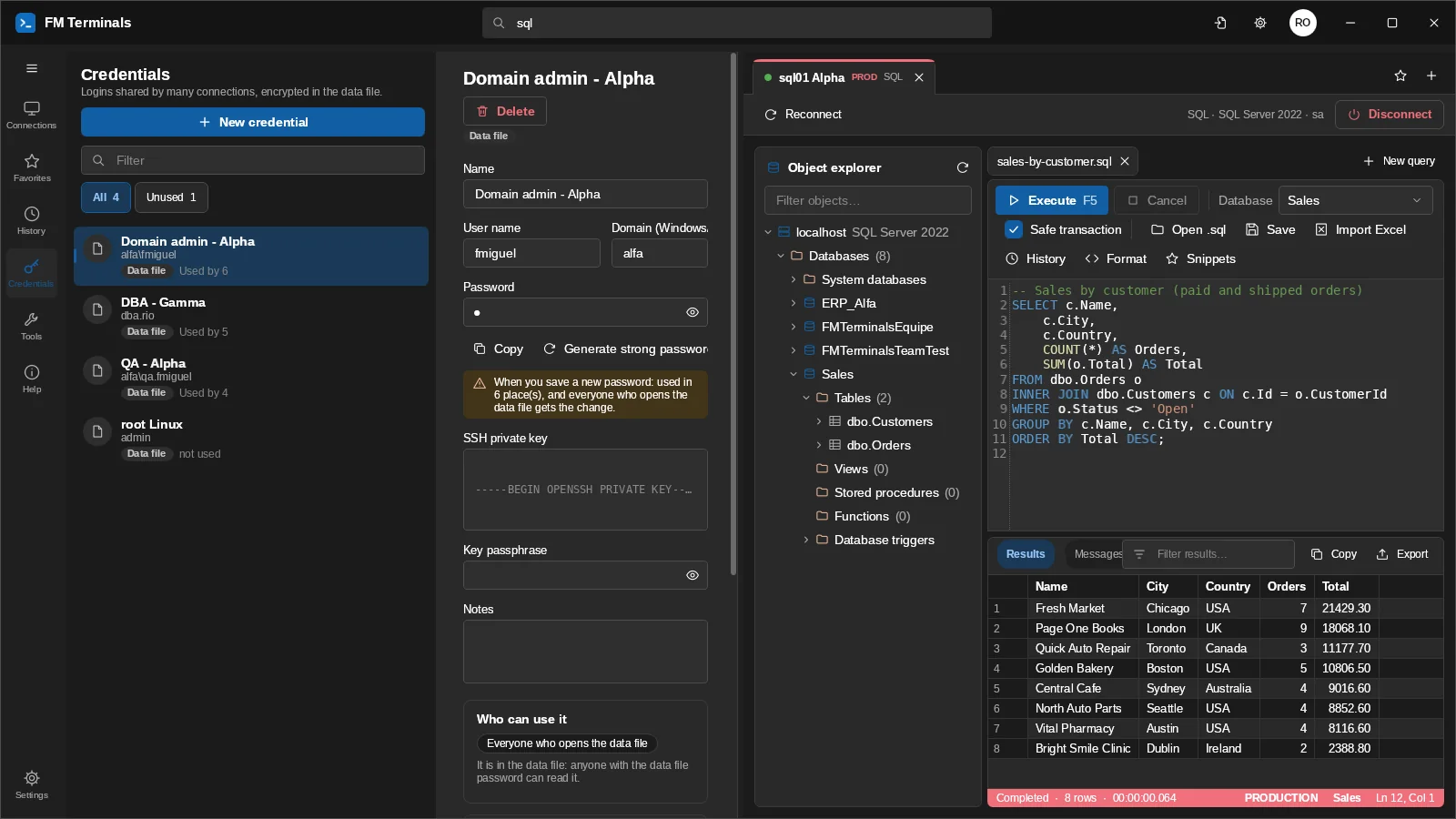
One login per client works for all of its servers; change the password in one place.

Jump host (SSH tunnel)

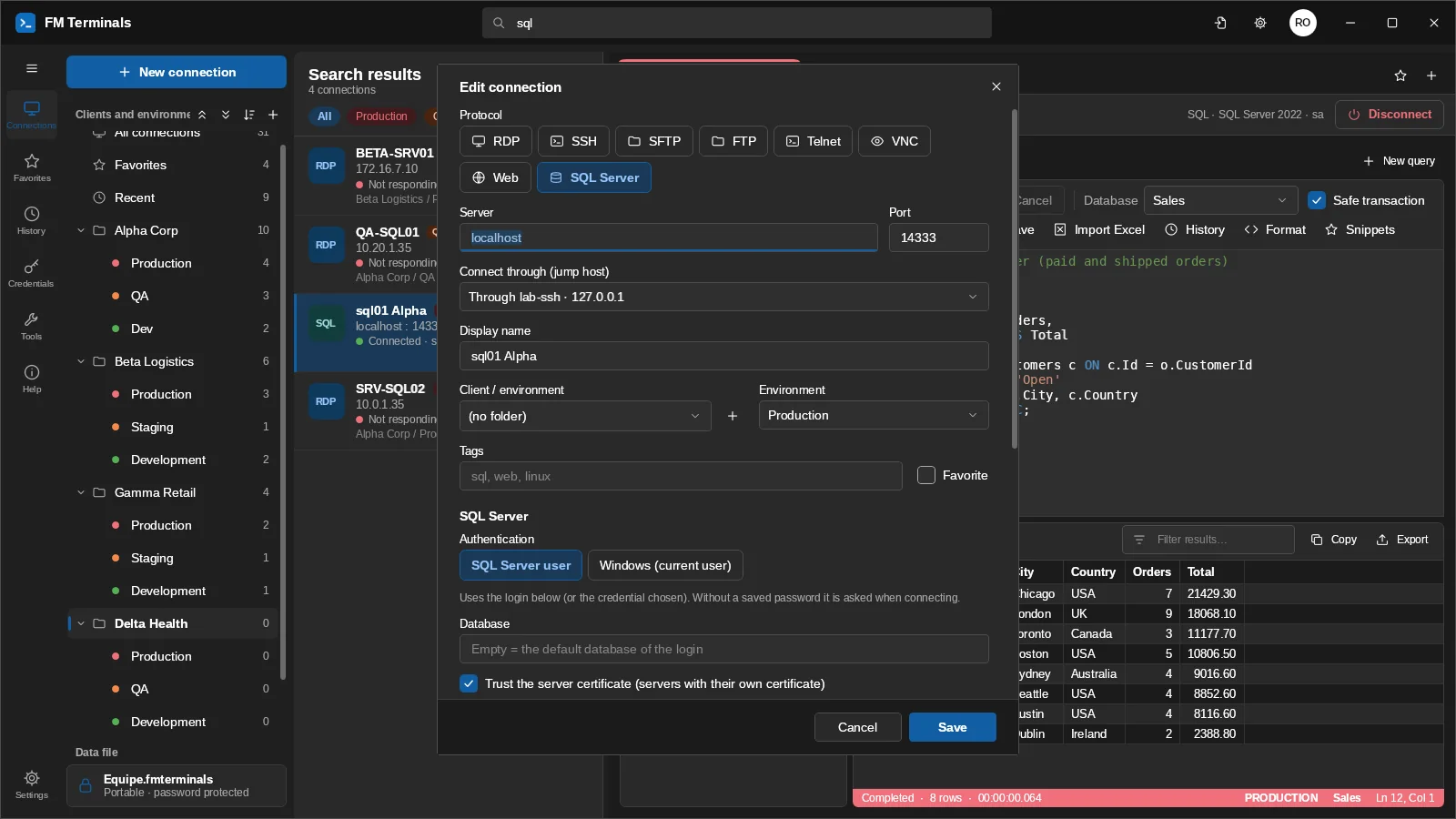
Reach servers behind a bastion: RDP, SQL, Web and SSH go through the tunnel on their own.

Detachable tabs and tab sets

Move a session to another monitor and open your daily routine with one click.

Serial console (COM)

Console cable on switches, routers and firewalls: port, speed and 8N1, with automatic login.

SFTP/FTP files

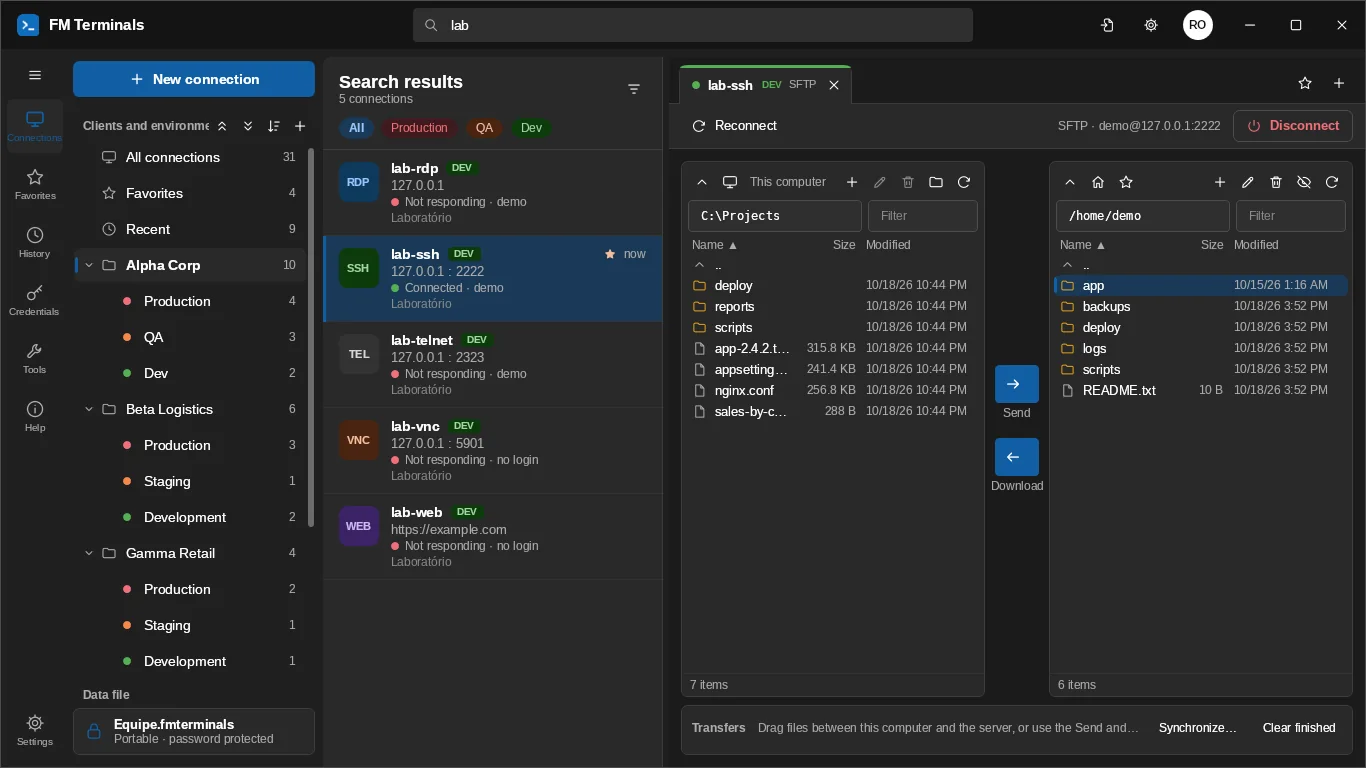
Computer and server side by side; drag to upload and download; synchronize folders.

Databases: SQL Server, PostgreSQL, MySQL, Oracle and D1

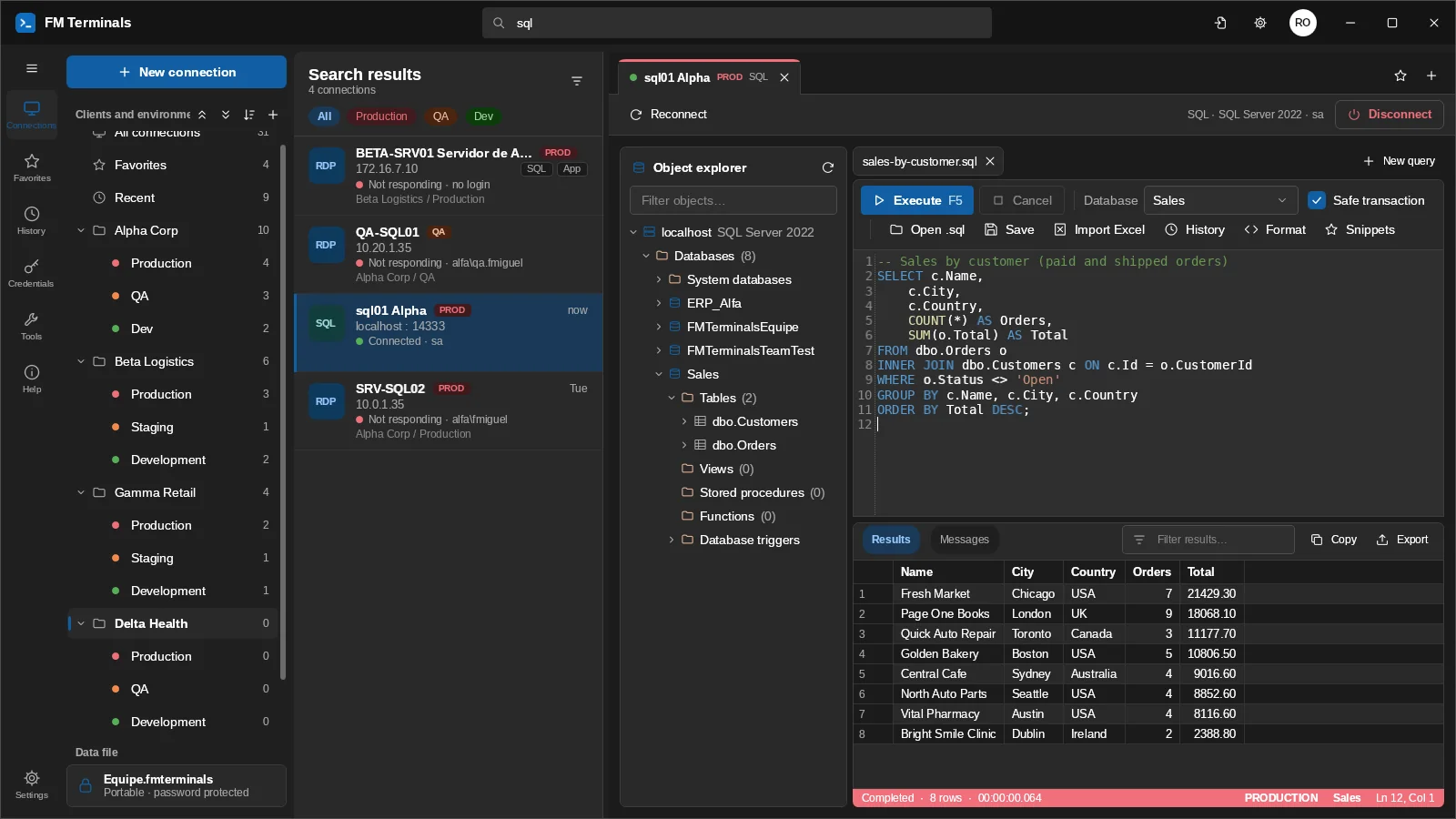
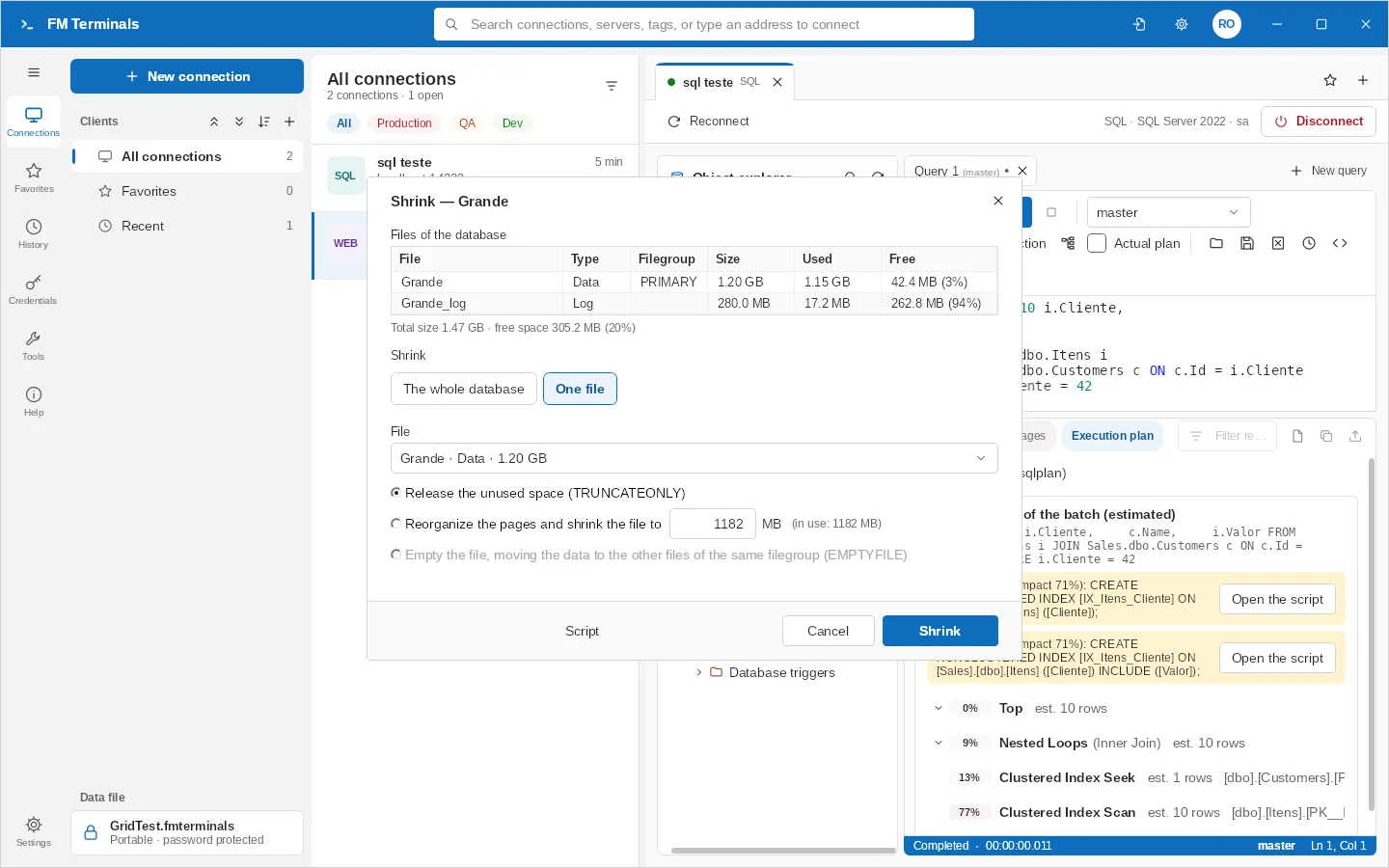
SSMS-style SQL Server client: object explorer with several servers in the same tab, queries, execution plan, a grid with sorting and filters, code comparison, backup, restore, shrink, CHECKDB and index maintenance, logins with server roles, SQL Server Agent jobs, script generation and Excel import. PostgreSQL, MySQL/MariaDB, Oracle and Cloudflare D1 with the same editor, object explorer and editable grid, plus queries in tabs, EXPLAIN plans, a Commit/Roll back bar and Oracle procedures, packages and triggers compiled with the errors by line. Also as FM Terminals SQL, its own Start menu icon with just the SQL client.

Architecture and PDF report

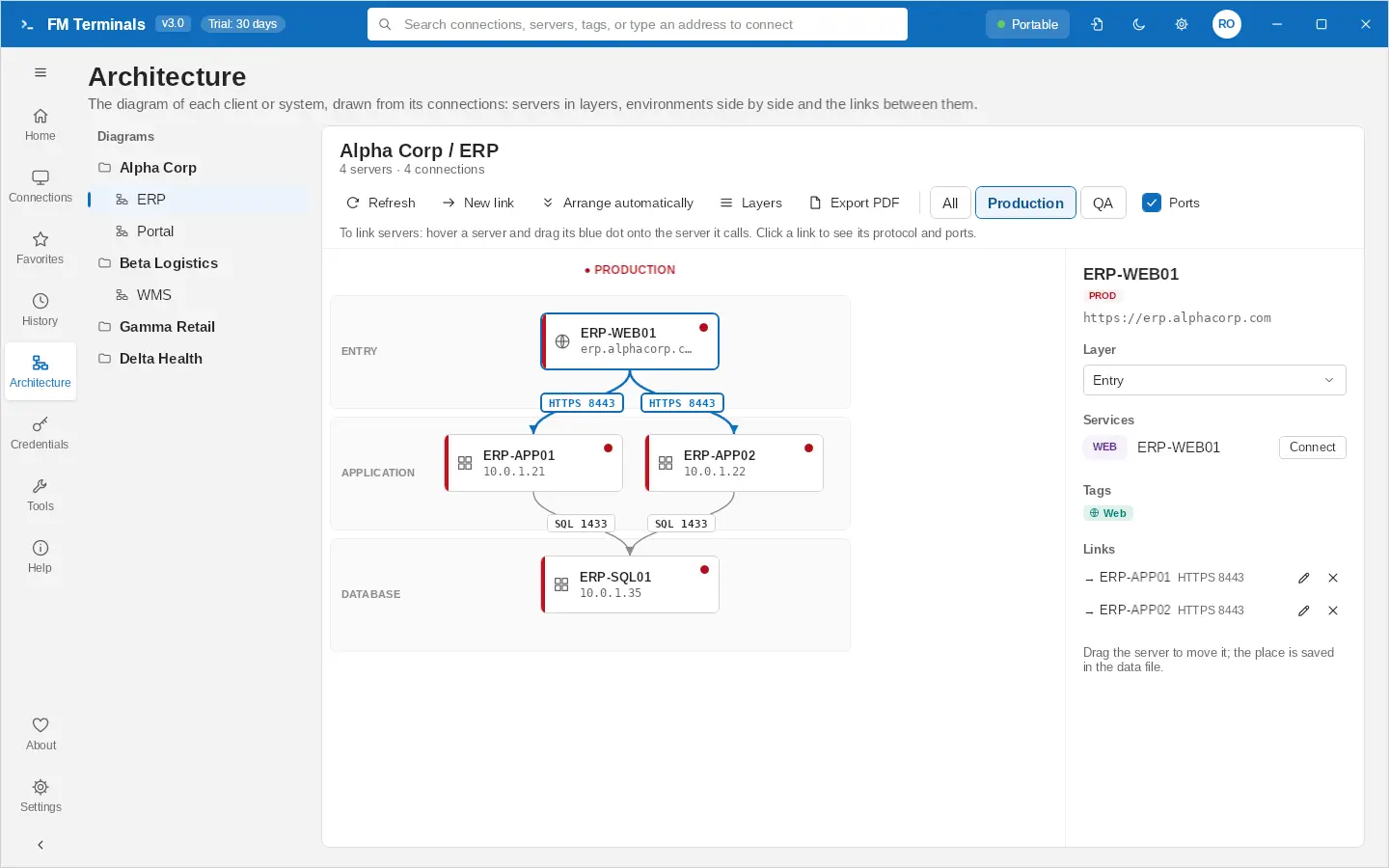
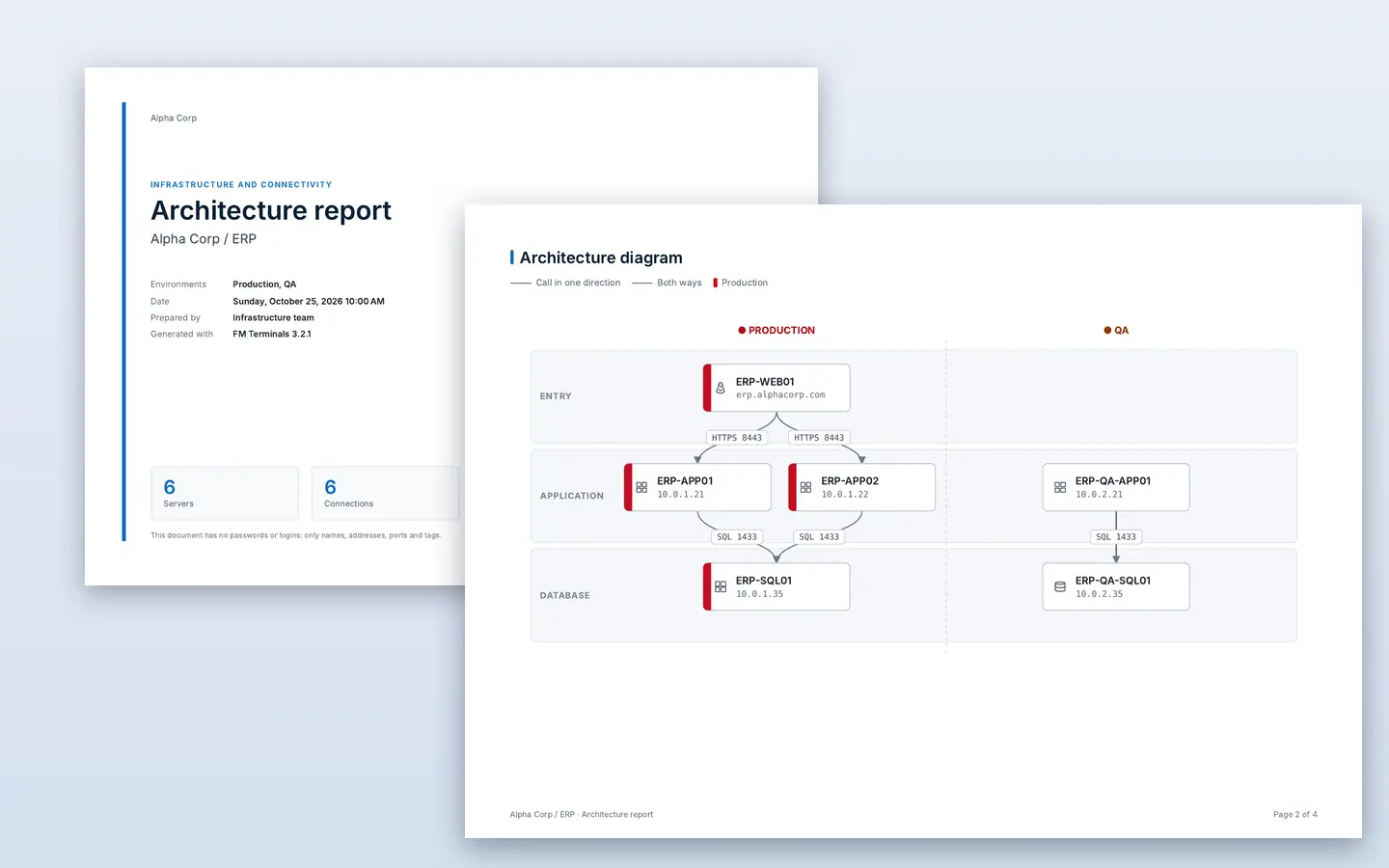
The diagram of each client or system built from its connections, in layers, with Production, QA and Dev side by side. Link servers by dragging one onto another, with protocol, ports and direction, and export a PDF report with a cover, diagram, server inventory and link matrix for the firewall. Each server can also be drawn as one of 34 shapes (database, cloud, firewall, load balancer, ship, platform…), in the color of its environment, on screen and in the PDF.

Trace queries (Profiler)

See live every command and procedure an application runs on SQL Server, with duration, CPU, reads and rows, filters by application, database, login and computer, and CSV export. Uses Extended Events and also works on Azure SQL Database.

AI SQL assistant (Claude)

Describe the query and Claude, by Anthropic, writes it from the database structure (tables, columns, keys and procedures), never the data. It fixes the error of the last run, changes the editor's query and writes table scripts; nothing runs on its own. With your own API key, the model of your choice and this month's spend in sight.

AI that organizes, explains and draws

Organize with AI suggests a client, system, environment and tags for imported connections, for you to review before they apply. Explain with AI says why a query is slow, from its execution plan or the query trace, and which index helps. In Architecture, AI suggests links between servers. Check passwords finds repeated, weak, old and unused credentials without leaving your computer.

Home screen and History

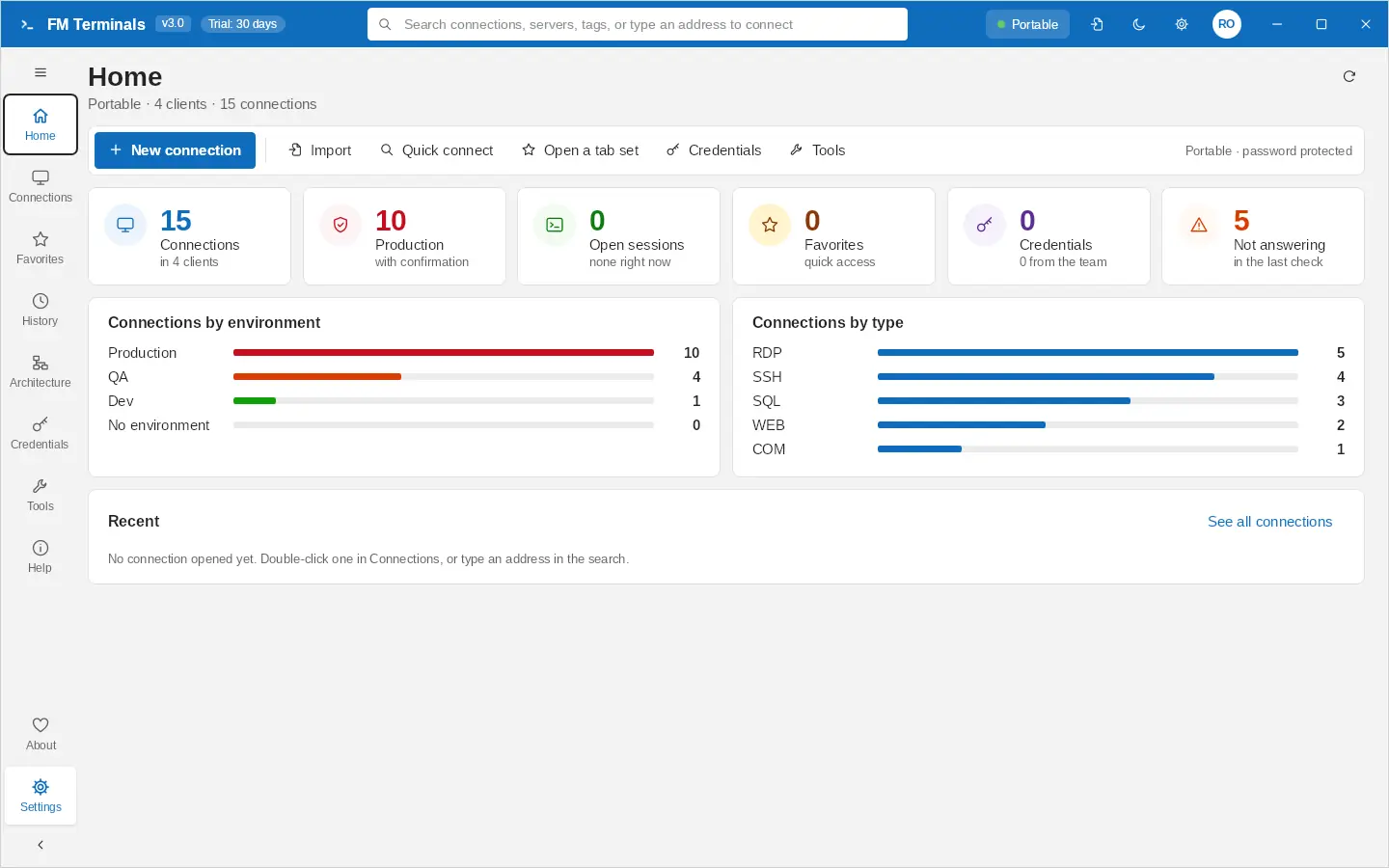
Your data file at a glance: connections, production, open sessions and servers not answering, by environment and by type. History keeps every connection opened on this computer, with a client filter and Connect.

Clients by system and tags

One line per client, with how many connections it has in Production, QA and Dev; the list split by environment with Production always first. Drag to change environment, organize by system and use tags with color and icon (Linux, Windows, database, web) to filter.

New password, new key

Changing the data file password also changes the key that protects the data: whoever knew only the old password, like someone who left the team, can no longer open the new versions. Teammates type the new password once.

Shared revisions

Every change to a procedure, view or function keeps the previous version; compare and restore. In a team, everyone sees the history.

Teamwork

A data file shared through the company SQL Server or a Cloudflare D1 database; each person has their own user, personal passwords only they can see, and passwords shared by group. Shared credentials keep their versions, access can be revoked per person or group, and the app says which passwords to change when someone who saw them leaves.

Several computers

Keep the file in a OneDrive, Google Drive or Dropbox folder; type the password once on each PC.

Import from where you are

Terminals, RDCMan, mRemoteNG, MobaXterm, .rdp files and CSV spreadsheets.

Automatic lock

The app locks itself when you step away; sessions stay connected. No data is sent to us.

Coming from MobaXterm, mRemoteNG, RDCMan or Terminals? See the comparison →

See it in 60 seconds

Create a client, open a tab set, join an RDP session and run a SQL query.
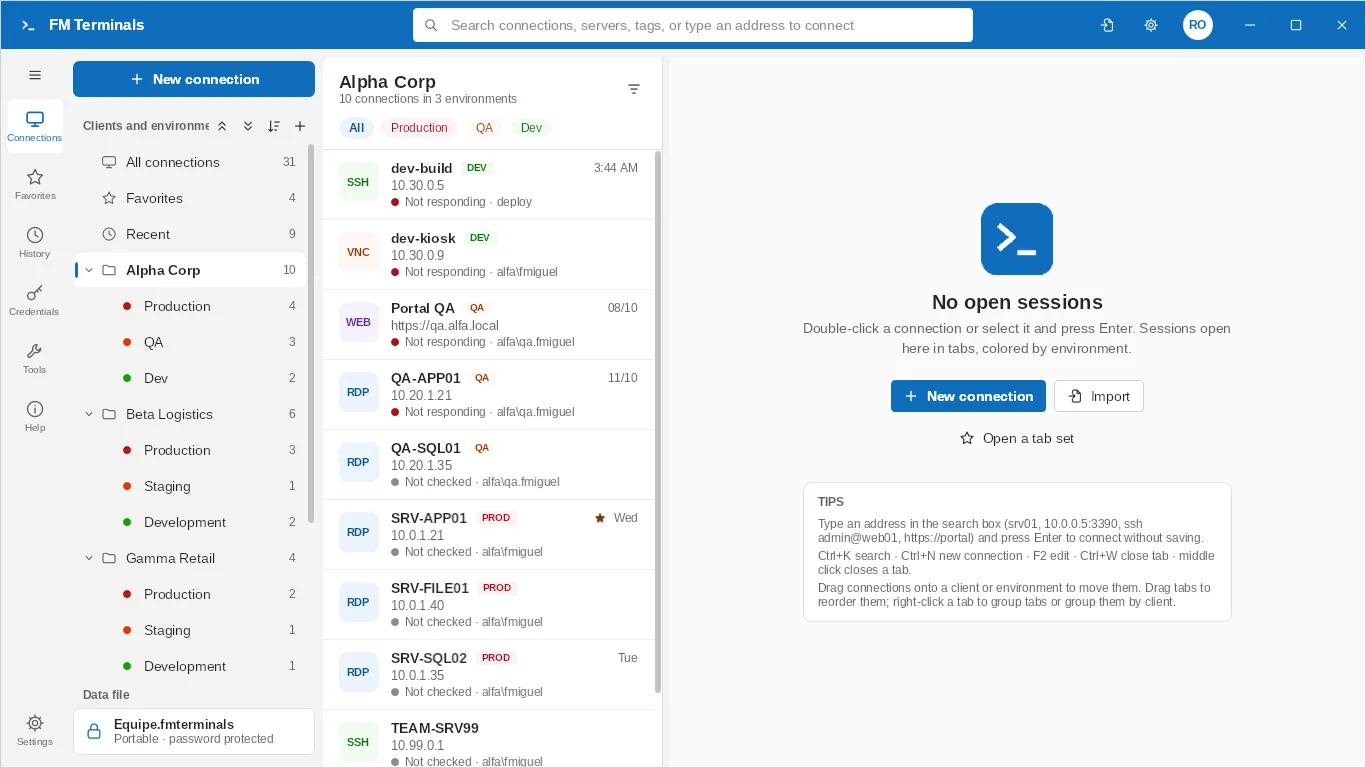
FM Terminals: connections and sessions in tabs

A look inside FM Terminals

Pricing

Start free. Buy only if you need unlimited connections.

No subscription

Up to 3 connections

After the 1-month trial, the app keeps opening with up to 3 connections, forever.

Individual

US$ 19.99/year

The Store shows the price in your local currency.

  • Unlimited connections and every feature.
  • 1-month trial with everything unlocked through the Microsoft Store.
  • Bought inside the app through the Microsoft Store, on your Microsoft account.
  • Annual license: valid for 1 year and renewable. In the last month the app warns you and renews through the Store.

Business

Corporate license — contact us

  • Corporate license with seats for the whole team.
  • For companies that block the Microsoft Store.
  • For those who need an invoice.

What's new

Everything that changed in FM Terminals, from the latest version back to the start of the project.

  1. 3.6.1 Team space and My space, signed roles and a new look

    • Team space and My space: the team's clients and connections apart from your private ones, which only you see and which live in the team vault, never in the shared file.
    • Admin, editor and member roles: members propose changes and editors approve them, seeing every real change setting by setting.
    • Signed roles and team copy (Ed25519): every computer checks who saved it, and the Cloudflare service and SQL Server enforce the roles too.
    • Your passwords become personal when a file goes to the team, and you choose who sees the ones you share; favorites are each person's.
    • Appearance: pastel colors, a color wheel and the interface font (Inter, Roboto, and Apple or Samsung fonts when installed).
    • The editor's login list starts with New credential and, in a client, shows only that client's logins and the ones not used yet.
  2. 3.5.2 Group connections with history and revoking

    • Personal and group connections keep their last 10 versions, with restore, and one person’s or group’s access can be revoked right in the connection editor.
    • A whole client can be shared at once, and the list filters what is Team, Personal or group.
  3. 3.5.0 Connections of your own or of a group, and a team database that updates itself

    • Personal, Team or Groups or people connections: personal and group ones live in the team vault, encrypted only for who can see them, never in the shared data file.
    • The team database (SQL Server or Cloudflare D1) is updated on connect, with additive changes only: earlier versions keep working while the team updates.
    • Architecture: a connection that is not a server (portal, VPN, tool) can stay out of the diagram.
  4. 3.4.0 A Home made for managing, connection tokens and clearer credentials

    • Home as a management dashboard: servers online and not answering (Production first, check again and connect), availability by client and by environment, and the credentials to fix.
    • Several connections at once: Ctrl or Shift and click to connect, favorite, clear tags or delete.
    • Connection token: an admin sends an FMT1- code and the person joins the team without seeing the database password or the Cloudflare token; validity, uses and revoking live in the database.
    • Credentials redesigned in three colored kinds: Personal, Team and Groups or people, with the password strength, who can see it and where it is used.
    • Architecture follows the team’s changes live, and an alert explains when a sync is refused for lack of permission.
  5. 3.3.0 Databases beyond SQL Server, teams on Cloudflare D1 and shapes

    • Database connections for PostgreSQL, MySQL/MariaDB, Oracle and Cloudflare D1, with a client like the SQL Server one: queries in tabs, execution plan, transaction with Commit and Roll back, editable grid and Oracle code (procedures, packages and triggers compiled with the errors by line).
    • Team server on Cloudflare D1 besides SQL Server: the shared data file, the vault and the SQL revisions can live in a D1 database.
    • Architecture: each server can be drawn as one of 34 shapes (database, cloud, firewall, load balancer, ship, platform…), in the color of its environment, on screen and in the PDF.
    • Shared credentials with versions: revoke access per person or group, with a warning about which passwords to change when someone who saw them leaves.
    • One navigator for clients and connections, with a back button and a peek of the hidden list from the left edge.
    • Safer sync: one team server per data file, and the work done offline is merged after a password change on another computer instead of being replaced.
  6. 3.2.10 Remote desktop fix

    • A connected remote desktop no longer shows on top of the Home, History, Architecture and Help pages.
  7. 3.2.9 General bug sweep

    • Settings no longer go back to the defaults when opening a .rdp or .sql file, and ANSI .sql files keep their accents when saved.
    • SQL results and editing: columns named c1, c2… and large decimals no longer stop the run, edited dates stay exact and scripts of columnstore, partitioned and filtered indexes come out right.
    • AI: answers in the right tab, complete costs, and addresses and personal credentials kept private when organizing.
  8. 3.2.8 Date format and more index commands

    • Date format of the SQL results of your choice, like NLS_DATE_FORMAT in Oracle.
    • Right click on indexes: CREATE and DROP scripts, rebuild, reorganize, statistics, fragmentation and delete; commands for all on the Indexes and Triggers folders.
    • Fixes: dates with and without milliseconds in the same format, and the object explorer no longer scrolls sideways on its own.
  9. 3.2.7 Column types and a faster filter

    • Types box in the SQL results: the type of each column under its name (varchar(20), datetime, numeric(15,0)…).
    • Object explorer filter without freezing, matching the name without the "dbo." and taking * or % as wildcards.
    • Fix: blank column names in results with many columns.
  10. 3.2.6 SQL editor suggestions right away

    • Choosing the database in the editor reads its tables, views and procedures again, so the suggestions show at once (optional, in Settings › Connections).
    • Fix: the suggestions only showed after opening the database in the object explorer.
  11. 3.2.5 Sober or colorful look

    • New Sober style (the default): neutral title bar, gray badges and icons, and color only where it means something (production, QA, alerts).
    • The Colorful style stays available in Settings › Appearance and switches on the spot.
  12. 3.2.4 AI to organize, explain and draw

    • Organize with AI: client, system, environment and tags suggested for your connections, reviewed before they apply.
    • Explain with AI: why a query is slow, from its execution plan or the query trace, with the index that helps.
    • Architecture: links between servers suggested by AI. Check passwords: repeated, weak, old and unused.
    • SQL assistant in a side panel with the conversation history, six models and the cost of each question alongside.
    • Open .sql, .rdp and .fmterminals files with a double click, and an instant Ctrl+A on results with thousands of rows.
  13. 3.2.3 SQL assistant with AI

    • Describe the query and Claude, by Anthropic, writes it from the database structure (never the data); it fixes the error of the last run and changes the editor's query. Nothing runs on its own.
    • With your own Anthropic API key; the model (Opus, Sonnet or Haiku) in Settings and this month's spend in the SQL session bar.
    • A livelier SQL editor toolbar: a red Stop button and a color for each tool.
  14. 3.2.2 Server roles in logins

    • SQL Server logins with server roles (sysadmin, dbcreator, securityadmin…), when creating the login or later, with a confirmation before giving sysadmin.
    • Fix: the SQL edit grid edits, inserts and deletes rows again.
  15. 3.2.1 New password, new key

    • Changing the data file password now also changes the key that protects the data: whoever knew only the old password (someone who left the team) can't open the new versions. Teammates type the new password once and go on without losing anything.
    • A full security and stability review: shell shortcuts (Ctrl+W, Ctrl+L) inside the terminal, safer folder sync, team groups, the SQL edit grid, mRemoteNG and CSV import.
    • SQL: the edit grid only saves when the results come from the table itself, Excel export keeps every digit of large numbers and restoring over an offline database asks first.
  16. 3.2 Architecture, Profiler and clients by system

    • Architecture: the diagram of each client or system built from its connections, in layers, with Production, QA and Dev side by side and live status; link servers by dragging one onto another.
    • Architecture report in PDF: cover with the client's logo, diagram, server inventory and link matrix.
    • Trace queries (Profiler) in the SQL Server client, live, with filters and CSV export.
    • Cleaner clients menu: one row per client, list grouped by environment, Organize by system and tags with a kind, color and icon.
    • More room for sessions: icons-only side menu and a list that can be hidden.
  17. 3.1 A new look

    • Home screen with the numbers of the data file, connections by environment and by type and the recent ones.
    • History of every connection opened, filtered by client.
    • A cleaner look: bigger text, light buttons, pill filters and the About window.
  18. 3.0 New major version

    • Brings together everything since 2.0: a full SSMS-style SQL Server client, FM Terminals SQL, team on SQL Server with an offline copy, WinSCP-style files, jump host, tab sets and Help with pictures in 13 languages.
  19. 2.0.47 to 2.0.51 Restore and stability

    • Restore database shows each file as it is in the backup, with the option to restore with the backup's file names.
    • Deleting files and folders on an SFTP/FTP server shows its progress, with a Stop button.
    • Fixes in the team vault, several SQL servers in one tab, INSERT scripts and SFTP reconnection.
  20. 2.0.46 FM Terminals SQL

    • FM Terminals SQL: a second icon in the Start menu that opens only the SQL Server client, like a separate SQL Server Management Studio, with its own taskbar icon. Same app, same purchase, same data file.
    • FM Terminals and FM Terminals SQL can stay open together: what one changes shows up in the other within seconds.
    • fmterminals command in Run (Win+R) or in the terminal; fmterminals /sql opens the SQL module.
  21. 2.0.45 Help with screenshots

    • Help (F1) and the manual cover every feature, with screenshots, in 13 languages.
  22. 2.0.44 Several SQL servers in one tab, logins and roles

    • Several SQL servers in the same tab, as in SQL Server Management Studio: one object explorer with all the servers and the queries of all of them together, each showing the server and database it runs on. The production-server warning follows each query.
    • Connect another server right from the explorer: a saved connection, or typing the server with user and password, Windows login or a saved credential.
    • Server logins: create (SQL Server or Windows), delete, enable/disable, change password and map to databases with each one's roles.
    • Database roles (user groups): create, delete and choose who belongs.
  23. 2.0.42 and 2.0.43 Database administration

    • Create, rename and delete databases, take them offline/online, warning how many connections are using the database and offering to close them.
    • Database properties: size, last backup, owner, recovery model, compatibility level and read-only.
    • Copy a database under another name on the same server, without touching the original's backups.
    • Detach and attach (.mdf), finding the log by itself.
    • Database sessions, maintenance (CHECKDB, statistics, fragmentation and index script) and users and permissions.
  24. 2.0.38 to 2.0.41 Team, files and appearance

    • Light/dark theme in one click (moon/sun in the title bar).
    • Default remote desktop resolution per client, and full screen at the monitor's real resolution.
    • New credentials as “only me” in a team file, synced through SQL Server, and a notice when team credentials are missing on this computer.
    • Tidier data folder: backups in the Backup folder and shared copies in the Shared folder.
See the rest of the timeline, back to the start
  1. 2.0.35 to 2.0.37 SQL Server even closer to SSMS

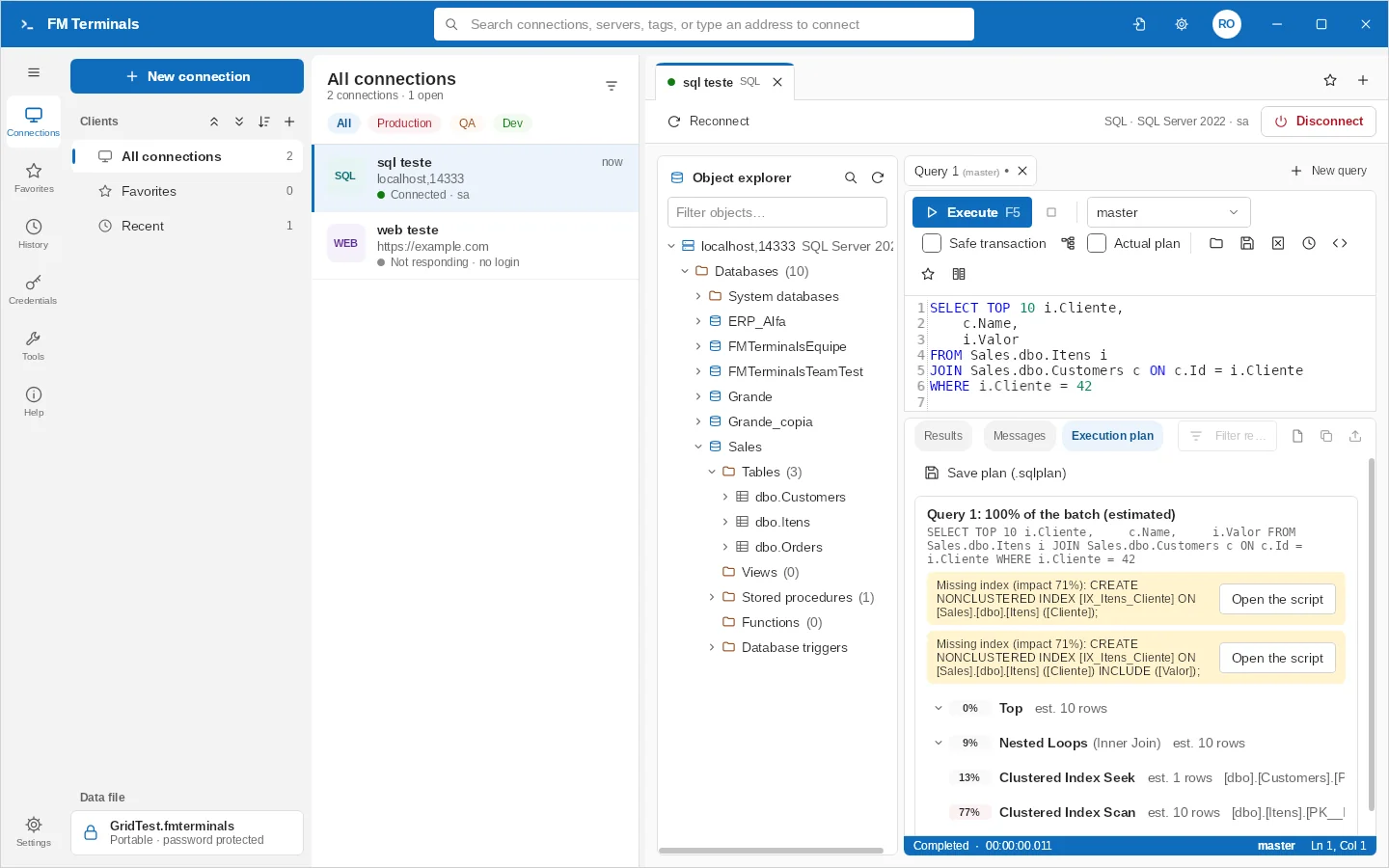
    • Estimated (Ctrl+L) and actual (Ctrl+M) execution plan: operator tree with the cost of each one, estimated × actual rows and missing-index suggestions with the script ready. Saves as .sqlplan.
    • Results as text (Ctrl+T).
    • Generate scripts for several tables, views, procedures and functions in a single file.
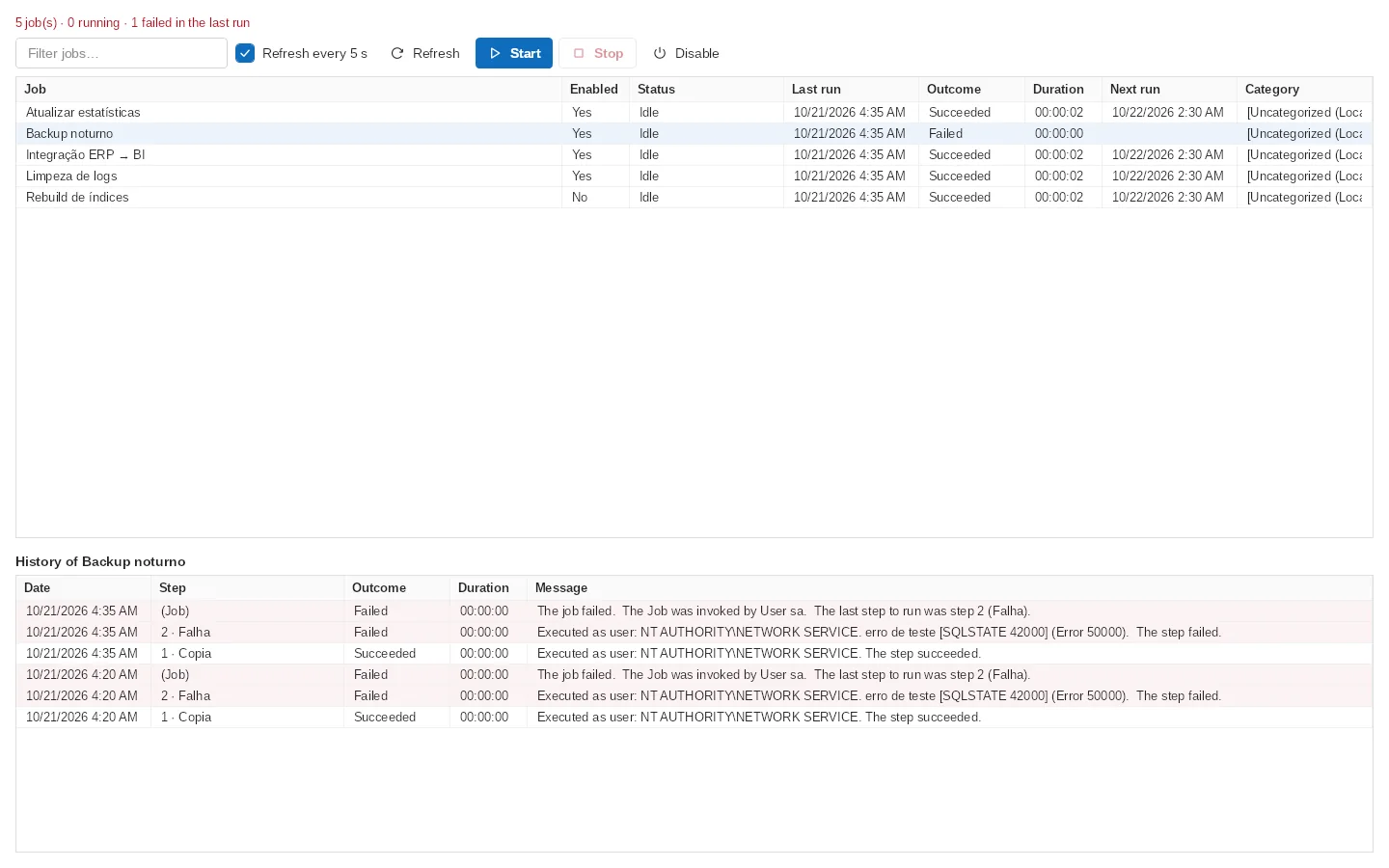
    • SQL Server Agent jobs: status, last and next run, start, stop, enable and history showing the step that failed.
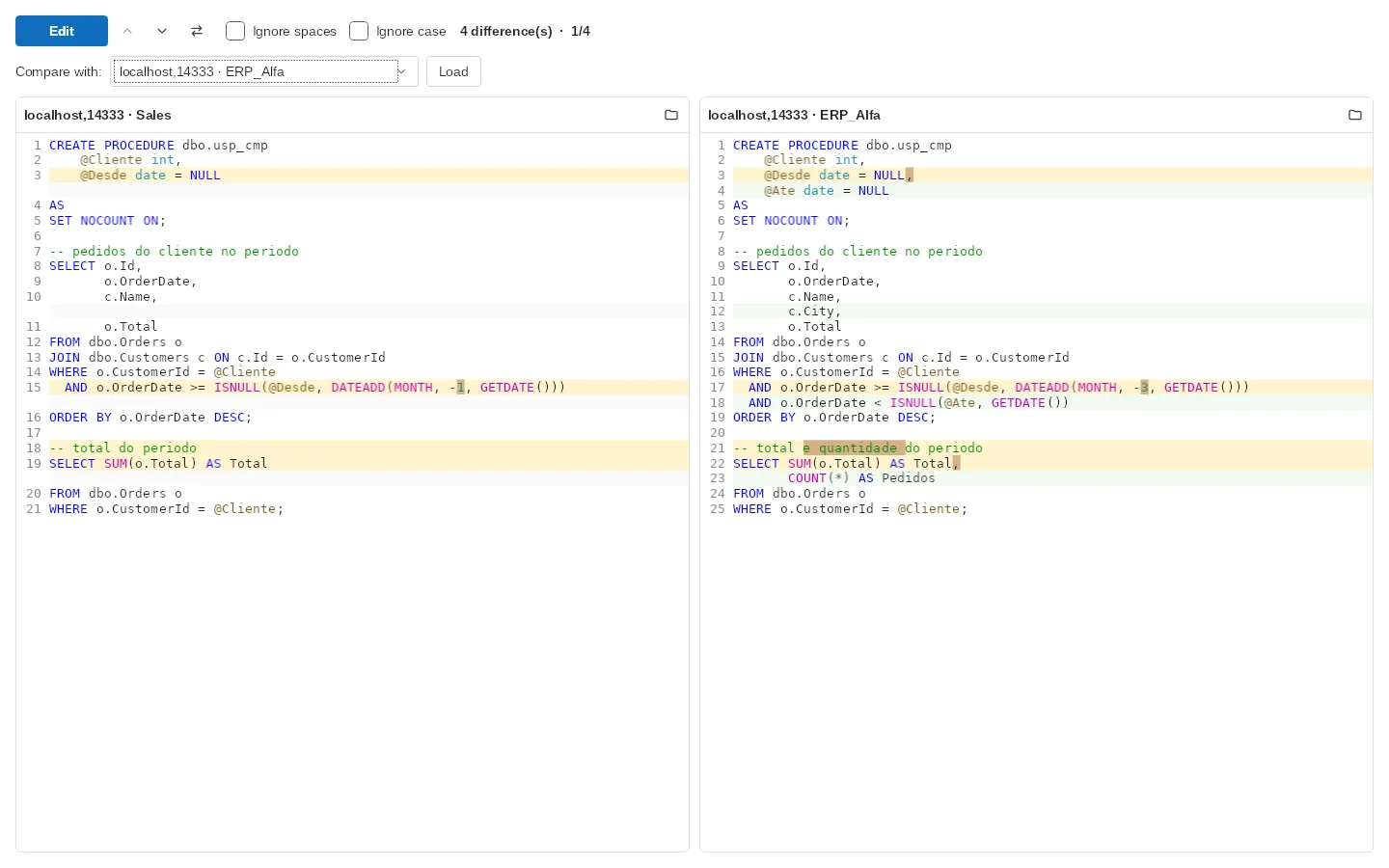
    • Compare across databases and servers: the same procedure in DEV × PROD, side by side, with the differences highlighted.
    • Rename right in the explorer (double-click or F2), copy column names and a clearer explorer filter.
    • Remote desktop with dynamic resolution: the session follows the window size.
    • Fixes: the explorer keeps folders open on refresh and no longer scrolls sideways hiding the arrows.
  2. 2.0.30 / 2.0.31 SQL Server database backup and restore

    • Back up a database straight from FM Terminals, as in SSMS: full, differential or transaction log, with compression, “copy only”, verification at the end and a progress bar.
    • Restore a backup (.bak): see the backups the file holds, restore over an existing database or as a new database with another name, choose where the files go and close open connections automatically. Replacing a database always asks for confirmation (with an extra warning in production).
    • Server folder browser: the backup file lives on the SQL Server computer, and FM Terminals shows its folders for you to choose from.
    • Script button: opens the BACKUP/RESTORE command in a query, for those who want to review it first.
    • Fix: buying the app in the Microsoft Store is now recognized right away (before, the trial period could keep showing).
  3. 2.0.29

    • More compact layout (2.0.29)
  4. 2.0.28

    • Serial (COM) (2.0.28): console cable for switches, routers and firewalls, with port, speed and saved login; typing “COM3” in the search opens the port at once
    • Web console (2.0.28): Reload (F5) and Inspect (F12)
    • Grid (2.0.28): sort A → Z / Z → A and filter by column
    • Search database objects (2.0.28)
    • Share a copy with a password, including the team credentials you can read (2.0.28)
    • Import from MobaXterm (2.0.28): .mxtsessions or MobaXterm.ini, with folders; alongside Terminals, RDCMan, mRemoteNG, .rdp and CSV
  5. 2.0.26

    • New credential straight from the client, credentials grouped by client and bulk delete (2.0.26)
  6. 2.0.24

    • Only through the Microsoft Store, with automatic updates (2.0.24) and a yearly subscription bought through the Store (2.0.23)
  7. 2.0.23

    • Jump host / SSH tunnel (2.0.23) for RDP, SQL Server, VNC, SSH, Telnet, SFTP and Web consoles, per connection or per client
    • Detachable tabs (2.0.17) and tab sets (2.0.23)
    • More RDP resolutions (2.0.23): 4K, ultrawide and others
    • Revisions of procedures, views, functions and triggers (2.0.19), shared with the team (2.0.23)
    • Table design (2.0.18 and 2.0.23) and table script export (2.0.18)
    • Optional automatic lock (2.0.23); the editor shows where the login in use comes from
    • First-run wizard (2.0.23)
    • Complete help (F1) with search, in 13 languages (2.0.21 and 2.0.23)
  8. 2.0.20

    • Licensing: 1-month trial and free mode with 3 connections
    • Individual yearly license and business team license, with seat control
    • Microsoft Store package
  9. 2.0.19

    • Revisions of procedures, views, functions and triggers, with comparison and restore
    • Reorganized table menu and context-based column autocomplete
    • Password-protected backup, automatic backups and recovery of the team's credentials
    • Sheet selection when importing spreadsheets
  10. 2.0.18

    • SQL server activity: CPU, memory, sessions, blocking and ending sessions
    • Export the full table script and table design to add columns
    • Object deletion with a simple confirmation
  11. 2.0.17

    • Tabs in separate windows
  12. 2.0.16

    • Rename, delete and generate DROP for database objects, with name confirmation in production
    • Ready-made templates (table, view, procedure, function, trigger)
    • Export a whole table to Excel and generate an INSERT script
    • Safe transaction in production (Commit / Rollback)
    • Result filter, format SQL (Ctrl+Shift+F), ready-made snippets and favorites
    • Clickable error, red PRODUCTION bar and clearer SQL Server login
  13. 2.0.15

    • Badge on every credential and filters (Only mine, Shared by me, Shared with me, From the data file, Unused)
    • "Who can use it" and "Where it is used"
    • Warning before changing a password and one-click access change
    • Login picked from a single list and a 3-step introduction for new members
  14. 2.0.14

    • Edit the first 200 rows as in SQL Server Management Studio, in a single transaction with conflict warning
    • Autocomplete for tables, columns, procedures and keywords
    • Query history per connection and richer query tabs
    • Triggers in the explorer
    • Export all results, one Excel sheet for each
  15. 2.0.13

    • SQL Server client: object explorer, queries with F5 and cancel, results and messages
    • Warning for UPDATE/DELETE without WHERE on production connections
    • Excel import into a new or existing table
    • Select cells, rows or columns and copy with or without headers
    • Export to Excel, CSV, JSON and XML
    • The Share button of the open credential now applies to all ticked ones
    • Resizable credentials list
    • Visual fix in the dark theme (row numbers and grid corner)

    Test builds: 2.0.13-teste1, 2.0.13-teste2, 2.0.13-teste3

  16. 2.0.12Test only

    • Fix: "Share (N)" now also removes access, not just grants it (included in 2.0.13)

    Test builds: 2.0.12-teste1

  17. 2.0.11

    • Checkboxes on credentials, "Select all" and "Share (N)"
    • Release notes in Portuguese and English

    Test builds: 2.0.11-teste1

  18. 2.0.10

    • Users with a personal password and groups (Default and custom)
    • Personal and shared credentials
    • "My credential" and "Make personal"

    Test builds: 2.0.10-teste1

  19. 2.0.9

    • Data file on the team's SQL Server, with an offline local copy
    • Automatic merging of changes and Windows or SQL login
    • Short "disconnected" notice, with details on the (i) button

    Test builds: 2.0.9-teste1

  20. 2.0.8

    • Sort clients by dragging or A–Z / Z–A
    • File operations on the server: rename, move, copy and paste
    • The same operations on "this computer", with Recycle Bin and Windows clipboard between both sides
    • Drag-and-drop fixes

    Test builds: 2.0.8-teste1, 2.0.8-teste2

  21. 2.0.7

    • Same content as 2.0.6, with a new executable so it is not blocked by Windows 11 Smart App Control

    Test builds: 2.0.7-teste1

  22. 2.0.6

    • Downloads and updates from the public repository
    • Dutch (13 languages)
  23. 2.0.5

    • One-click automatic update
    • 8 new languages
    • Resolution change in RDP

    Test builds: Teste A

  24. 2.0.4

    • SFTP and FTP/FTPS tabs
    • File panel in SSH
    • Transfer queue with resume
    • Folder sync, permissions and editing on Windows

    Test builds: 2.0.4-teste, 2.0.4-teste2, 2.0.4-teste3, 2.0.4-teste4

  25. 2.0.3

    • Spanish

    Test builds: 2.0.3-teste-atualizacao

  26. 2.0.2

    • RDP quality profiles
    • Tags in the list

    Test builds: 2.0.2-teste

  27. 2.0.1

    • First stable release of FM Terminals 2, bringing together 2.0.0 and the betas
  28. 2.0.0

    • Rewritten from scratch, in the style of the new Outlook
    • Clients and environments, credential vault and encrypted data file
    • RDP, SSH, Telnet, VNC and Web sessions
    • Import from other managers, including the Terminals "Export" file with passwords, with review and default client and environment folders
    • Resizable panels, tab groups, app colour and larger Settings
    • Norwegian, client colour and logo, collapse and expand all folders and deleting a folder with subfolders and connections

    Test builds: 2.0.0-beta.2, 2.0.0-beta.3, 2.0.0-beta.4, 2.0.0-beta.5, 2.0.0-beta.6, 2.0.0-beta.7, 2.0.0-beta.8

  29. Start

    • Starting point of the project: codebase modernised to .NET 10, with updated security

Frequently asked questions

What is FM Terminals?

A remote access and connection manager for Windows 10 and 11 (x64; runs on Windows 11 ARM through emulation): RDP, SSH, SFTP, FTP, Telnet, Serial, VNC and Web in tabs, plus a database client for SQL Server, PostgreSQL, MySQL/MariaDB, Oracle and Cloudflare D1, all organized by client and environment (Production, QA, Dev), with an AES-encrypted password vault and teamwork through the company SQL Server or Cloudflare D1. It is sold on the Microsoft Store and developed by Flávio Miguel (BRSEA Tecnologia).

Is FM Terminals an RDP manager?

Yes. FM Terminals is an RDP manager (a Remote Desktop connection manager) for Windows: every RDP connection is saved by client and environment (Production, QA, Development) and opens in tabs that fit the window with dynamic resolution, full screen at the monitor’s real resolution, with Ctrl+Alt+Del, optional printers and drives and the login from an encrypted vault, inherited from the client. It has tab sets, opens .rdp files and imports from RDCMan, mRemoteNG and MobaXterm. SSH, SFTP, VNC, web consoles and SQL databases open in the same window.

What is the best alternative to mRemoteNG, RDCMan, MobaXterm or Remote Desktop Manager on Windows?

For people who manage many clients and environments on Windows, FM Terminals is a complete alternative: it opens RDP, SSH, SFTP, VNC, Serial, web consoles and databases in tabs, organized by client and environment, with an encrypted password vault and teamwork. It imports connections from mRemoteNG, RDCMan, MobaXterm, Terminals and .rdp files. See the feature comparison.

How do I manage RDP and SSH connections for many clients?

In FM Terminals, create one client per customer and save its RDP, SSH and other connections under Production, QA or Development; one login per client works for all of its servers. Sessions open in tabs colored by environment, Production asks for confirmation before connecting, and tab sets open your daily routine with one click.

Can I keep RDP passwords encrypted?

Yes. Passwords live in the FM Terminals credential vault, inside a data file encrypted with AES-256 that only you can open (with your Windows account, a password or both). Change a client's password once and every connection that uses it gets the new one.

Does it work with PostgreSQL, MySQL and Oracle?

Yes, since version 3.3.0: the Database connection opens a SQL Developer-style client for PostgreSQL, MySQL/MariaDB, Oracle and Cloudflare D1, with an object explorer, queries in tabs, execution plans, an editable grid and a transaction with Commit and Roll back. SQL Server has its own SSMS-style client.

Can a team share connections without sharing passwords?

Yes. With a team server (the company SQL Server or a Cloudflare D1 database), everyone sees the same connections and each person signs in with their own user; personal passwords stay private and shared ones go only to the people or groups you choose, end-to-end encrypted. Access can be revoked per person or per group. See FM Terminals for teams.

Does it work offline?

Yes. Connections and credentials are kept in an encrypted data file on your computer, so FM Terminals opens without internet; you only need a network route to the servers you connect to. The Store license is checked once a week and works up to 3 weeks offline, and team credentials stay available for 7 days without contact with the team server.

Is there a free trial?

Yes: 1 month (30 days) with everything unlocked through the Microsoft Store, no card needed. After that it keeps working with up to 3 connections; unlimited connections cost US$ 19.99 a year (the Store shows the price in your currency).

What happens after the 1-month trial?

It keeps working for free with up to 3 connections. For unlimited connections, buy the annual license inside the app.

How do I pay?

Through the Microsoft Store, with a card, PayPal or Microsoft account balance. The license is annual (1 year, renewable) and renewal also goes through the Store.

Does it work on more than one computer?

Yes. The license is tied to your Microsoft account, and the data file can live in a cloud folder.

Do my passwords go to one of your servers?

No. They stay encrypted on your computer, in your cloud or on your company SQL Server. There is no telemetry.

My company blocks the Microsoft Store. Now what?

Write to support@brsea.com.br: we have a corporate license and installation for those cases.

I already use mRemoteNG/RDCMan/Terminals. Can I migrate?

Yes. Import your connections and credentials in Tools → Import.

Does it run on Windows 11 ARM?

Yes. The Microsoft Store package (x64) runs on Windows 11 on ARM PCs through the x64 emulation built into Windows, and on x64 PCs with Windows 10 and 11.

Which languages does it support?

13, with the interface and help translated: Português (Brasil), Português (Portugal), English, Español, Français, Deutsch, Italiano, Nederlands, Dansk, Norsk, Polski, Русский, 中文 (简体). It opens in the Windows language and can be changed in Settings.

Does it work with a console cable (serial / USB-serial port)?

Yes, since 2.0.28: create a Serial connection, pick the port (COM3…) and the speed.

Can I bring my MobaXterm sessions?

Yes: export your sessions in MobaXterm (.mxtsessions) and use Import › MobaXterm. Passwords do not come along (MobaXterm does not export them).

How do I move my connections and passwords to another computer?

Tools › Share a copy with a password (it includes the team credentials you can read), or keep the data file in a OneDrive, Google Drive or Dropbox folder.

How do I get updates?

Automatically through the Microsoft Store.

Can I back up and restore SQL Server databases?

Yes, since 2.0.30: right-click the database › Back up…, or Databases › Restore database…. The .bak file lives on the SQL server, as in SSMS.

I bought on the Microsoft Store and reinstalled; do I lose the license?

No. The purchase stays on your Microsoft account: when you reinstall or use another computer with the same account, FM Terminals recognizes the license by itself.

Is there an execution plan like in SSMS?

Yes: Ctrl+L shows the estimated plan without running; Ctrl+M includes the actual plan along with the results. FM Terminals highlights the most expensive operators and suggests indexes.

Does the license expire?

The Store license is valid for 1 year. In the last month the app shows a notice with a Renew in Store button; the date appears in Settings › About.

Can I work with several SQL servers at the same time?

Yes. They all sit in the same object explorer, as in SSMS, and each query shows which server and database it runs on. You can open a saved connection or type the server on the spot.

Can I create logins and grant access to databases?

Yes: in Logins… (right-click the server) you create the login and tick which databases it has a user in and with which roles. Database roles can also be created and deleted, and server roles (such as sysadmin and dbcreator) give access to the whole server.

Can I copy a database to test something?

Yes: right-click the database › Copy database… creates a copy under another name on the same server, without affecting the original's backups.

Can I use just the SQL Server part?

Yes. FM Terminals also installs FM Terminals SQL in the Start menu: it opens only the SQL Server connections, with the object explorer and queries, and can stay open alongside the full FM Terminals. It is not a separate purchase.

Can I draw the architecture of my clients?

Yes, since 3.2: the Architecture menu. The diagram is built from the connections you already have; link servers by dragging one onto another and export a PDF report with inventory and link matrix.

Can I see the queries an application runs, like in SQL Server Profiler?

Yes, since 3.2: right-click a server or database › Trace queries (Profiler). It needs the ALTER ANY EVENT SESSION permission.

Photo of Flávio Miguel

Who makes FM Terminals

I'm Flávio da Costa Miguel, a production engineer and an IT professional for more than 25 years. I have spent that time among servers, databases and client systems in energy, shipping and industry, running rollouts, integrations and support for teams in several countries.

Every day I open dozens of connections, RDP, SSH, SFTP and SQL Server, to different clients and environments. No tool brought all of that together with the organization and the security this routine demands. So I built one. FM Terminals is the program I wish I had had all those years, and it is what I use all day long.

Every feature comes from a real need, mine or a user's. Suggestions and problems reach me directly at support@brsea.com.br. Made by someone who uses it.

Away from the computer: family, technology and a good barbecue.

My LinkedIn (opens in a new tab)

Developed by BRSEA — www.brsea.com.br (opens in a new tab)