
FM Terminals manual
This is the same Help that ships with the program, version 3.6.1, to read in the browser.
In short: this manual explains how to install FM Terminals, organize connections by client and environment, keep credentials in the encrypted vault, open RDP, SSH, SFTP, VNC, Serial and web sessions in tabs, use the SQL Server client and the PostgreSQL, MySQL, Oracle and Cloudflare D1 client, share the data file with a team on SQL Server or Cloudflare D1, and buy or renew the license. Every chapter and section has its own link in the contents. Comparing tools? See FM Terminals vs mRemoteNG, RDCMan, MobaXterm and others.
What is FM Terminals
FM Terminals is a remote connections manager for Windows, built for people who manage servers for many clients every day. It brings together, in tabs within a single window, remote desktop (RDP), SSH, Telnet and Serial terminals, file transfer (SFTP, FTP and FTPS), VNC, Web consoles and a full SQL Server client, similar to SQL Server Management Studio.
Connections are organized by client and by environment (Production, QA, Staging and Development), passwords are kept in an encrypted vault, and a whole team can work with the same connections through the company's SQL Server, with each person's credentials protected end to end.
Key benefits
- Everything in one place: RDP, SSH, SFTP, VNC, Serial, Web and SQL Server in tabs, without switching between several programs.
- Organized by client and environment, with colors that make it clear when you are in Production.
- Security: data file and passwords encrypted with AES-256; confirmation before connecting to Production; safe transaction in SQL; lock when you step away.
- Teamwork: shared connections and per-person or per-group credentials that not even the database administrator can read.
- Microsoft Store: installation and automatic updates through the Store.
- 13 languages, light and dark themes, and a layout designed for 14" laptops too.
Getting started
Install
- Install FM Terminals from the Microsoft Store (search for "FM Terminals" or open apps.microsoft.com/detail/9NHM1VJXHQTB).
- Open it from the Start menu. Updates arrive on their own through the Store.
- The first time, the wizard asks where you will use your connections: only on this computer (no password to remember), on several computers (the file goes to a OneDrive, Google Drive or Dropbox folder, with a password typed once on each computer) or with a team (opens the link to SQL Server). You can also open a data file you already have.
The data file
The first time, the welcome screen asks where you will use your connections: Only me, on this computer, Me, on several computers (in a OneDrive, Google Drive or Dropbox folder) or A team (with the team server on SQL Server or Cloudflare D1). Below, I already have a data file… opens an existing file and I have a connection token… opens the window to paste the code an admin sent you.
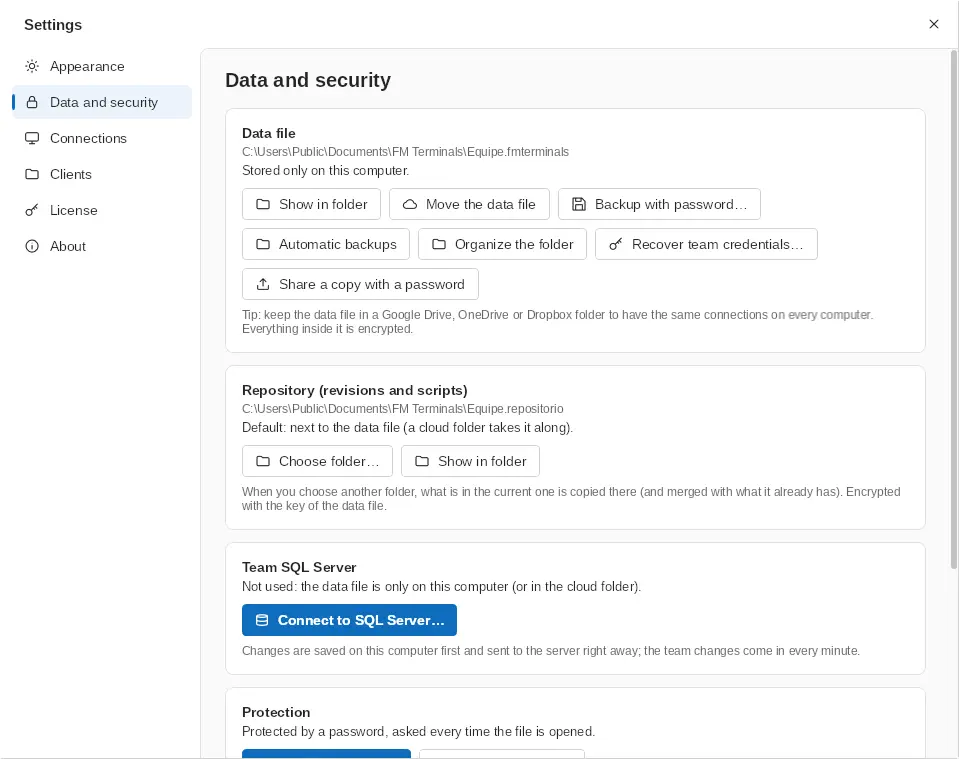
All connections, clients and credentials are stored in a single encrypted .fmterminals file. It can be protected by your Windows account (it opens without asking for a password on this computer), by a password, or by both. The file is saved automatically on every change.
- The file's folder stays tidy: the previous version (.bak) goes to the Backup subfolder, and password-protected and shared copies go to the Backup and Shared folders. Organize the folder (Settings › Data and security) moves whatever was left loose.
- The repository (revisions and scripts) is kept next to the file, encrypted with its key; in a team file, it is kept in SQL Server.
Bring in the connections you already have
With Import, FM Terminals brings in connections and passwords from Terminals 4, Remote Desktop Connection Manager (RDCMan), mRemoteNG, .rdp files and CSV spreadsheets, plus MobaXterm sessions (.mxtsessions or MobaXterm.ini, with their folders; MobaXterm does not export passwords, so they are asked for on the first connection). Before saving, you review what will be imported and choose the target client, folders and environment. Another FM Terminals file (a data file or a .bak backup) adds clients, folders, connections and passwords to what you have: nothing is replaced and identical connections are skipped. File › Open, instead, swaps the open file for the other one.
Opening .sql and .rdp files
In the Microsoft Store version, FM Terminals shows up in Open with for .sql, .rdp and .fmterminals files (the first time, Windows asks which app should open them). A .sql script opens in FM Terminals SQL, in a new query of the SQL tab already connected, or on the SQL Server you choose; nothing runs until you press F5, and Save writes it back to the same file. A .rdp file opens the saved connection to the same computer, if there is one; otherwise choose Just connect or Save and connect (the connection editor opens to pick the client and environment). If FM Terminals is already open, the file opens in a new tab of that window. In the results grid, Ctrl+A selects every row at once, even with tens of thousands of rows, and Ctrl+C copies them, ready to paste into Excel.
The Home screen
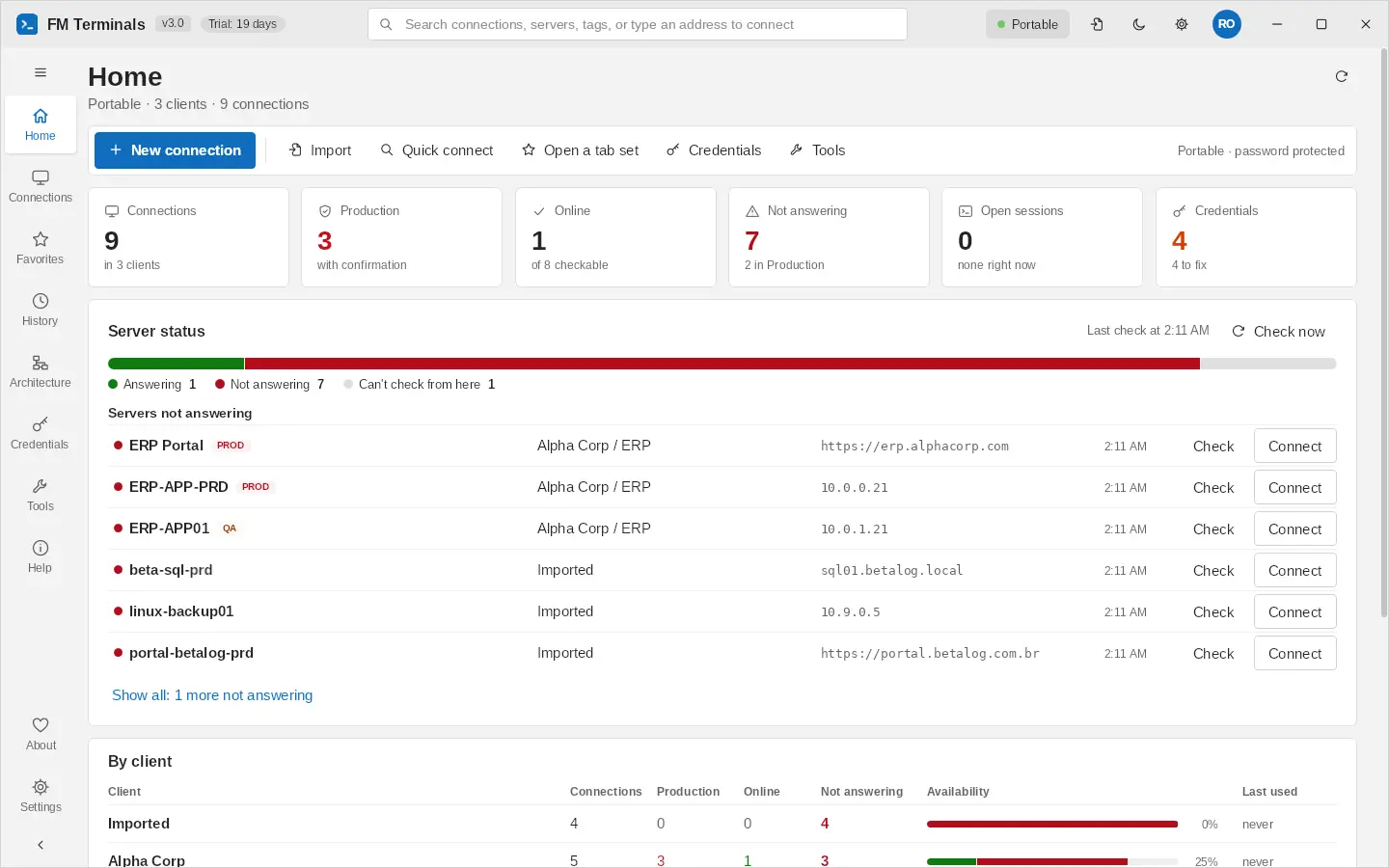
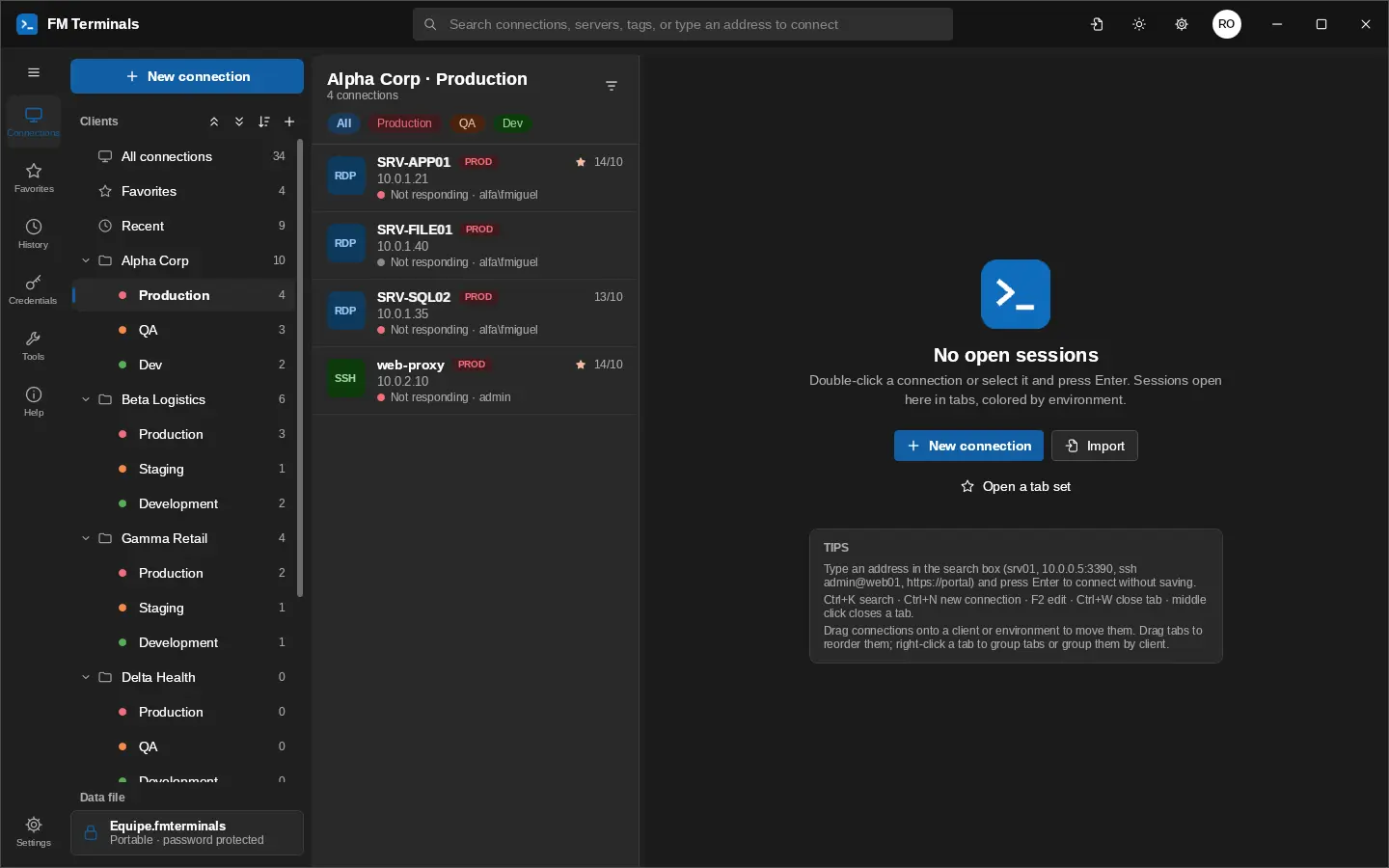
FM Terminals opens on the Home screen, made to see the environment at a glance, like a management dashboard. The cards show the connections, the Production servers, how many are Online and how many are Not answering (and how many of those are Production), the open sessions and the credentials with something to fix (a weak, repeated or old password). Click a card to open that list.
- Server status: FM Terminals checks the port of every server when the Home screen opens and every 3 minutes while it is on screen (8 at a time, 1.5 seconds each at most). The bar shows how many answer, how many don't and how many can't be checked from here (behind a jump host, through a tnsnames.ora alias or without an address). Check now checks them all again.
- Servers not answering: the list starts with the Production ones, with the client, the address and the time of the check; Check retries only that server and Connect opens the session. Show all shows the whole list.
- By client: for each client, the number of connections, how many are Production, how many answer, how many don't, the availability (the ones answering out of the ones checked) and when it was last used. Clients with servers not answering come first; click a row to open that client's connections.
- Connections by environment shows, under each environment, how many servers are online and how many are not answering; Connections by type and the recent ones, each with a Connect button, are still below.
The action bar has New connection, Import, Quick connect, tab sets, credentials and tools. The check is only the port (TCP): a server that answers may still refuse the login.
History
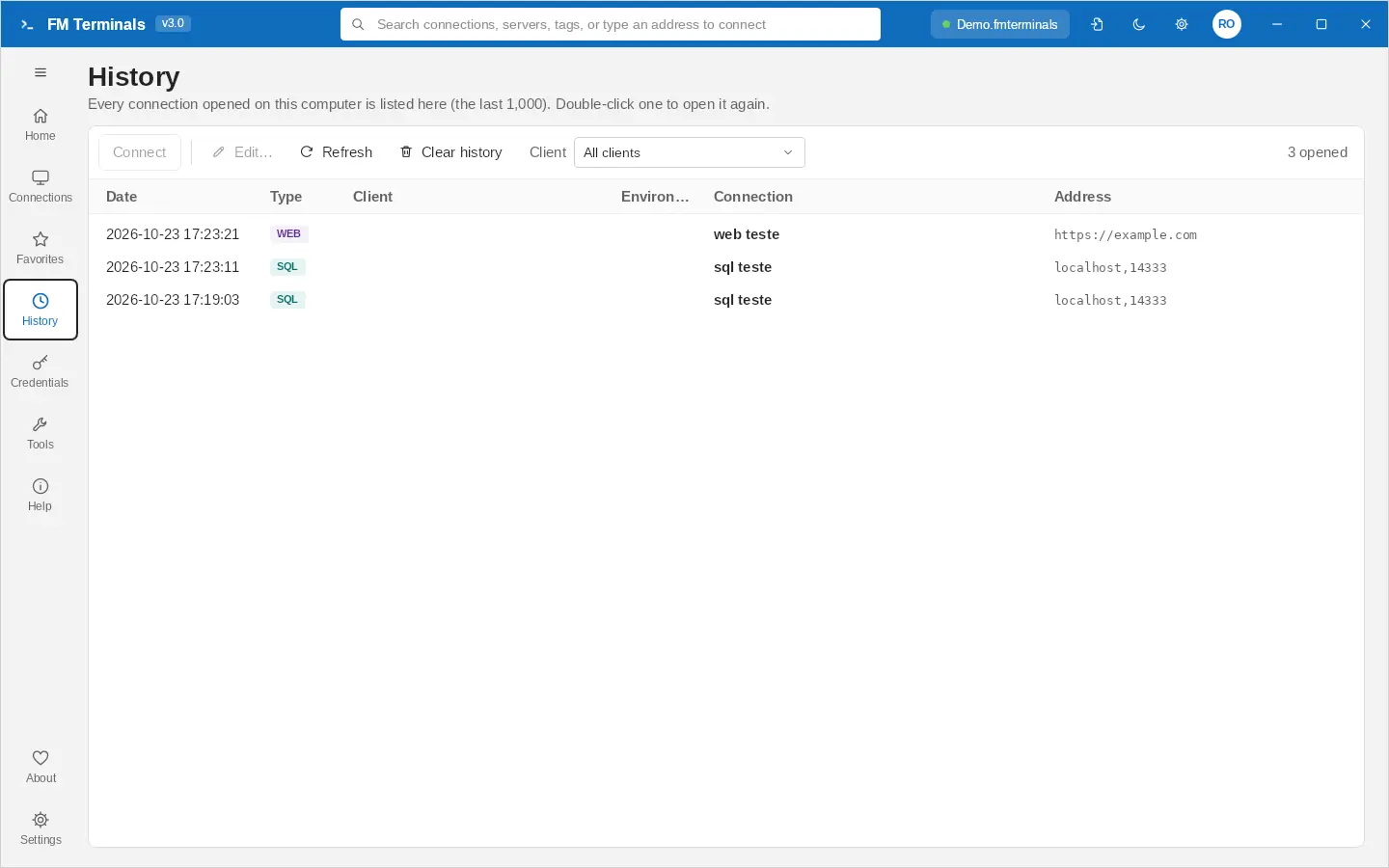
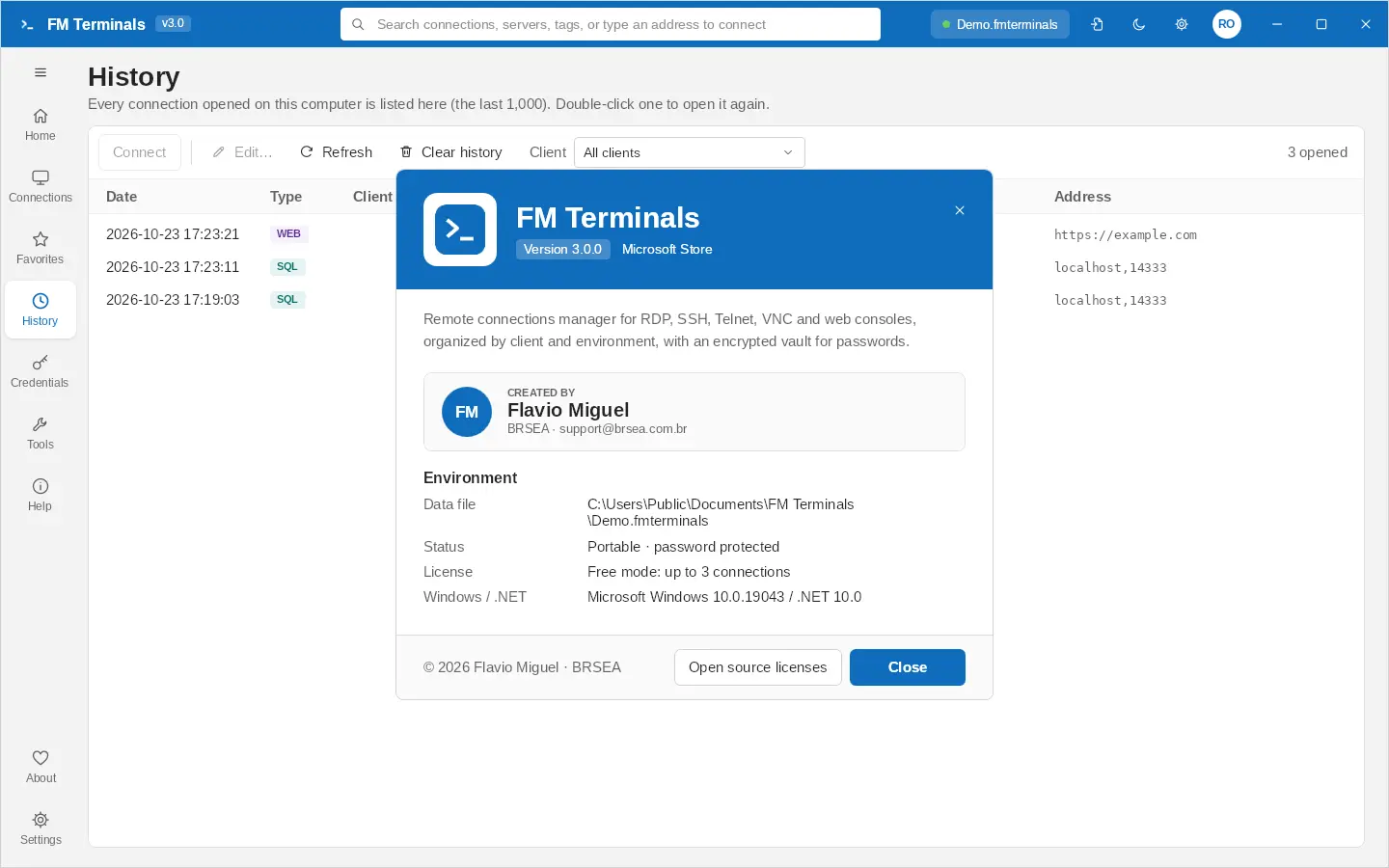
Every connection opened on this computer is recorded in History (the last 1,000), in a table with date and time, type, client, environment, connection and address. Filter by Client, double-click (or Connect) to open it again, or use Edit to change the connection. A deleted connection is shown dimmed. Clear history clears only the list; the connections stay saved. The history stays on this computer, protected by your Windows account.
About
About, at the bottom of the side menu, shows the version, who made FM Terminals and, under Environment, the data file, its status, the license and the Windows and .NET versions, useful when asking for support. Open source licenses opens the notices of the components used. The title bar also shows the version and the data file with a green dot (yellow when the team's SQL Server doesn't answer); click it to open the data file settings.
Clients, environments and connections
Clients and environments
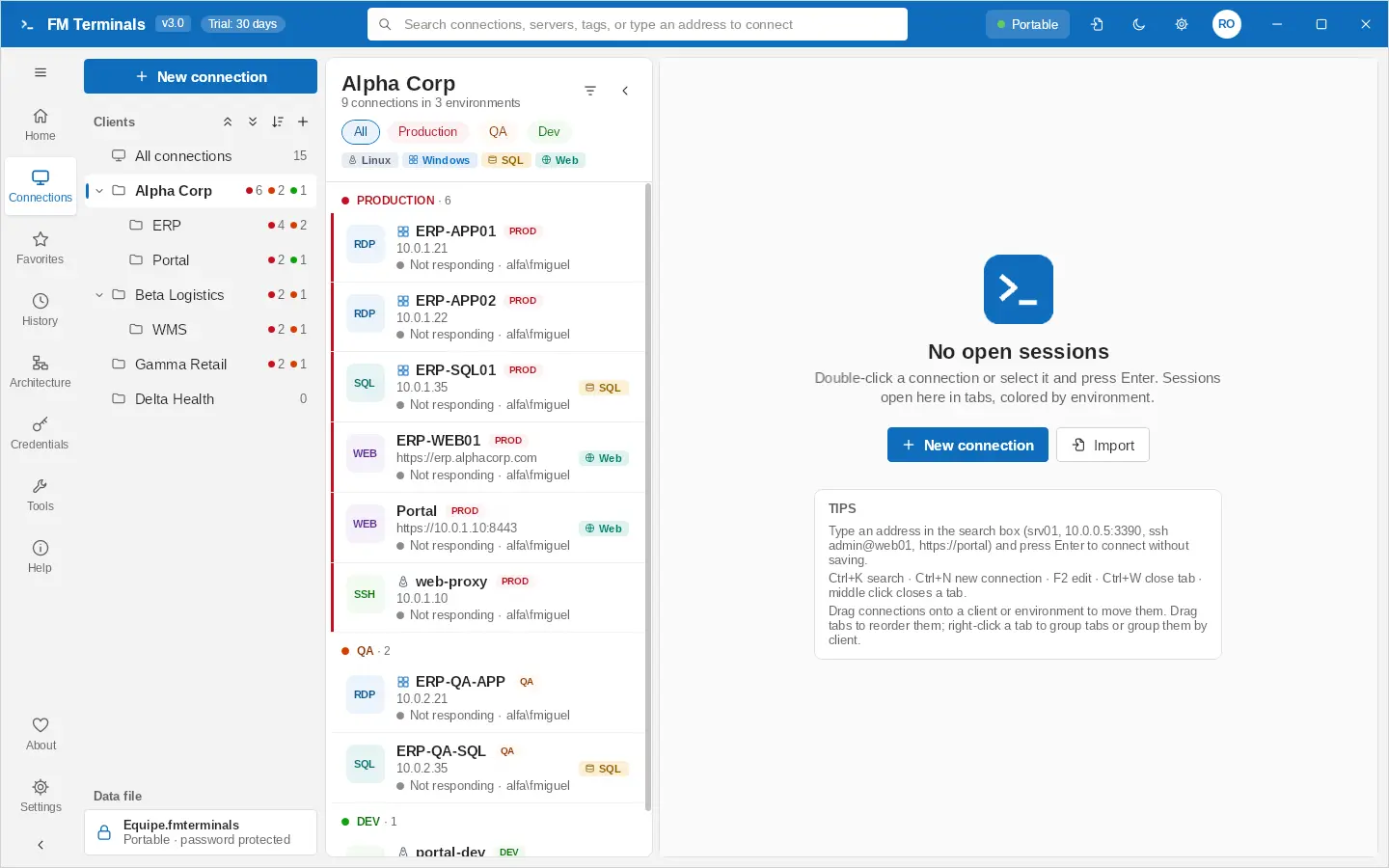
Each client is one row in the side menu, with colored dots counting its connections in Production (red), QA (orange) and Development (green). The environment is chosen on each connection, and the list groups the connections by environment, Production first with a red stripe; the pills at the top show one environment. Drag a connection onto another environment's group to change it. Each client can have its own color and logo, and you set the order of clients by dragging them.
On the client (or on an environment folder) you set what applies to all of its connections:
- Default login: the credential used by connections that have no login of their own (see chapter 4). + New credential… creates one right there.
- Jump host: the SSH connection (bastion) that the client's connections go through.
- Remote desktop screen size: connections set to "Client's default" open with it; an option also applies the size to existing connections.
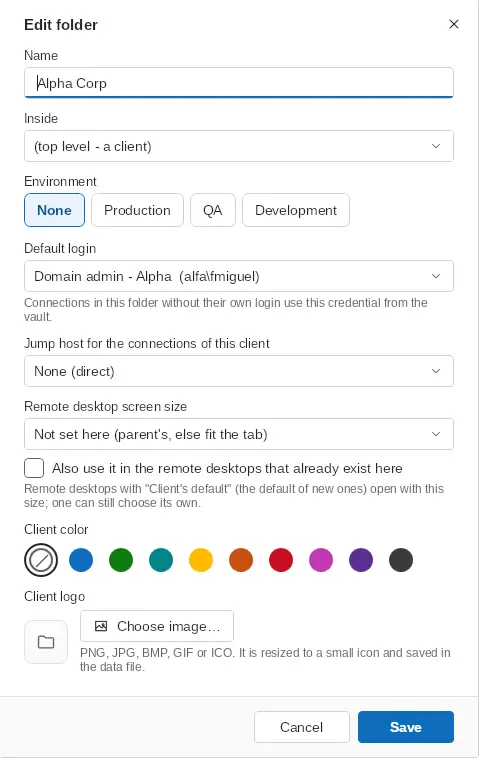
- Production confirmation: before connecting to a Production server, the program asks for confirmation (this can be turned off in Settings).
- Connect to all: opens all the connections of a client or environment at once.
The clients and connections navigator
Clients and connections live in one navigator with two levels: the list of clients (with "N connections in M clients") and, on a click on a client, its connections, split by environment, with the ‹ button (Back to the clients) at the top. Drag a connection onto the header or the back button to open the clients and drop it on another client. Client folders are dragged to reorder, and the keyboard walks the tree (Enter enters the client). The environment filter shows the count of each one, and the tags are a menu, with the chosen ones as chips.
- Hiding the navigator (arrow at the top or Ctrl+Shift+B) gives the space to the sessions; hover the left edge to peek at the connections over the session (over a remote desktop too) and click the handle to bring them back. The peek closes when the program locks.
- On the side menu, clicking again the button of the page already open (Connections, Favorites, History) brings the hidden navigator back.
- Compact rows (the navigator's ⋯ menu) makes the list denser; each row shows the state, the tag marks, address · login and, under the mouse, connect, edit and copy the server.
Systems and tags
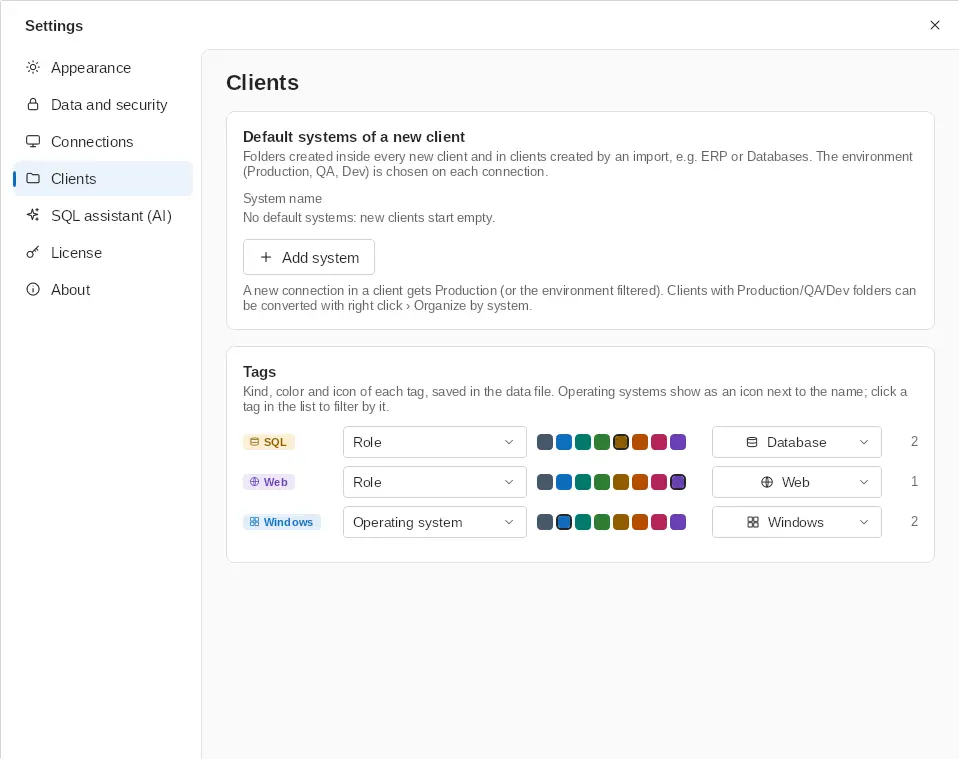
Inside a client, folders group the servers by system (ERP, Portal, Databases...), each with connections of every environment. A client still split into Production, QA and Dev folders is converted with right-click › Organize by system: the system folders go up to the client, those with the same name become one and every connection keeps its environment, login and jump host. The default systems of a new client are set in Settings › Clients.
Tags have a kind, a color and an icon (Settings › Clients › Tags): operating systems (Linux, Windows) show as an icon next to the name, and database, web and admin get a suggested icon and color. Click a tag on a connection, or in the bar above the list, to show only the connections with it.
Organize with AI
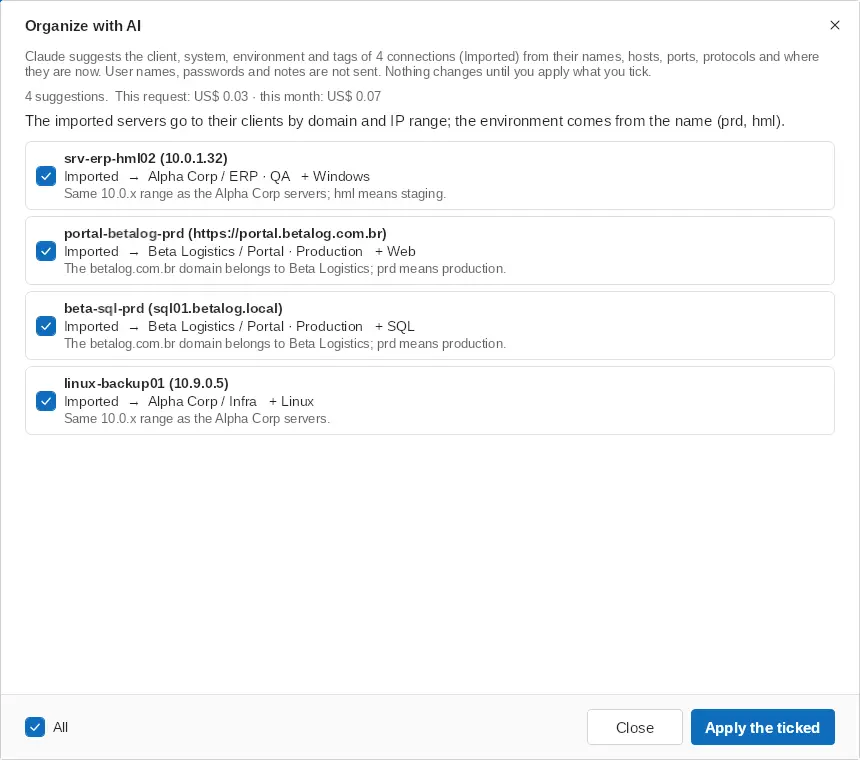
After importing (or when the list grew messy), right-click a client or folder › Organize with AI…, or use the ✦ button above the client list for all the connections. Claude suggests the client, system, environment and tags of each connection from its name, host, port, protocol and where it is now, reusing your clients, systems and tags. It shows each change as *now → suggested* with the reason; untick what is wrong and Apply the ticked. User names, passwords, notes and credentials are never sent, and the login, jump host and screen size each connection had stay the same. It uses the AI key and model of Settings › SQL assistant (AI).
Connections
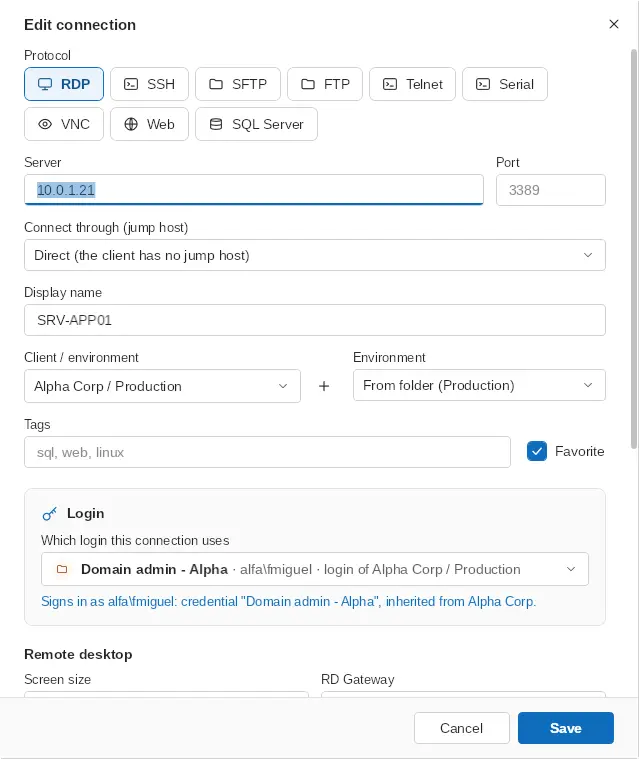
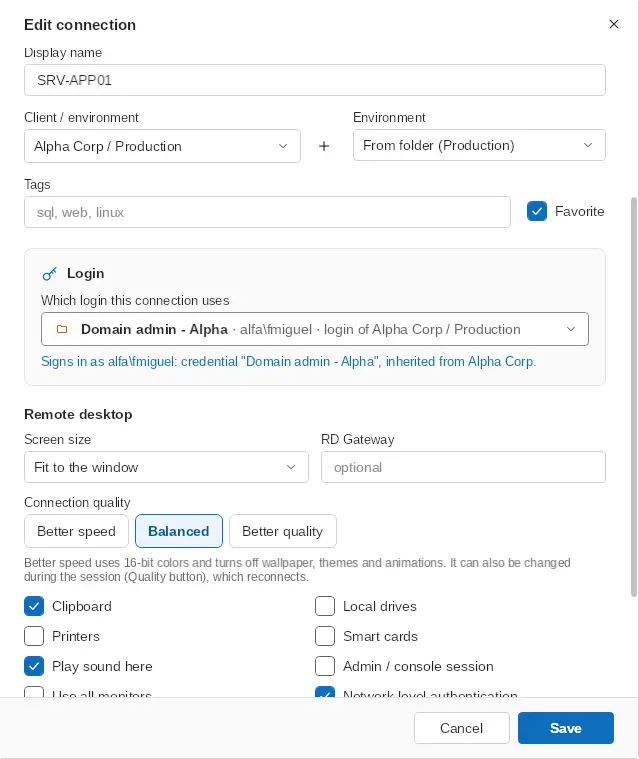
Each connection has a protocol, server, port, client/environment, login and protocol-specific options. Connections can be marked as favorites, tagged and duplicated. The editor shows which login the connection will use and where it comes from, for example: Signs in as alfa\admin: credential "Admin Alfa", inherited from Client Alfa.
- Quick connect: type something like srv01, 10.0.0.5:3390, ssh admin@web01, COM3 or a web address in the search box and press Enter.
- Search by name, server, tag or client (Ctrl+K).
- Availability: the list shows whether the server responds; "Not responding" is gray for connections you have never opened and red for those you have used that went down.
- Favorites and History in the side menu. More room for the sessions: the side menu can show icons only and the list can be hidden (arrow at the top of the list or Ctrl+Shift+B).
Several connections at once
In the connection list, hold Ctrl and click to choose several connections, or Shift to choose a range. A bar shows how many are selected, with Connect (opens them all after a confirmation, with a warning when Production is among them), Favorite, Clear tags (removes every tag from the chosen connections, after confirming) and Delete; the × clears the selection. Clear tags is also on the right-click menu of a connection, and the Delete key deletes every selected connection.
Team space and My space
With a team, the tree on the left has two parts: Team, the clients and connections everyone in the team sees, and My space, your private clients and connections that only you see. Right-click the My space heading to create a New private client or Rename my space (for example "Flavio's place"). Each heading folds and opens, and stays that way at the next start.
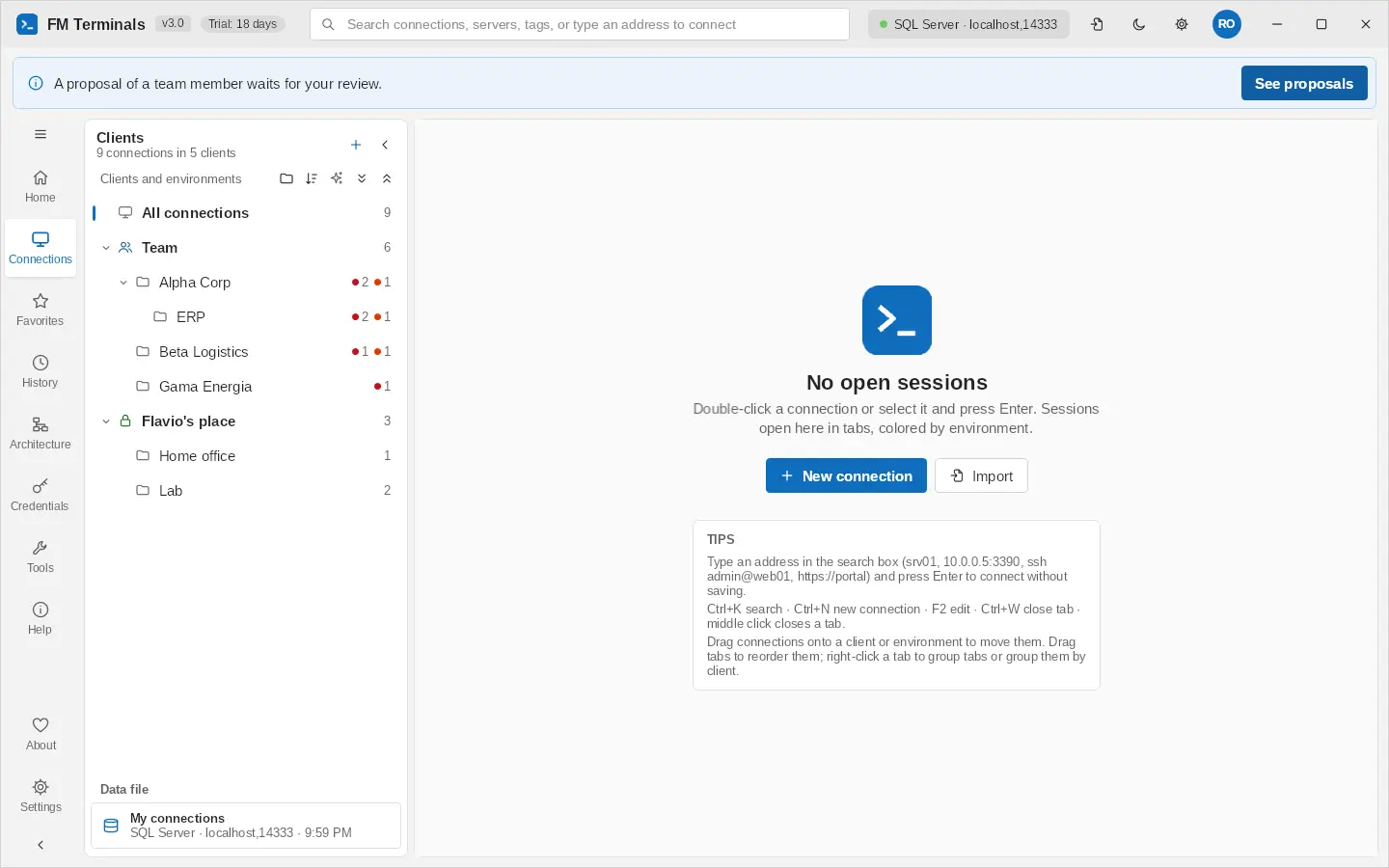
- Where a connection lives follows its client: in the connection editor, choosing a client of the Team space makes the connection a team one; choosing a client of your space makes it private. The folder list shows each space first ("Team › Alpha / Production", "Flavio's place › Lab").
- Private clients and connections never go to the data file: they are kept in the team vault, encrypted only for you. Who doesn't own them sees neither their names nor their addresses.
- Move or copy to the team: right-click a private connection (or several selected) › Move to the team takes it out of your space, or Copy to the team keeps yours as it is and creates a copy in the team; then choose the team client that receives it. On a private client, Move client or Copy client to the team take its folders and connections. For a member the option is Send to the team, which always copies and becomes a proposal.
- New client: with a team, the new client button creates it in your space (private). To create one straight in the team, right-click the Team heading › New team client.
- Move to my space: right-click a team connection or client › Move to … takes it out of the team space (after a confirmation) into a client of your space.
- History (n) in the connection editor shows the last 10 versions of a private connection and Restore this version.
- Connections shared with groups in version 3.5 stay with their owner, in the owner's private space; to share them, send them to the team.
- Knowing where it is: a green lock marks private connections in the list, and the sort button (⇅) has the filters Team only and Personal only.
- Without a team server (or without signing in to the team), every connection is in the data file, as before.
Jump host (SSH tunnel)
A connection can go through an SSH connection (bastion) to reach servers only that host can see: RDP, SQL Server, VNC, SSH, Telnet, SFTP and Web consoles. Choose it in Connect through in the connection editor, or on the client (it applies to all of its connections; a connection can choose "Direct"). It uses the login and the host key verification of the chosen SSH connection.
Serial (COM) connections
For the console cable of switches, routers and firewalls (serial port or USB-serial adapter): port (the ones found on the computer are listed below), speed, data bits, parity, stop bits and flow control (default 9600 8N1). The saved login is typed when the console asks for it.
Architecture
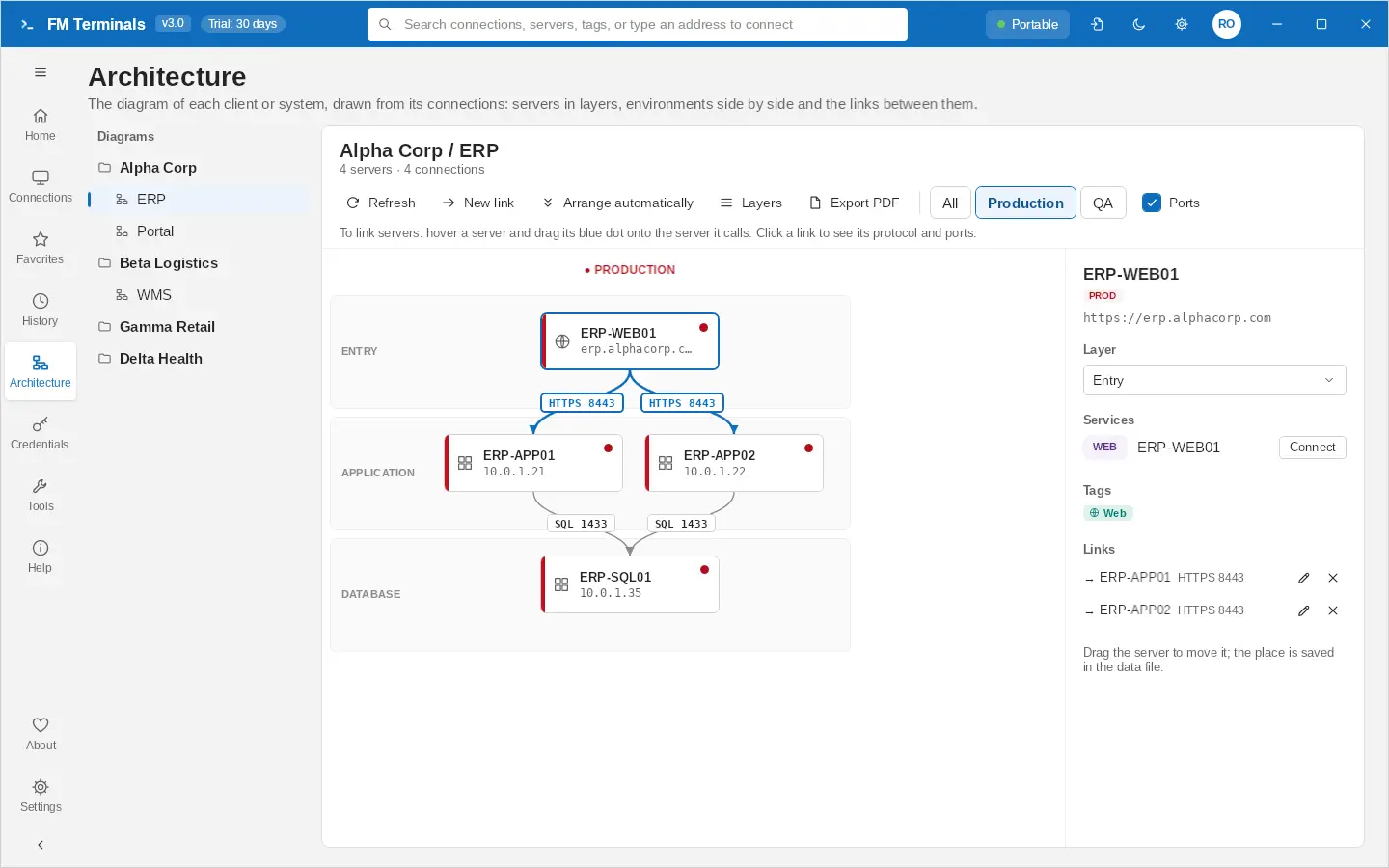
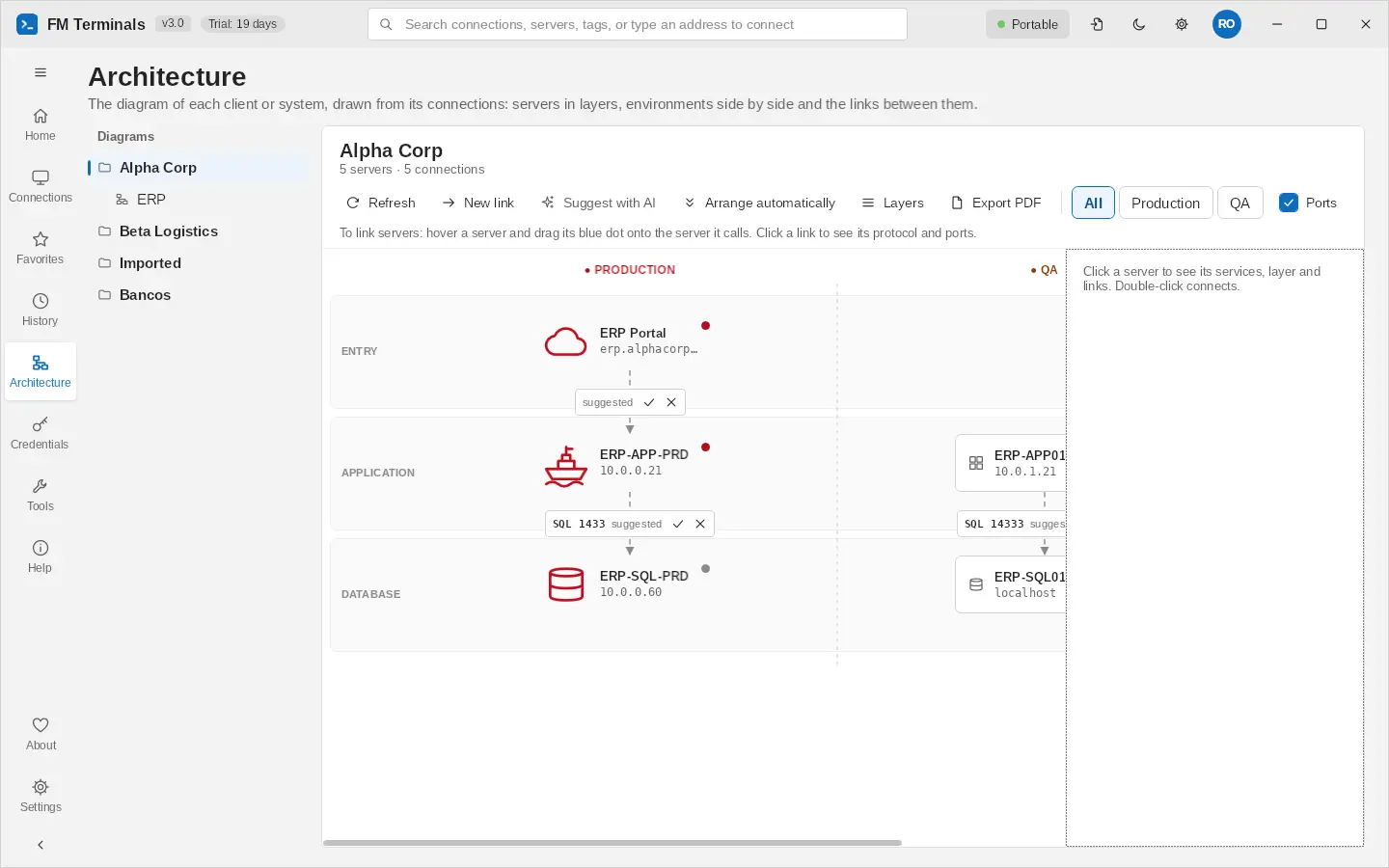
Architecture (side menu, or right-click a client › View in diagram) draws the diagram of each client or system from its connections: one server per address and environment (SSH and web on the same IP become one), in layers (Entry, Application, Database), with Production, QA and Dev side by side, a red stripe on Production and live status. Diagrams are saved in the data file and in the team SQL Server.
In a team data file, the open diagram follows your colleagues' changes as soon as they arrive through the sync (if you are dragging a server, it waits until you let go).
Linking servers
- Hover a server and drag its blue dot onto the server it calls. The link opens filled in with the port of the one that answers: choose the protocol (quick buttons HTTPS, SQL, SSH...), one or more ports, the direction (only one calls, or both) and a description.
- Click a link to see its details; double-click edits it. The usual links (application → database) show as suggested, dashed, with ✓ to confirm and ✕ to remove them.
- Drag the servers to arrange them: the place is saved. The side panel shows the server's services (with Connect), layer, tags and links; double-click a server to connect.
Suggest links with AI
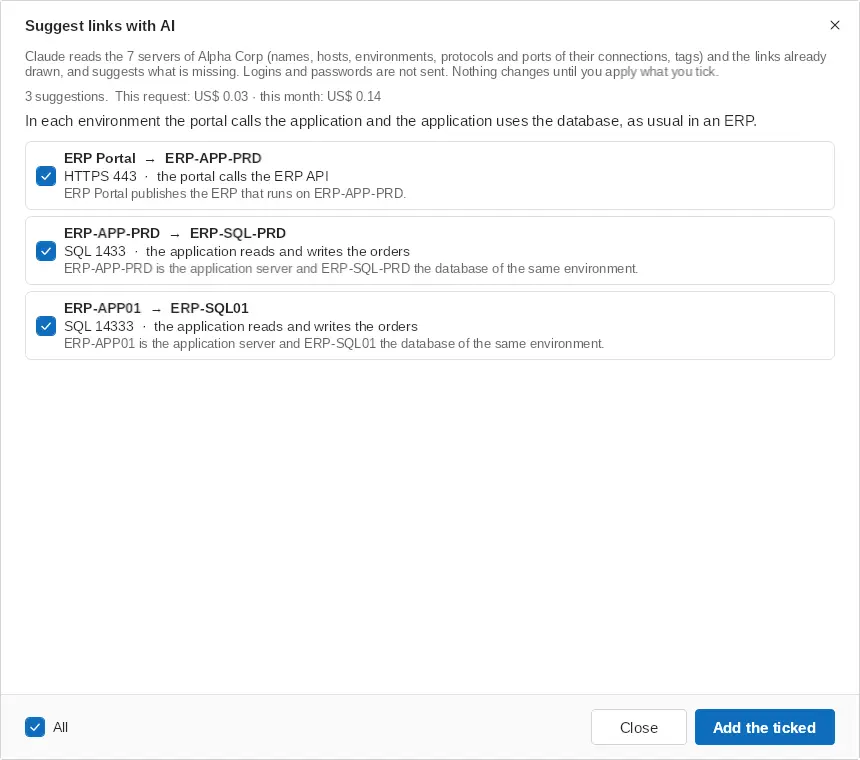
Suggest with AI in the diagram toolbar sends Claude the servers of the diagram (names, hosts, environments, the protocols and ports of their connections, tags) and the links already drawn. It suggests the missing links, with protocol, ports, direction and what goes through (web → application → database on 1433, for example), and servers that are in the wrong layer. Links only join servers of the same environment. Tick what is right and Add the ticked: they become normal links you can edit. Logins and passwords are not sent.
Environments and layers
- The All / Production / QA / Dev buttons show one environment alone, to work on Production without seeing QA.
- Layers renames, adds (DMZ, Integration...), reorders and removes the rows of the diagram; dragging a server into another row changes its layer. Arrange automatically puts the servers back in place and keeps links and layers.
Server shapes
In the side panel, Shape draws the selected server as a pictogram instead of the card, in the color of its environment, on the screen and in the PDF report: server, database, storage, virtual machine, container, cloud, internet, router, switch, firewall, load balancer, API / gateway, queue, scheduler / job, process, document / report, e-mail, backup, vault, workstation, laptop, mobile, printer, sensor / IoT, robot / automation, users / team, building, factory, warehouse, truck / logistics, satellite, antenna, ship and platform. Card goes back to the usual drawing. Port chips of links that would overlap move below each other.
PDF report
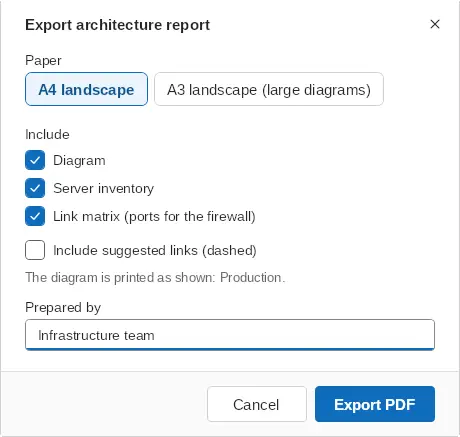
Export PDF creates an architecture report ready to send: a cover with the client's logo, environments, date, who prepared it and the numbers; the diagram in vector (sharp at any zoom); the server inventory by environment (address, layer, services and tags); and the link matrix (what calls what, protocol, ports, direction and description), the base for firewall requests. Choose A4 or A3 landscape and the sections. The report never has passwords or logins.
Leaving a connection out of the diagram
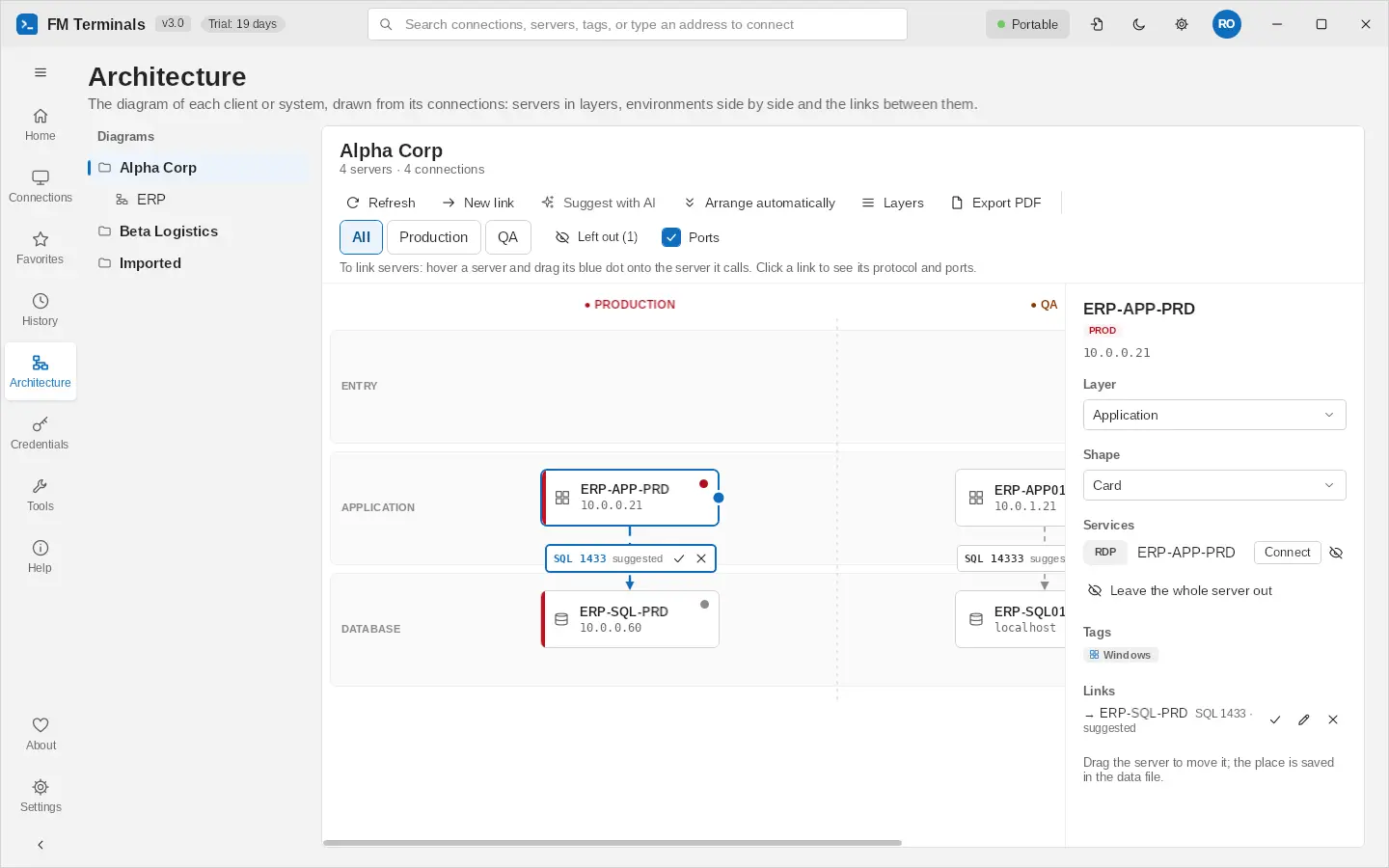
Not every connection is a server (a portal, a VPN, a tool). On a selected server, the crossed-out eye next to each service leaves only that connection out of the diagram, and Leave the whole server out leaves the whole server out. The connection stays in Connections; only the drawing (and the PDF) leaves it out. Left out (n), on the bar, lists them to bring back one by one or all at once.
Credentials
The credentials vault
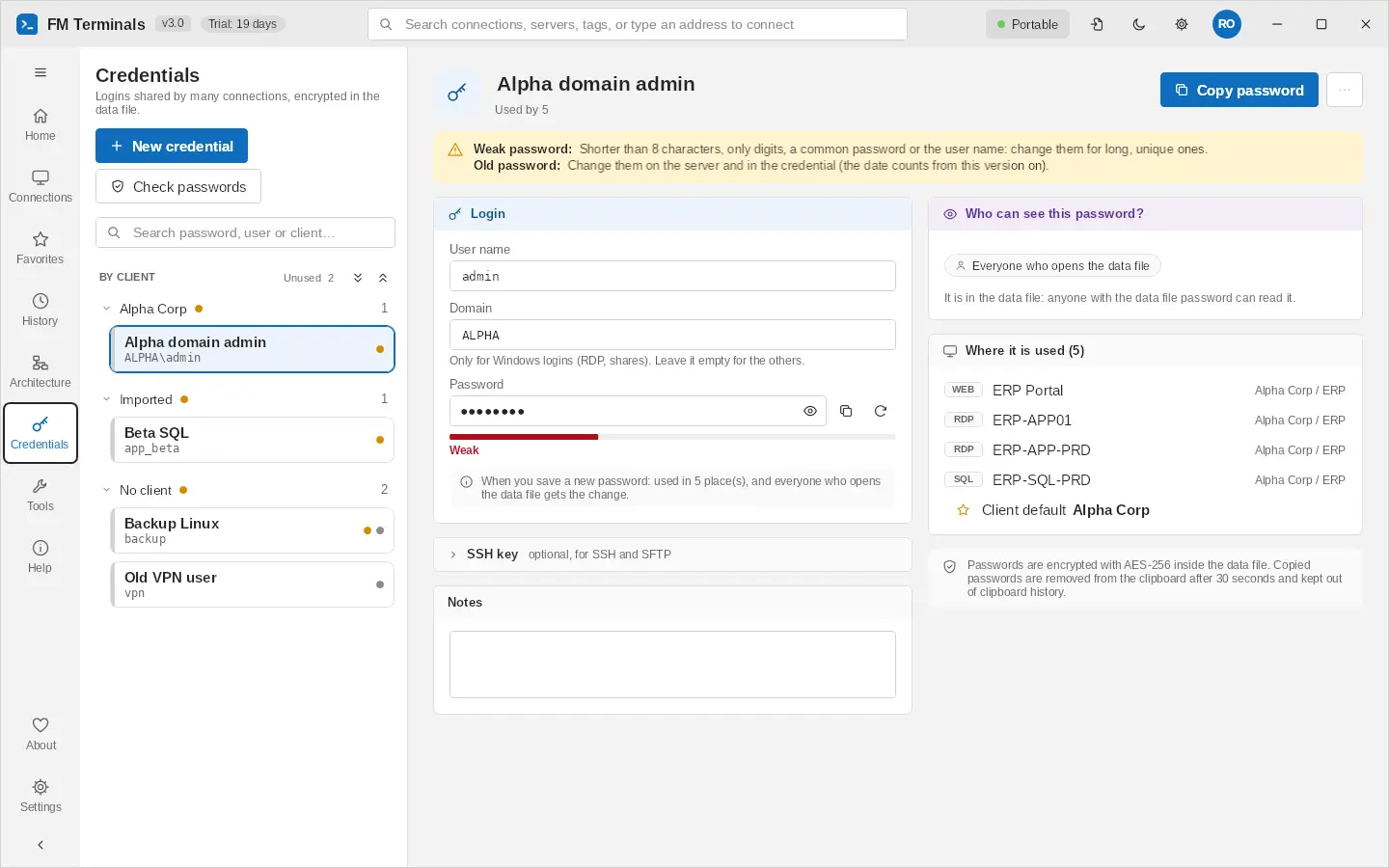
Credentials (user, domain, password, SSH key and notes) live in the vault and are reused by as many connections as you want: changing the password in one place updates every connection that uses it. The Credentials page has, on the left, My passwords and Team passwords and the clients, which expand and collapse, with the number of passwords and an alert dot; each row has a bar in the color of its kind. On the right, the details: the kind, who created and who changed it, Copy password (kept out of the clipboard history and cleared after 30 seconds), History, the alerts (old, weak or repeated password, read only, what a change means), the Login card with the password strength, the SSH key, the notes, Who can see this password? and Where it is used, with clickable connections.
Check passwords
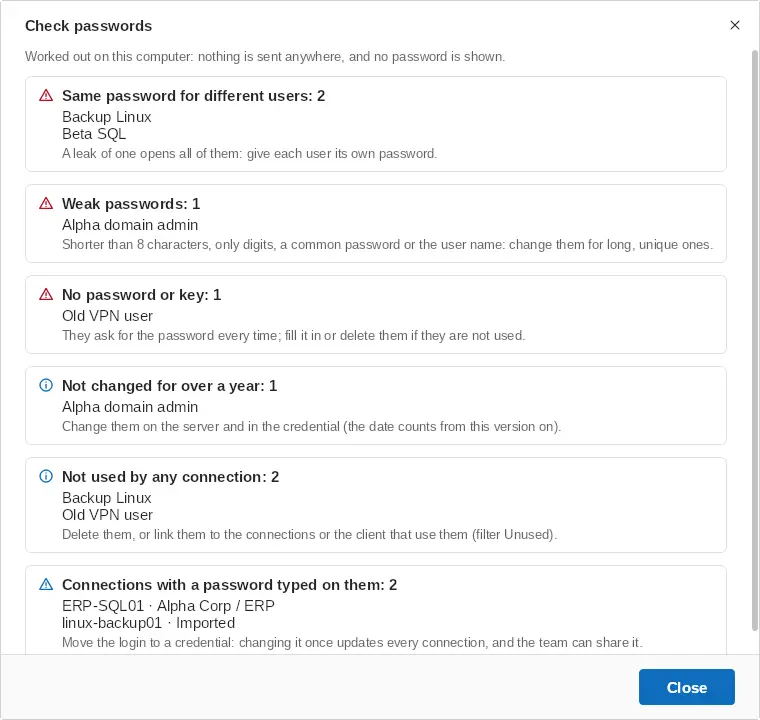
Check passwords (below New credential) looks at every credential and points out: the same password in credentials of different users, the same user and password saved twice, weak passwords (shorter than 8 characters, only digits, a common password or the user name), credentials without a password or key, passwords not changed for over a year, credentials no connection uses, and connections with a password typed on themselves instead of a credential. It shows names only, never a password, and runs on this computer: nothing is sent, not even to the AI. The date of change counts from version 3.2.4 on.
Client default credential (inheritance)
When you set a credential on the client (or on an environment folder), it automatically applies to all connections below it, including those in subfolders, as long as the connection has no login of its own. This way, a client that uses the same login on every server is configured only once.
When a connection opens, the program picks the login in this order:
- The "only mine" credential chosen for the connection (team file).
- The credential set on the connection itself.
- The user name and password typed on the connection itself.
- The "only mine" credential of the environment or client.
- The default credential of the environment or client, going up the tree to the client.
Client default × "Only mine"
| Option | Who it applies to | When to use it |
|---|---|---|
| Client default | Everyone who can read the credential | A service or administrator login shared by everyone |
| Only mine ("My credential (only for me)") | Only you; your colleagues keep their own or the default | Each person signs in with their own user on the same server |
Personal, Team or Groups or people
In a team data file, each credential has one of these three kinds, always in the same color in the list, in the details and in the login choice of the connection editor:
| Kind | Who sees it | Color |
|---|---|---|
| Personal | Only you | green |
| Team | Everyone on the team (includes the credentials of the data file) | blue |
| Groups or people | The groups and people you choose | purple |
- Only the owner changes the kind, on the Who can see this password? card; before saving, FM Terminals shows who gains and who loses access. A new team credential asks for the kind and starts as Personal.
- Changing a Team or Groups or people password changes it for everyone who uses it; the details say so before you save.
- In the connection and client editors, the login list is grouped by who can use each credential: From the client (default), Mine (private) (only you can use it), From the team and Shared with me or with groups, in the same colors.
- The login list starts with New credential and Type it only for this connection, then the client default. In a client it shows only Used in <client> (the logins that client's connections and folders already use; a client with the same name in the Team and in My space counts as one) and No client (logins not used anywhere yet); logins of other clients stay out.
- Logins created in the connection or client editor, or brought in by an import, go to your Personal credentials and are not kept in the file the others open.
- When connections use team credentials and this computer is not linked to the team server yet (or you haven't signed in to the team), a strip says how many there are and Resolve… takes you to what is missing.
Remote sessions
| Protocol | What it offers |
|---|---|
| RDP (remote desktop) | Fit to tab size with dynamic resolution when resizing, full screen at the monitor's real resolution, Ctrl+Alt+Del, type the password, optional printers and drives |
| SSH and Telnet | Modern terminal (copy/paste, colors, scrollback), server file panel next to the terminal, server key verification |
| Serial (COM) | Console for switches, routers and firewalls through a serial or USB-serial cable |
| SFTP, FTP and FTPS | WinSCP-style file manager: computer × server side by side, drag and drop, transfer queue, permissions, edit in your favorite editor (the file goes back to the server when you save), delete folders showing the progress (with a Stop button) |
| VNC | Remote screen with keyboard and mouse |
| Web | Consoles for firewalls, hypervisors and dashboards, in an isolated browser per connection, with Reload (F5) and Inspect (F12) |
| SQL Server | Full client (chapter 6) |
Tabs
- Sessions stay open when you switch tabs; the tab color shows the environment.
- Tab groups and rearranging by drag and drop. When the tabs do not fit, the ‹ › arrows and the ˅ button (list of all tabs) appear.
- Tab sets: save the open tabs as a set (for example "Morning routine") and open them all at once with the ★ button on the tab bar or on the start screen.
- Tabs in separate windows: drag a tab out (or use "Open in a separate window") and use the session on another monitor, without reconnecting. Drag it back to the tab bar to merge it again.
- Reconnect and Disconnect in the session bar; when the program opens, the sessions that were open last time can be reopened.
SQL Server client
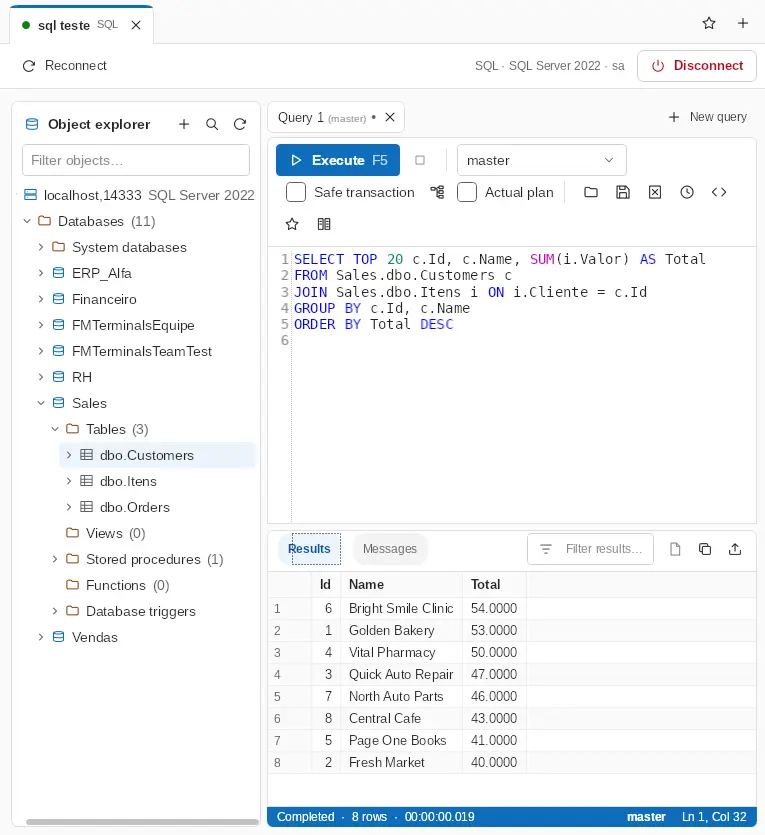
A SQL Server connection opens an environment similar to SQL Server Management Studio inside the tab: the Object Explorer on the left and the queries on the right.
Ask AI (SQL assistant)
The AI button of the query toolbar opens the assistant in a side panel next to the editor, like a browser extension: type what you want (for example, "total orders per active customer last month") and Enter sends it (Shift+Enter breaks the line). Claude, by Anthropic, writes the query knowing the tables, views, columns, keys and procedures of the query's database, but never the data. The conversation stays on screen: each question, its explanation and its T-SQL, with Insert in the editor (at the cursor or in place of the selection), Replace the query and Copy. Ask for changes next ("now group by month"): it remembers the conversation. Start from the editor's query sends the current query (or the selected part) along, and Fix the error of the last run the error message. Each query tab has its own conversation; + starts a new one and × closes the panel (drag its edge to resize it). Nothing runs on its own: you review it and run it with F5.
The first time, FM Terminals asks for an Anthropic API key (console.anthropic.com › API Keys; the Claude Max plan includes API credits). The key is kept encrypted for your Windows user on this computer, outside the data file, and can be changed in API key…. What is sent: the request, the database structure and, if ticked, the editor's query and the error. Never table rows, passwords or logins.
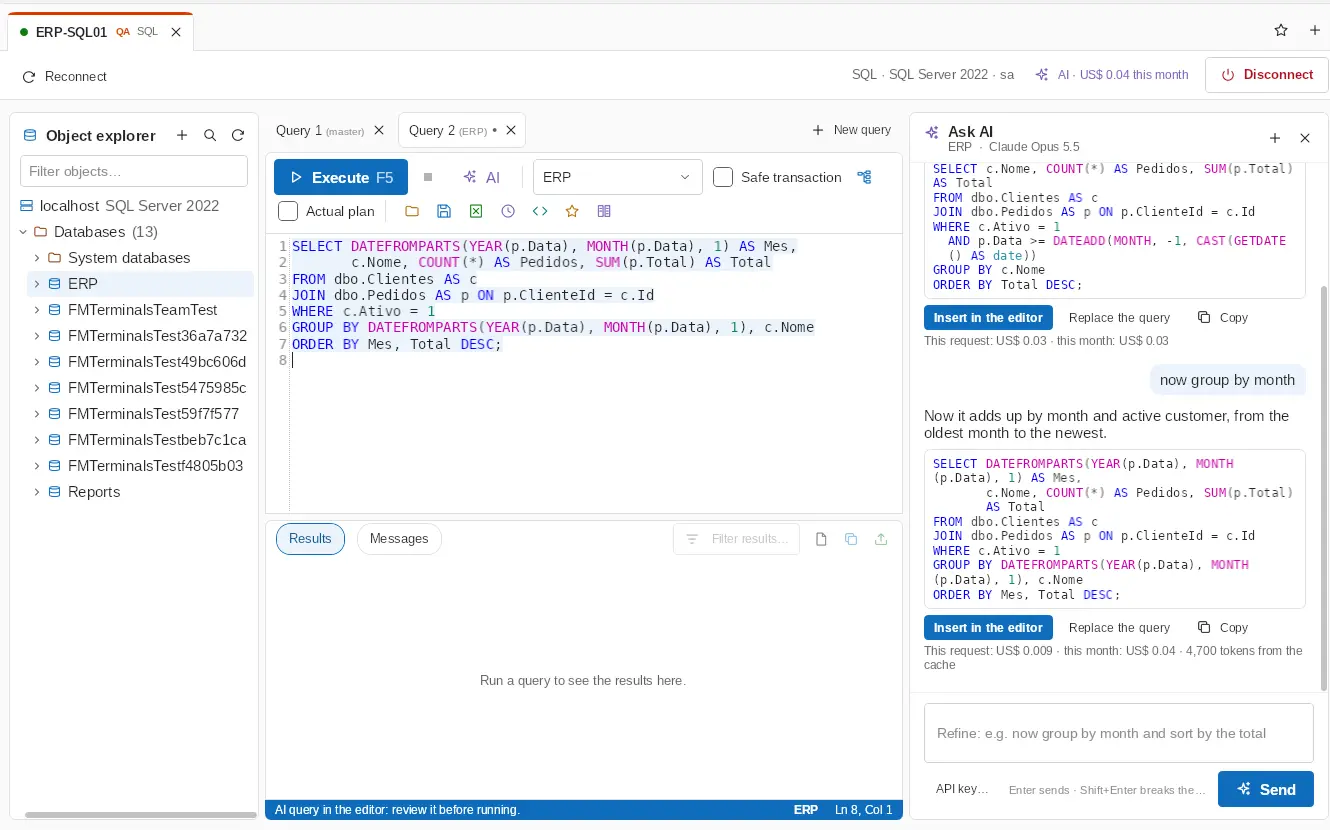
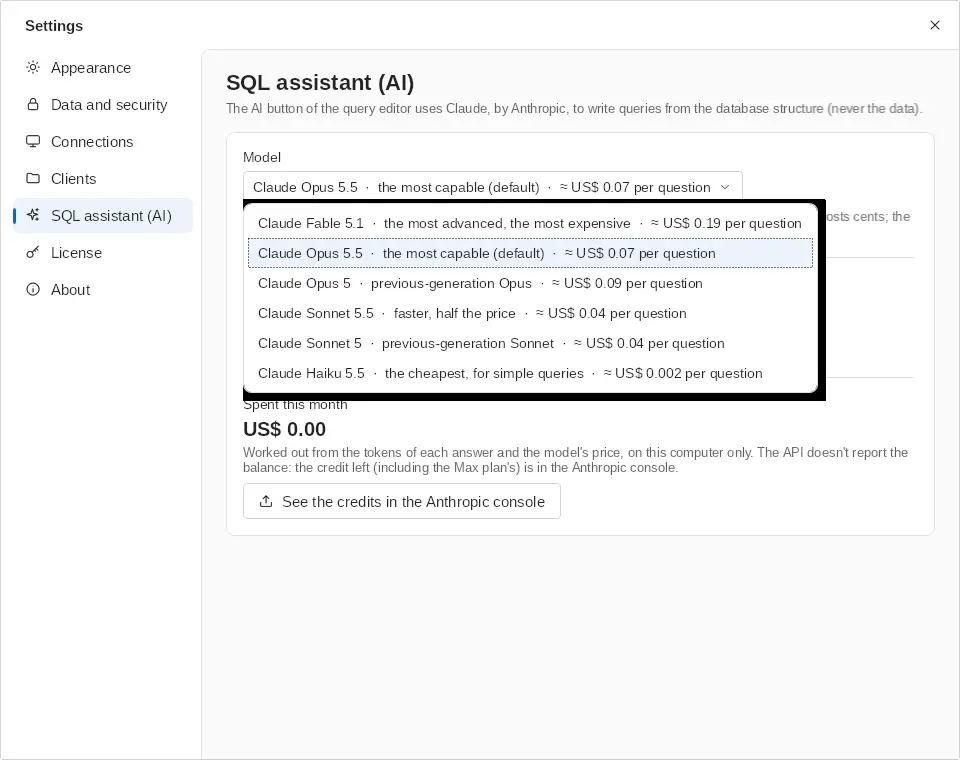
In Settings › SQL assistant (AI) you choose the Model: one of six models, from Claude Fable 5.1 (the most advanced) to Haiku 5.5 (the cheapest), with the estimated cost of a question next to each (Opus 5.5 is the default), paste or remove the key and see what was Spent this month. The spend also shows in the SQL session bar (AI · US$ 0.03 this month; click it to open these settings). It is worked out from the tokens of each answer and the model's price, on this computer only: the Anthropic API doesn't report the key's balance, so the credit left (including the Max plan's) is in See the credits in the Anthropic console.
FM Terminals SQL (the SQL module alone)
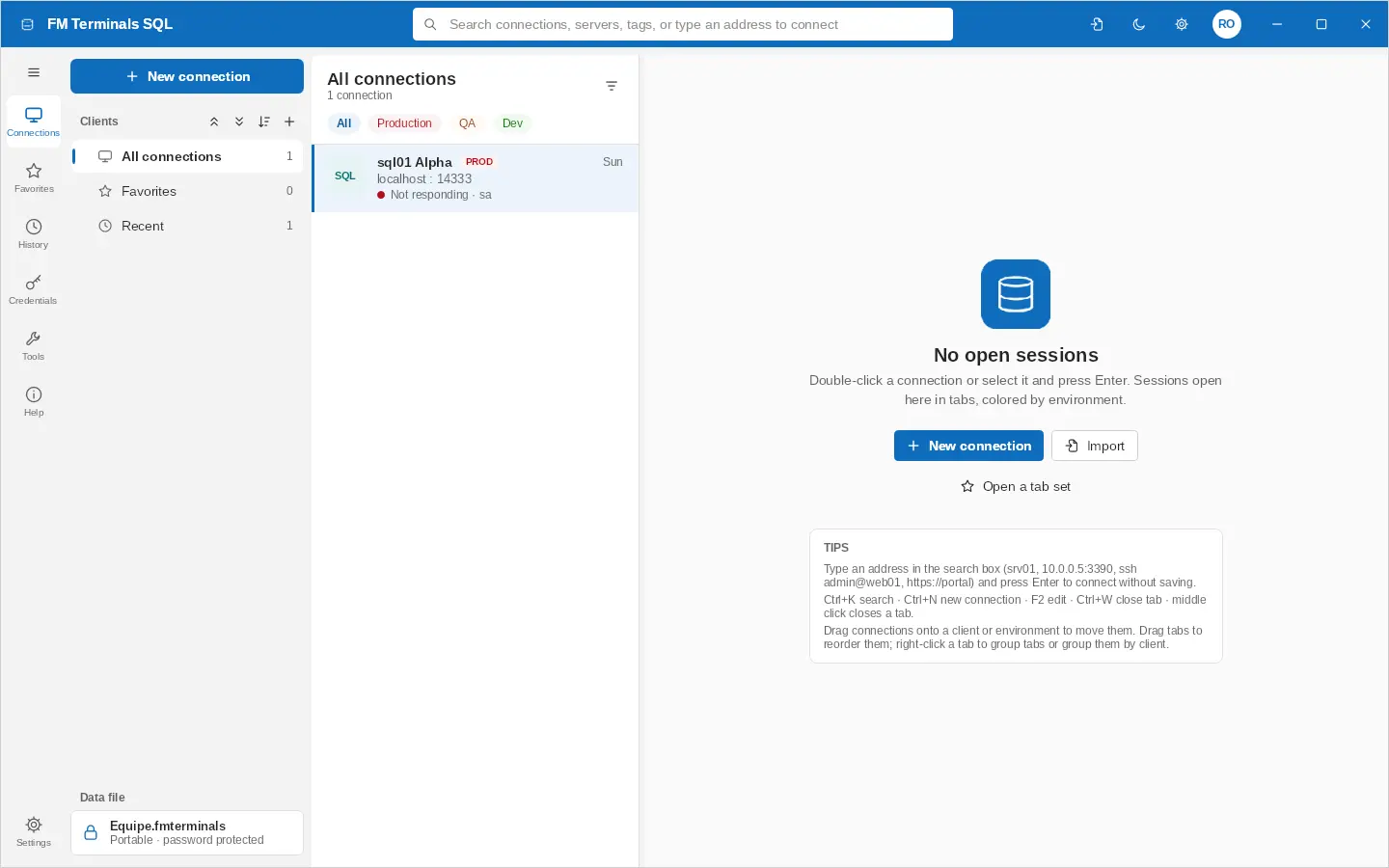
The Start menu also has FM Terminals SQL: the same program with only the SQL Server connections, for those who want a separate SQL client (like SQL Server Management Studio), with its own icon on the taskbar. It uses the same data file, the same credentials and the same license.
- Clients and folders without any SQL Server connection are hidden; New connection starts as SQL Server.
- It can stay open next to the full FM Terminals: what one changes in the data file shows in the other within a few seconds, without one erasing the other's change.
- It also opens from Run (Win+R) or a terminal: fmterminals /sql (and fmterminals opens the full program).
Several servers in the same tab
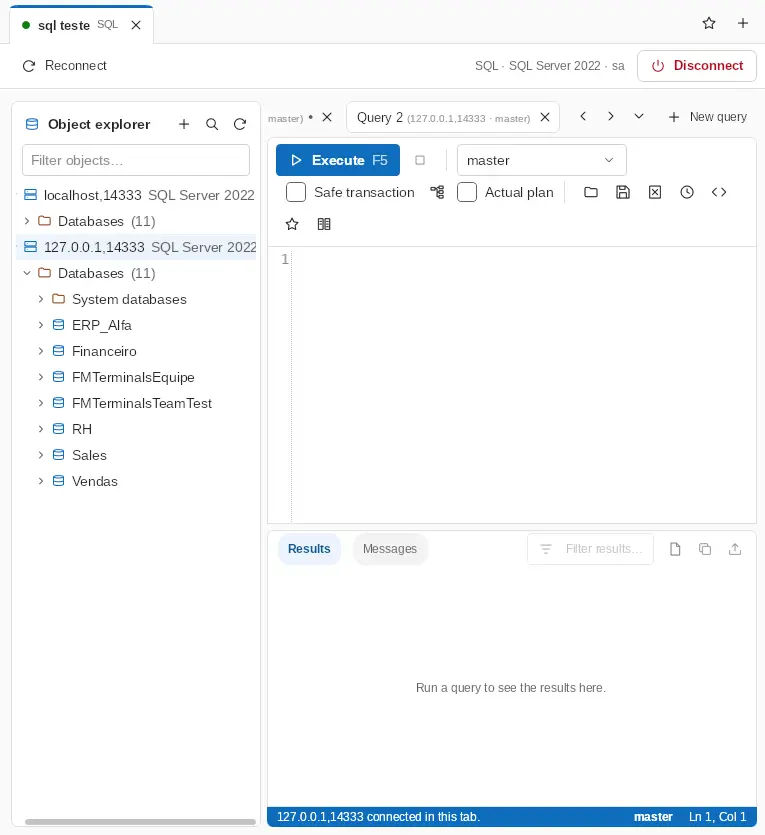
As in SSMS, the Object Explorer can hold several servers, and the queries of all of them stay together, each one showing its server next to the database. What you do in the explorer applies to that item's server; what you do in a query applies to the query's server (including the Production warning and the status bar color).
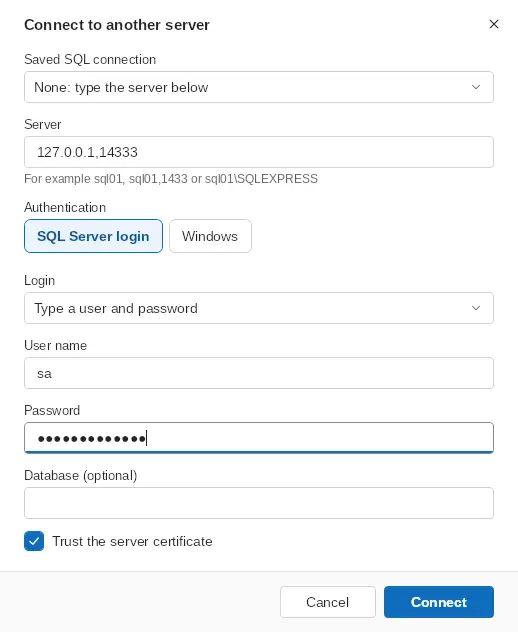
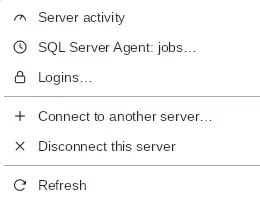
- Connect to another server: the + button in the explorer, or right-click the server. Choose a saved SQL connection or type the server on the spot, with user and password, Windows login or a saved credential.
- Disconnect this server on the right-click menu: its queries are kept for next time.
- A SQL connection opened from the list when a SQL tab already exists joins that tab (Settings › Connections › SQL Server connections in one tab, on by default).
Query editor
- Context-aware autocomplete: after FROM/JOIN, tables and views are listed; after SELECT, WHERE, ON and ORDER BY, the aliases and columns of the tables in the query are listed; after EXEC, procedures. Ctrl+Space opens the list at any time.
- Execute everything or just the selected text (F5 or Ctrl+E), with batches separated by GO; cancel the execution.
- Format (Ctrl+Shift+F), ready-made snippets, per-connection history and favorites.
- Open and save .sql files (Ctrl+O, Ctrl+S); multiple queries in tabs.
- Compare code: two pieces of code side by side, with changed, removed and new lines highlighted (F7 / Shift+F7 to move between them). It also compares an object with another database or server (DEV × PROD).
Safe execution
- Safe transaction (on in Production): changes run inside a transaction and you choose Commit or Roll back after seeing the result.
- Warning on UPDATE/DELETE without WHERE, which would change every row in the table.
- The status bar turns red in Production.
Results and execution plan
- Multiple result sets in the same execution; a general filter and, on the grid's right-click menu, sort, only this value, all but this value and filter the column by text. The Types box shows the SQL Server type of each column under its name (varchar(20), datetime, numeric(15,0)…).
- Copy (with or without headers, or just the column names) and export to Excel, CSV, JSON and XML, or generate INSERT statements with the data.
- Results as text (Ctrl+T), in aligned columns.
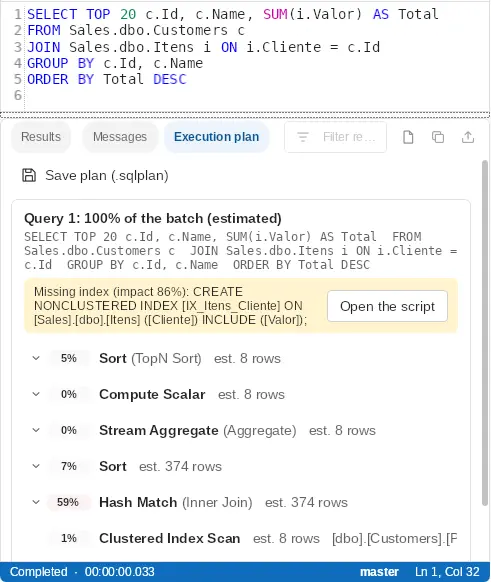
- Execution plan: estimated (Ctrl+L, runs nothing) or actual, together with the results (Ctrl+M). It shows the cost of each operator, estimated × actual rows, warnings and missing indexes, with a button to open the CREATE INDEX. It can be saved as .sqlplan.
Explain a slow query with AI
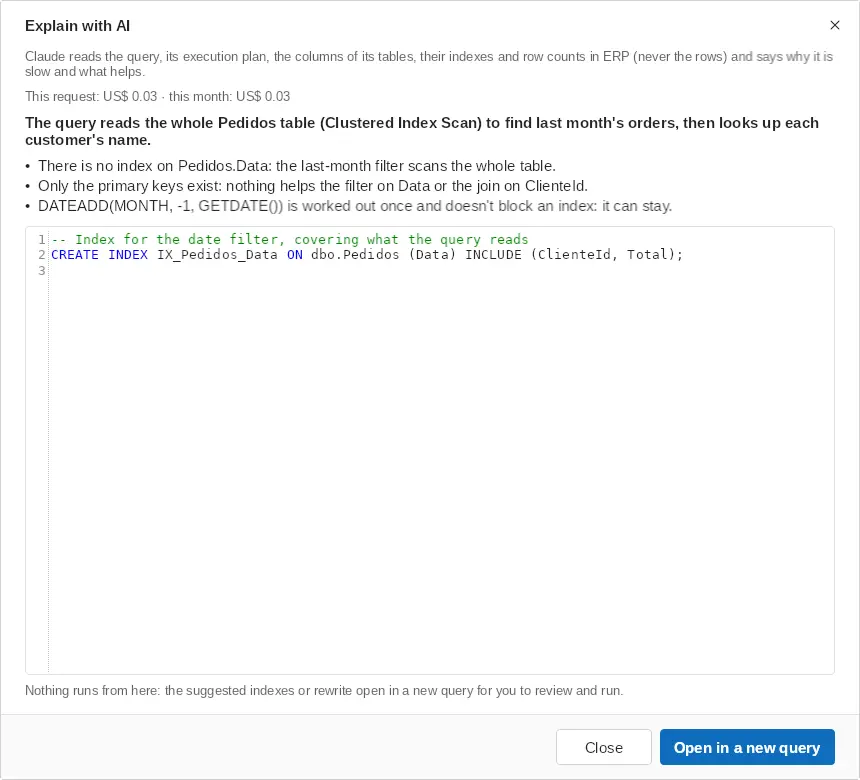
On the execution plan page, Explain with AI sends Claude the query, its plan (estimated or actual) and, for the tables it names, the columns, indexes and number of rows, never the rows themselves. It answers why the query is slow (scans, key lookups, missing or unused indexes, conversions, bad estimates...), with the most important first, and the T-SQL that helps: CREATE INDEX statements and/or the rewritten query, with comments. Open in a new query puts it in the editor for you to review and run: nothing runs from the AI window, and on a production server it reminds you to create indexes outside busy hours.
Object Explorer
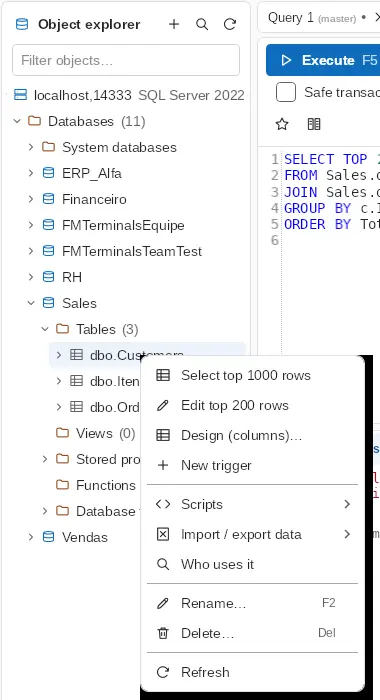
Databases, tables (with columns, indexes and triggers), views, procedures, functions and database triggers. The filter shows how many objects are visible out of the total, for example "Tables (3/509)". Right-clicking an index scripts it (CREATE, DROP), rebuilds, reorganizes, updates its statistics, disables it or shows the fragmentation; the Indexes folder creates an index or rebuilds them all, and the Triggers folder enables or disables all of them. The filter looks for the text anywhere in the name, without the schema (type a dot, as in "sales.ord", to include it); * or % stand for anything ("wp*date"). To rename, press F2 or click the item that is already selected. Right-clicking offers the commands for each object:
| Object | Commands |
|---|---|
| Server | Server activity, SQL Server Agent: jobs, Logins, Connect to another server, Disconnect this server |
| Databases (folder) | New database, Restore database, Attach |
| Database | New query, Find text in the objects, Generate scripts, Import Excel; Back up, Restore, Copy database, Shrink, Maintenance; Sessions, Users and permissions; Take offline, Detach, Rename, Delete, Properties |
| Table | Select top 1000 rows, Edit top 200 rows, Design, New trigger; Scripts (CREATE, INSERT with the data, Export table script, DROP); Import / export data; Who uses it; Rename; Delete |
| View, procedure, function, trigger | Edit (ALTER), Execute (procedures), Enable/Disable (triggers), Scripts, Compare with…, Revisions, Save revision now, Who uses it, Rename, Delete |
| Column | Insert name in the query, Rename |
Editing data in the grid
"Edit top 200 rows" opens the table for editing: change cells, add rows in the last row and delete with Del. Nothing is written until Save changes. The ↑/↓ arrows move between rows even while typing; Ctrl+0 sets NULL; values the column does not accept are shown in red. Rows changed by someone else while you were editing are detected.
Table structure and scripts
- Table design: add columns, and rename, change the type or NULL setting of, or remove existing ones; everything runs in a single transaction, after showing you the script.
- Export table script: structure and data, structure only (DDL) or data only (INSERT), choosing indexes, foreign keys and triggers.
- Generate scripts (right-click the database): choose tables, views, procedures and functions and get the CREATE for all of them in a single script, with a DROP IF EXISTS option.
- Rename and delete tables, columns and objects; deleting asks for a simple confirmation (with an extra warning in Production).
Database administration
Right-clicking a database gathers a DBA's everyday tasks, as in SSMS. In every window, the Script button shows the commands in a query instead of running them.
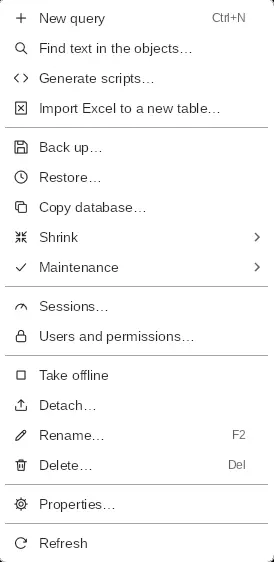
- New, rename and delete: when you rename, delete or take a database offline, the app tells you how many connections are using it and offers to close them. Delete has options to close the connections and delete the backup history; in Production you must type the database name.
- Take offline / Bring online: an offline database appears grayed out, with "(OFFLINE)".
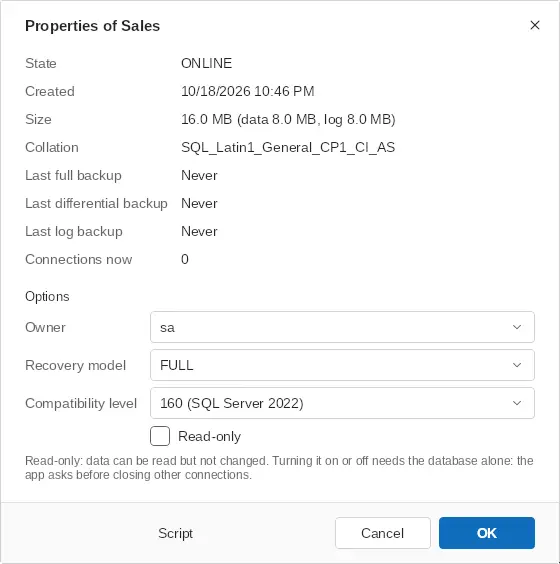
- Properties: state, size, collation, last backups and open connections; change the owner, recovery model, compatibility level and read-only.
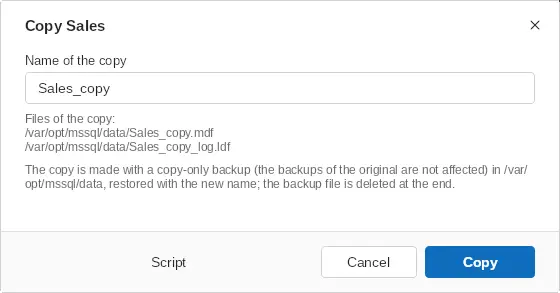
- Copy database: duplicates the database under another name on the same server, using a copy-only backup (it does not affect the original's backup chain).
- Detach and attach: attach lets you pick the .mdf on the server and finds the other files on its own, including the log.
- Sessions: Server activity showing only that database's sessions.
- Maintenance: check integrity (CHECKDB), update statistics, index fragmentation and a script to reorganize or rebuild the fragmented ones.
Backup, restore and shrink
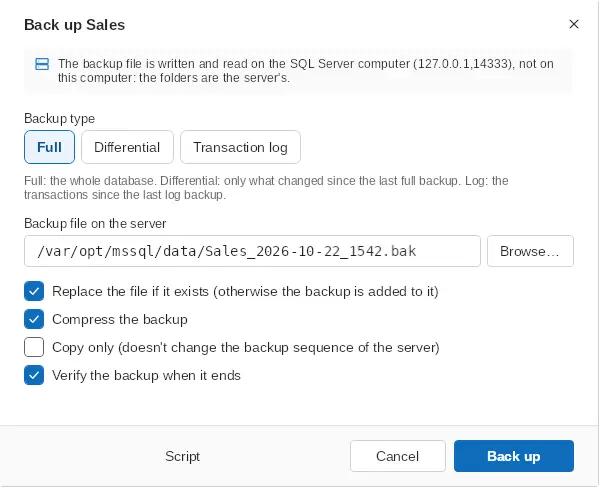
- Back up: full, differential or log; overwrite or append, compress, copy only and verify when finished.
- Restore: pick the .bak on the server, see the backups it contains and restore over a database or as a new database; options to close connections and leave it restoring (NORECOVERY). The file list shows each file as it is in the backup and where it goes: over the current files of the database (the default) or, with Backup's file names, with the names written in the backup.
- Shrink the database, a file or the log, showing used and free space; it warns you when the log cannot shrink.
- You can close these windows while the work runs: the progress appears on the database itself in the explorer ("Restoring… 45%").
Users, logins and roles
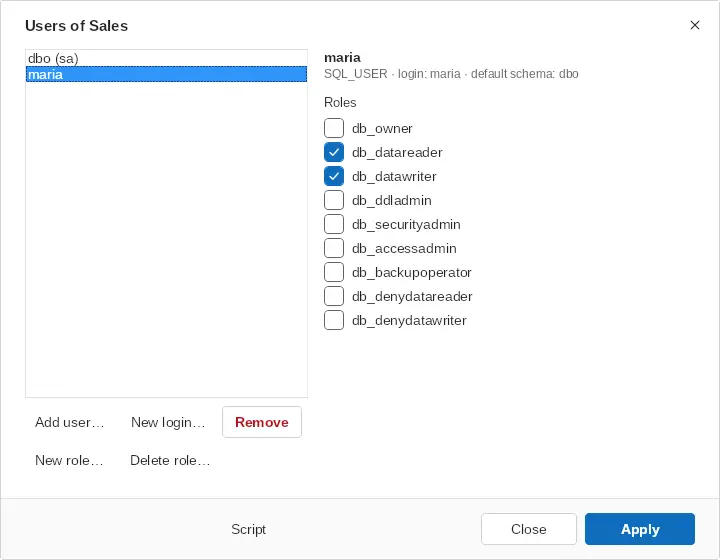
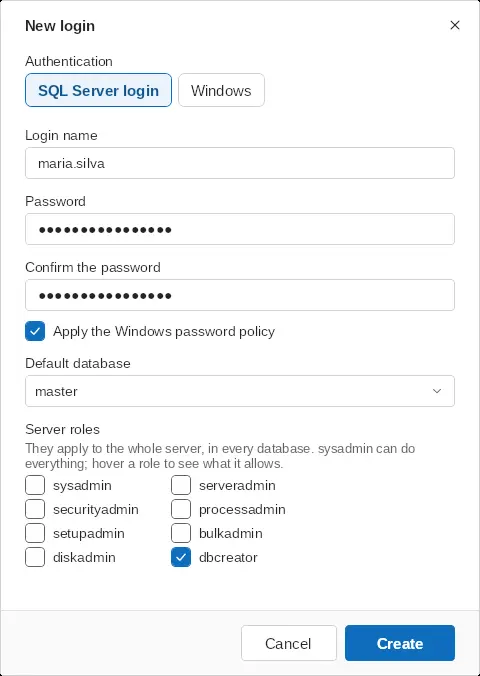
Users and permissions… (right-click the database) shows the database users and their logins. Check each one's roles (db_owner, db_datareader, db_datawriter…), add a user for a server login or remove one. New role… and Delete role… create and delete database roles (groups of users); New login… creates the login and adds it to the database right away.
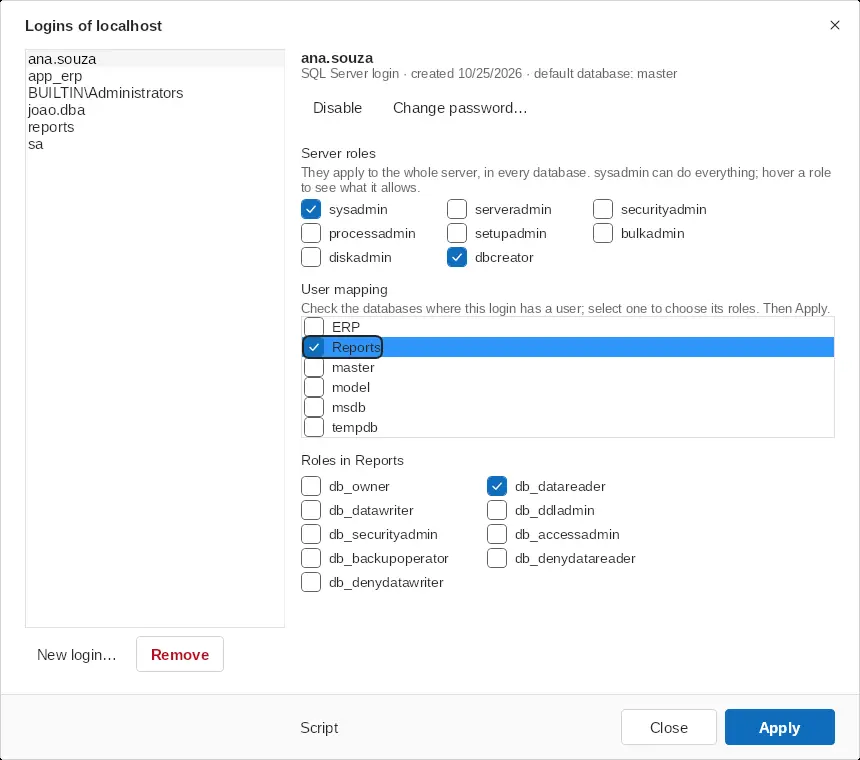
Logins… (right-click the server) lists the server logins: create a SQL Server login (with password and policy) or a Windows login, delete one (along with its users in the databases), enable or disable, change the password and map the login to databases, checking which ones it has a user in and with which roles.
Server roles apply to the whole server, in every database: check sysadmin to give full access (can do everything, including creating and deleting databases and logins), dbcreator to create and restore databases, securityadmin to manage logins, and so on; hover a role to see what it allows. Pick the roles right in New login… or later in the list of logins, then Apply. Giving sysadmin always asks for confirmation.
SQL Server Agent
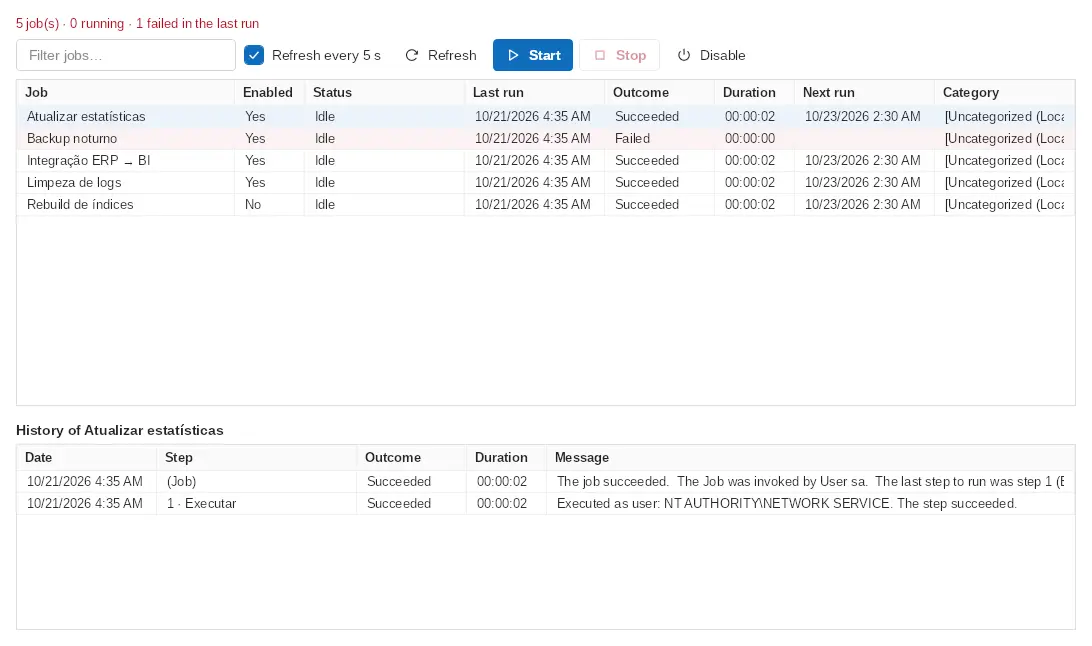
SQL Server Agent: jobs (right-click the server) lists the jobs with state, last run, outcome, duration and next run; start, stop, enable or disable them and see each job's history with the step messages (failures in red). It refreshes every 5 seconds and warns you when the Agent service is stopped.
Revisions of procedures, views, functions and triggers
Before every ALTER, CREATE OR ALTER or DROP run by FM Terminals, the current version of the object is saved as a revision (when, who and in which database), kept separately per connection — that is, per client. In Revisions… you see the list, compare a revision with the current version and restore a revision into a new query. Save revision now… saves the current version with a comment. Revisions travel with the data file and, in a team file, are shared through SQL Server.
Server activity
Shows CPU, memory, disks, sessions and requests in real time (refreshed every 5 seconds). The session at the head of a blocking chain is shown in red and the blocked ones in orange. You can end a session (KILL) after confirming, or open its command in a new query.
Importing spreadsheets
Imports .xlsx, .xls and .csv into a new or existing table: choose the sheet to import, the header row and the number and date format; the program suggests the column types and shows a preview before writing.
Trace queries (Profiler)
Right-click a server or a database › Trace queries (Profiler) to see live each command and procedure an application runs, like SQL Server Profiler: time, kind (SQL or RPC), duration, CPU, reads, writes, rows, application, database, login and computer, with the full SQL below.
- Filters: application (for example your system's name), database, login, computer, minimum duration in ms and text contained.
- Pause, Clear, open the command in a query (double-click) and Export CSV.
- It uses Extended Events (lighter than the old Profiler, and also on Azure SQL Database) and needs the ALTER ANY EVENT SESSION permission. The session is removed from the server when you stop, close the window or close the app.
Explain with AI in the trace does the same for the selected command: it reads its estimated plan (compiled, not run) and sends what the trace measured (duration, CPU, reads, writes, rows) along.
Databases: PostgreSQL, MySQL, Oracle and Cloudflare D1
Besides SQL Server, a connection of the Database kind opens, in its tab, a client for PostgreSQL, MySQL/MariaDB, Oracle and Cloudflare D1, in the style of SQL Developer: the object explorer on the left and the queries in tabs on the right, with a transaction, row editing and, on Oracle, editing and compiling stored code. The tools only SQL Server has (trace, backup, Agent) are not here.
The connection
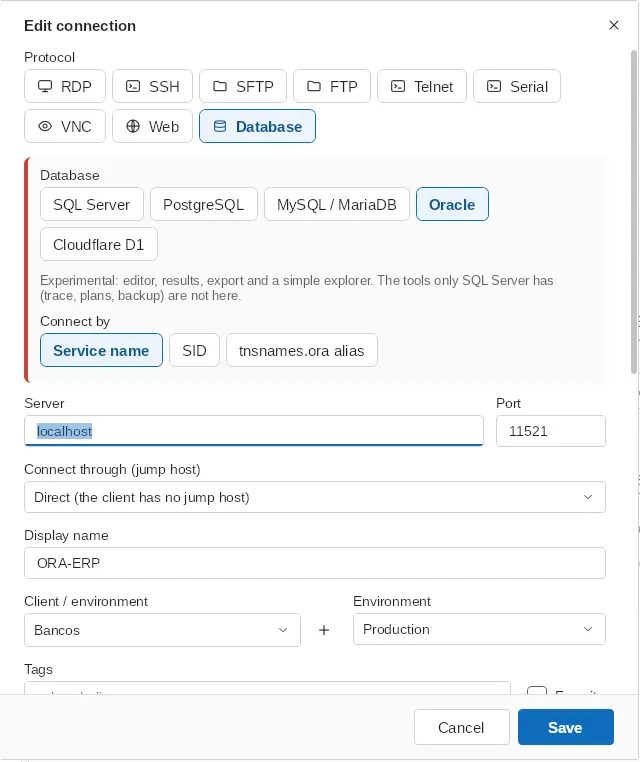
In New connection, choose the Database protocol and the engine (PostgreSQL, MySQL/MariaDB, Oracle or Cloudflare D1). The editor changes its fields with the engine:
- PostgreSQL and MySQL/MariaDB: server, port (5432 and 3306 by default), Database and a user and password of the database itself (no domain; a Windows login doesn't work here). Jump hosts and saved credentials work as in the other connections.
- Oracle: Connect by Service name (e.g. ORCLPDB1), SID (e.g. ORCL) or tnsnames.ora alias. With the alias, the program reads tnsnames.ora from the Folder of tnsnames.ora (empty: TNS_ADMIN or the Oracle home of this computer), including the files it pulls in with IFILE, and lists the aliases to choose from; the server and port come from the file.
- Cloudflare D1: Account ID (Workers & Pages › Overview), API token (created in Cloudflare › My Profile › API Tokens, with the D1 permission: Edit, or Read to only query) and the Database, chosen from the list after List databases (or paste its ID). The token stays encrypted in the data file as the connection's own secret; there is no client login.
The database tab
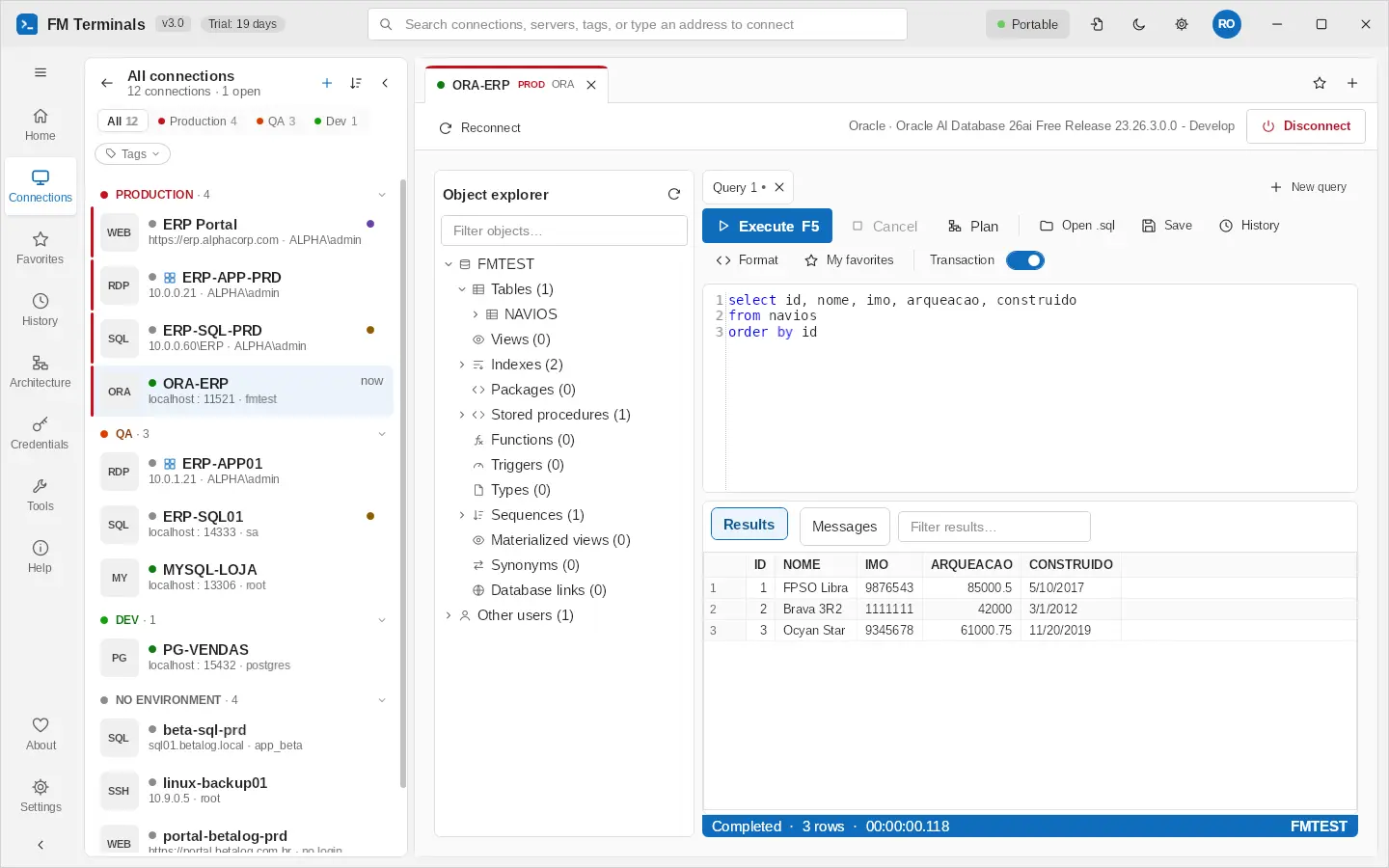
The Object explorer starts with the login's schema and shows, depending on the engine, tables, views, indexes, Packages, procedures, functions, triggers, Types, Sequences, Materialized views, Synonyms and Database links; the other schemas are under Other schemas (Other users on Oracle). Indexes and triggers show their table, and the filter above the tree works as in SQL Server. The right click offers Select first 1000 rows, Edit top 200 rows, Script as CREATE, Insert name in the query, Copy and Refresh.
Queries in tabs
- New query (Ctrl+N), Open .sql (Ctrl+O), Save (Ctrl+S), Close query (Ctrl+Shift+W) and Rename on the tab's right click. Drafts come back when the connection is opened again.
- Execute (F5, Ctrl+E or Ctrl+Enter) everything or only the selected part, and Cancel. Scripts are split as each engine expects: $$ bodies on PostgreSQL, DELIMITER on MySQL, PL/SQL blocks ended by / on Oracle.
- Plan (Ctrl+L): the execution plan of the selected statement, without running it (EXPLAIN on PostgreSQL and MySQL, EXPLAIN PLAN with DBMS_XPLAN on Oracle, EXPLAIN QUERY PLAN on D1).
- Format (Ctrl+Shift+F), History per connection and My favorites (snippets).
- Autocomplete per engine: tables and views after FROM/JOIN, columns after the dot (alias or table) and keywords; Ctrl+Space opens the list.
- Results with the filter box, sorting and column filters on the right click (only this value, all but this value, filter by text), Copy (with or without headers) and Export to Excel and CSV. The Messages tab shows the warnings and errors, with go to line; the status bar shows the state, the rows, the time and the current schema.
Transaction
The Transaction button of the toolbar (on by default in Production) runs INSERT, UPDATE and DELETE inside a transaction: after you see the result, the bar offers Commit or Roll back. On MySQL and Oracle, CREATE, DROP and ALTER commit by themselves, and PL/SQL with its own COMMIT or ROLLBACK ends the transaction: those statements run outside it and the Messages tab says so. On PostgreSQL, a transaction that hit an error is aborted: the program rolls it back, or explains why the database refuses the next commands until a ROLLBACK. Closing the query or the session with an open transaction asks first and rolls back what was not committed.
Editing data in the grid
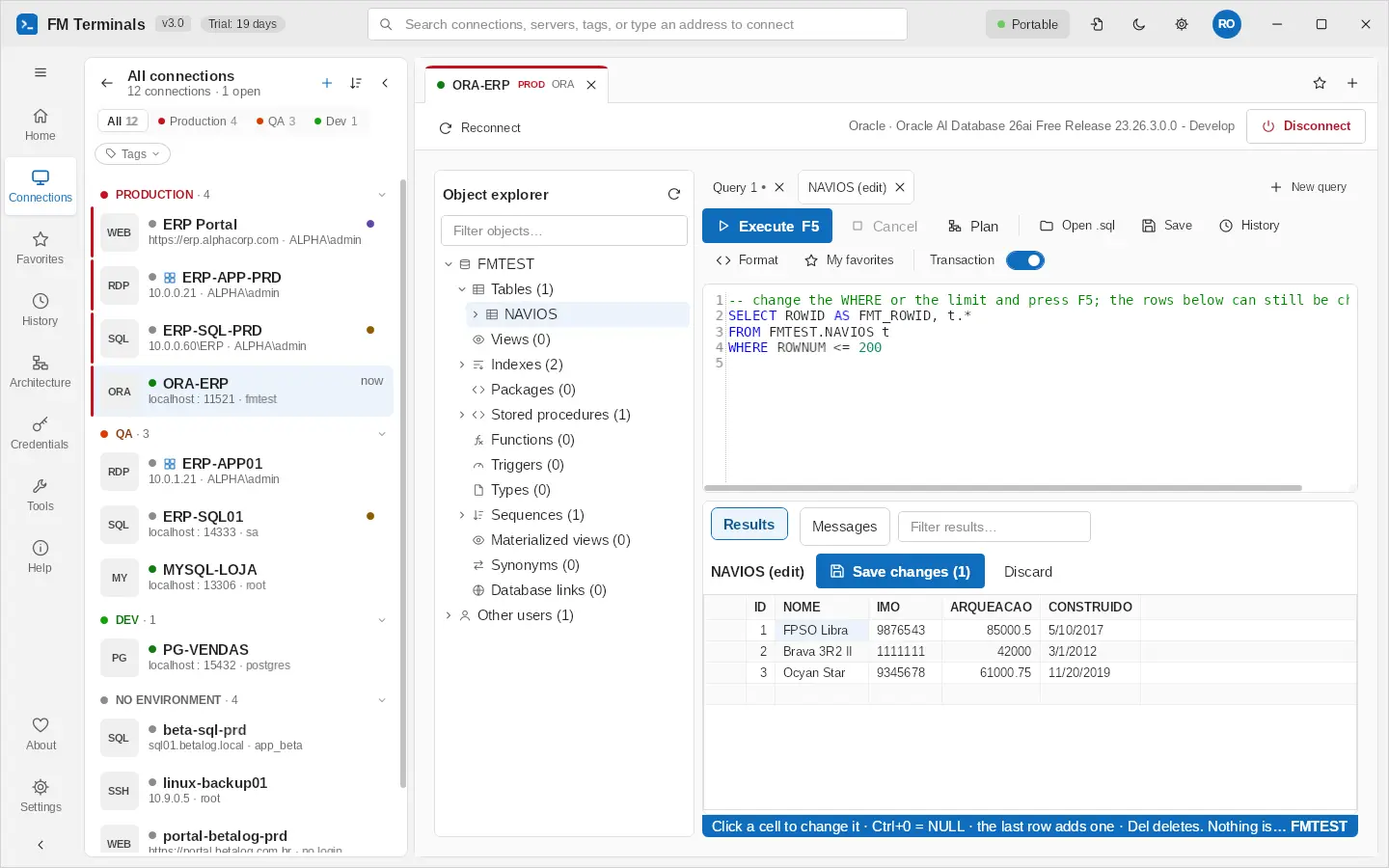
Edit top 200 rows opens its own tab with the query visible: change the WHERE or the limit and press F5, and the rows stay editable as long as the columns that identify a row stay in the result. Change cells, add rows on the last row and delete with Del; Ctrl+0 sets NULL. Nothing is written until Save changes: each row is found again by its ROWID (Oracle, tables without a primary key too), by ctid or the key (PostgreSQL) or by the primary key (MySQL and D1); tables with no way to find the row are read only. A row changed by someone else while you edited stops the save, and the rows are read again; with the transaction on, the changes join the open transaction and wait for Commit; in Production, the program asks before writing. Closing with unsaved changes asks first.
Oracle: DBMS_OUTPUT, SQL*Plus and stored code
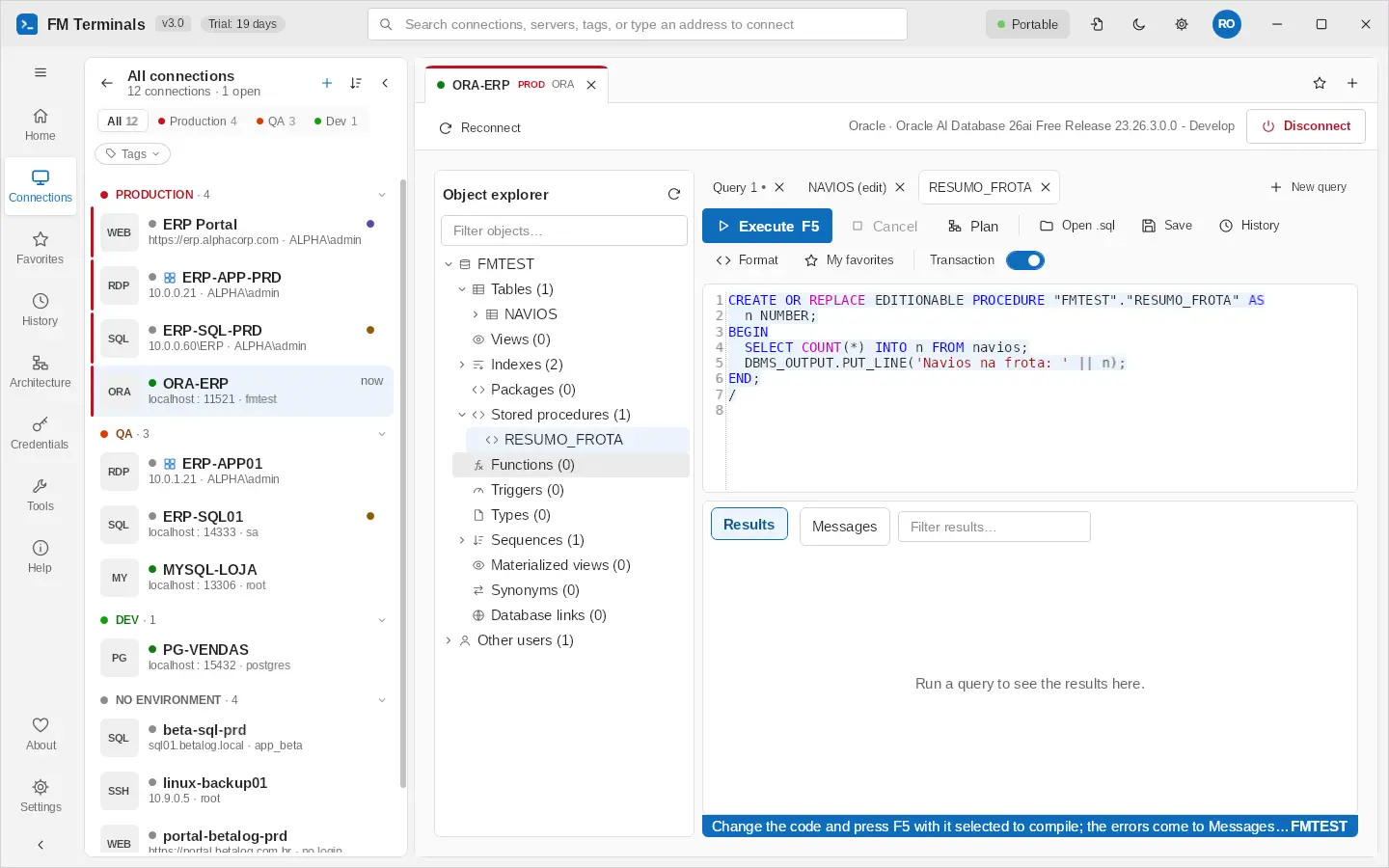
- What PL/SQL prints with DBMS_OUTPUT shows in Messages, including what was printed before an error.
- **SQL*Plus** console lines (SET, SHOW, COL, DEFINE, PROMPT, EXEC...) are handled by the program itself and never reach the database, so SQL*Plus scripts run without edits.
- Procedures, functions, packages, triggers and types: on the right click, Open to edit (F5 compiles) brings the code into the editor; change it and press F5 with it selected to compile. Compile runs ALTER … COMPILE. Compile errors come to Messages with the editor's line, and invalid objects are marked in the explorer.
Shortcuts of the database tab
- F5, Ctrl+E or Ctrl+Enter: run the query or the selected part
- Ctrl+L: execution plan, without running
- Ctrl+N: new query
- Ctrl+O / Ctrl+S: open / save a .sql file
- Ctrl+Shift+W: close the query
- Ctrl+Shift+F: format the SQL
- Ctrl+Space: open the autocomplete
- Ctrl+0: set the cell to NULL (row editing)
- Del: delete the selected rows (row editing)
Teamwork (SQL Server or Cloudflare D1)
The data file can be shared with the team through the company's SQL Server (Settings › Data and security › Connect to SQL Server).
Synchronization
- Each computer works on a local copy and sends its changes to the server; the team's changes arrive every minute.
- Without access to the server, work continues normally and is synchronized later.
- If two people change the same thing, the program merges the changes item by item and reports conflicts; nothing is lost.
- The content is encrypted: SQL Server only stores data it cannot read.
Users, groups and credentials
In Team and groups, each person creates their own user with a personal password. Administrators organize groups (for example "Rio" or "DBAs"). Each credential can belong only to its owner, to everyone in the team or to selected groups and people — and it is encrypted end to end: only those with access can open it, not even the database administrator.
Roles: admin, editor and member
Admins choose who changes the team space directly. In the Team and groups window, select a person and choose Make editor or Make member; the list shows each one's role next to the login.
- Admin: manages people, groups, tokens and the license, and changes the team space.
- Editor: creates, changes and deletes team clients and connections, and approves or rejects proposals.
- Member: sees and uses the team space; changes to it become a proposal that an editor approves. The private space is free for everyone.
- Until the first role is set, everyone is an editor (as in earlier versions). From then on, people who join are members until an admin makes them editors.
Proposals
- A member changes the team space as usual (a new connection, an address, a client): the changes stay on that computer and a bar at the top says how many are waiting, with Send for approval and Discard.
- Send for approval lists the changes and sends them to the editors; the team space goes back to how the team has it until they are approved. Send to the team on a private connection, for a member, sends a copy and keeps the private one.
- Editors see in See proposals what really changes, computed by FM Terminals from the copy the member started from and the one proposed — never the member's own description: each connection with its settings before and after (Address: old → new, Port, User, Credential, Connect through, RD Gateway…), Password changed without showing it, and Production connections in red. A proposal that can't be read can only be rejected or removed. Only clients, folders and connections can be proposed; any other setting in a proposal is ignored.
- The author sees the answer (approved or rejected, by whom, with the note) in See proposals and removes it once read, or Withdraws a proposal still waiting.
- See proposals is also on the right-click menu of the Team heading and of your space, to see the proposals at any time.
When the team server can't be reached
- Work goes on with the copy on this computer, as with the data file: the status at the bottom of the tree says unreachable · local copy, and there is no error dialog every minute.
- Changes to the team space (an editor's) are saved in the local data file and sent when the server answers again; a member's changes stay held for a proposal.
- Changes to your private space (new, changed, moved or deleted private connections and clients) are kept on this computer, encrypted for your team user and protected by your Windows account, and go to the vault by themselves when the server answers again — even if you close and open FM Terminals in between.
- Opening FM Terminals while the server is down opens the local copy: the team space as last seen, your private space from the encrypted copy of this computer and the offline lease of the team credentials.
- A server that stops answering (network lost, VPN down) doesn't freeze the program: each attempt gives up after a timeout and is tried again every minute.
What protects what
- Private connections and clients are encrypted for their owner only (not even admins read them); the data file and its backups never contain them.
- A proposal is encrypted for its author and for the editors and admins; who sent it is taken from the team users, not from the proposal.
- Roles are applied by FM Terminals on each computer. Anyone who has the data file password and write access to the team database (or an older version, up to 3.5) can still change the team space directly, as before 3.6: keep write access to the database for the people who need it, and prefer the Cloudflare service, where every request is signed by its user.
- The server copy records who saved it last and when (the status of the data file shows it).
Protection against loss
- Automatic backups: whenever your credentials change, a copy is saved on this computer (protected by your Windows account, last 14 days).
- Backup with password: a portable copy of the file with your credentials, which opens on any computer.
- Backup with password takes only your private space, with your passwords; what is in the Team stays on the server. Admins also have Team backup…: the whole Team space (D1 or SQL Server) with the team passwords, without anyone's private space. Sign in to the team first (otherwise FM Terminals warns). Share a copy with password takes the Team space only.
- One data file per database: FM Terminals doesn't send a second data file to a database that already has one, nor create a second Cloudflare service. Extra files go with a right-click in the Team server list › Delete from the database…. Disconnect also brings your private space into the local file.
- One login: opening the team file from the Team server, FM Terminals asks for your team user and password. The first time it also asks for the data file password, once, and keeps it in the vault for you only; from then on, on any computer, the team login opens the file and signs you in to the team. Use the data file password is still there for whoever has no user.
- Stop using SQL Server copies the team credentials you can read into the file, so your connections keep working.
- Recover team credentials: lists the teams stored on the server (including those from replaced files) and the copies on this computer, and recovers the credentials with your personal user name and password.
Cloudflare D1 instead of SQL Server
The team server can be, instead of a SQL Server on the network, a Cloudflare D1 database of the company's account, reachable from anywhere, no VPN. In Settings › Data and security › Connect to the team server…, choose SQL Server or Cloudflare D1 under Where the team copy is; for D1, type the Account ID and the API token (with the D1 Edit permission), then List databases and choose the database, or Create database… for a new one, and Test connection. Everything else is the same: users and groups, the data file password, each person signing in on each computer, the end-to-end encrypted credentials and the revisions of SQL objects, which are kept in D1 too. The token is kept protected on this computer.
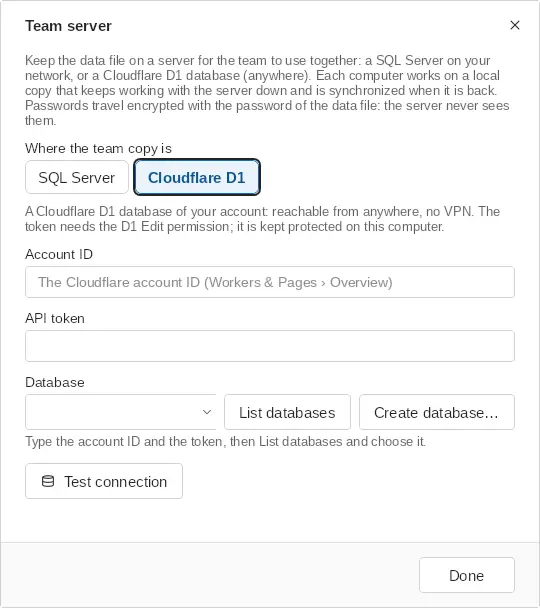
One data file, one server
- A data file follows one team server: sending it to or opening it from a second server is refused until you choose Stop using the team server on the first.
- Two FM Terminals windows (for example the full program and FM Terminals SQL) no longer lose each other's team link, and the local sync copies are kept per server.
- When the file's password is changed on another computer, the work done here while you were offline is merged into the team copy with the new password instead of being replaced; nothing is uploaded while the file opens with another key.
Versions, revoking access and the offline copy
A team credential you can read but do not own can now be edited: changing its password or notes saves a new version on the server for everyone who uses it. The owner stays the owner and the sharing list does not change — only the owner decides who can use it. The details show Changed by with the name and the date of the last change, and History opens the Credential history window with the last 10 versions.
Two different things keep the team safe. Revoking is about access: who can open the credential from now on. Changing the password on the server is about what was already seen: a password someone has read cannot be taken back, so the credential keeps a warning until the password is changed on the server. And the owner never changes when someone else edits the content.
- Editing by anyone with access: password and notes are saved as a new version; the owner and the sharing list stay the same; Changed by with the name and the date in the details.
- History: the last 10 versions of a team credential (who saved it, when and the content) in the Credential history window; the owner or an admin chooses Restore this version, which becomes the current one for everyone.
- Revoke access: on the Who can use it card, the owner or an admin removes one person or one group with the × on the chip. From then on that person cannot open the credential, not even from a local copy that syncs later. The credential shows the warning Seen by …, access removed on …: change the password on the server until a new password is saved or you click Already changed.
- Team and groups: removing a user from the team, or a member from a group, first lists the credentials that person could read (with Copy list) and then adds the same warning to each of them. Removing a user still offers to change the data file password, because whoever knew it can still open older copies and backups.
- Offline: the local copy of the team vault is good for 7 days without contact with the team server; after that the team credentials are hidden ("No contact with the team server for N days: go online to see the team credentials") until the server answers again. Someone removed from the team is signed out on the next contact and the local copy is deleted from that computer.
Connection token: bringing someone into the team
Instead of handing out the database password or the Cloudflare token, an admin creates a connection token (a code that starts with FMT1-) and sends it to the person. They choose I have a connection token… on the welcome screen (or I have a connection token in the Team server window), paste the code and join; nobody sees a token or a password in any field.
- Create: in the Team window, Connection tokens card, choose New token, the person's name, how many uses and how long it is valid. The code is shown once only: copy it and send it through a safe channel.
- Cloudflare D1 linked directly (the default): the code carries the API token, but the FMTerminalsInvites table of the database is in control: name, validity, uses, who used it and whether it was revoked. A revoked, expired or used-up token is refused with the reason. A person removed from the team has the API token wiped from this computer.
- Team service on Cloudflare (optional, more secure): Create service on Cloudflare publishes a Worker in your account, in front of the D1 database; the code carries no API token at all and each person signs in with their own team key. Creating the service needs a token with Workers Scripts: Edit and D1: Edit; when a permission is missing, the message says which step was refused and which permission it needs.
- SQL Server: the token carries the server, the database and the chosen login.
- Permission refused: when the sync is refused for lack of permission (for example, a read-only Cloudflare token without D1: Edit), an alert explains what is missing; the log shows the right name of the server (SQL Server, Cloudflare D1 or Cloudflare service).
Updating the team database and older versions
When it connects, FM Terminals creates or completes by itself the tables it uses in the team database (SQL Server or Cloudflare D1) and records in the FMTerminalsSchema table the version of each part (vault, data file, SQL revisions, tokens). Nothing has to be done by hand after updating.
- Changes are additive only: new tables, new columns with a default, new kinds of rows. Nothing is dropped, renamed or changed in type, so earlier versions (such as 3.4.0) keep working on the same database while the team updates.
- Personal and group connections are new rows in the vault that 3.4.0 skips; it keeps reading and saving credentials, groups and the data file normally.
- The private space, the roles and the proposals are new rows of the vault that 3.4.0 and 3.5 skip; they keep reading and saving credentials, groups and the data file normally. Until everyone updates, older versions don't know the roles and save team changes directly.
- If one day a change can't be additive, the new version records in the database the minimum version allowed to write: from 3.5.0 on, an older version than that saves nothing and asks to update, instead of risking damage to the data.
Signed roles, trusted copy and favorites
- Roles (admins and editors) are kept in a list signed by an admin, with a signing key derived from their team key (nothing more to keep or type). Each computer keeps, protected by Windows, the signing key first seen for each person and the last role list accepted: a new list only counts with a higher version and signed by an admin of the previous list. So someone who writes straight to the database can't make themselves an editor or admin, nor sign as somebody else.
- Every save of the Team copy is signed by whoever saved it. Other computers only apply a copy signed by an admin or editor; a copy without a valid signature (from a member, an older version or written straight to the database) is not applied, and a yellow bar at the top says who saved it. The computer keeps the last trusted copy.
- On the bar, an editor or admin uses Restore trusted copy to save again, signed by them, the copy this computer has; a member tells an admin. A signing key changed on the server, or a role list not signed by an admin, is also refused and reported on the bar (details in the app log).
- When roles are set, FM Terminals signs the Team copy. A computer that joins later trusts, on its first read, the admin the server names (trust on first use) and from then on only the chain of signatures.
- Cloudflare service: the service itself refuses writes to the Team copy, roles, groups and license from people without the role. A service created by an older version shows as outdated in Team › Connection tokens: update it in Team server › Cloudflare D1, same database, Create service on Cloudflare › Update service. The address, keys and tokens stay valid.
- Favorites are each person's: marking a Team connection as a favorite changes nothing for others and is not a proposal; the connection stays the Team's. Your favorites follow your team user to your other computers.
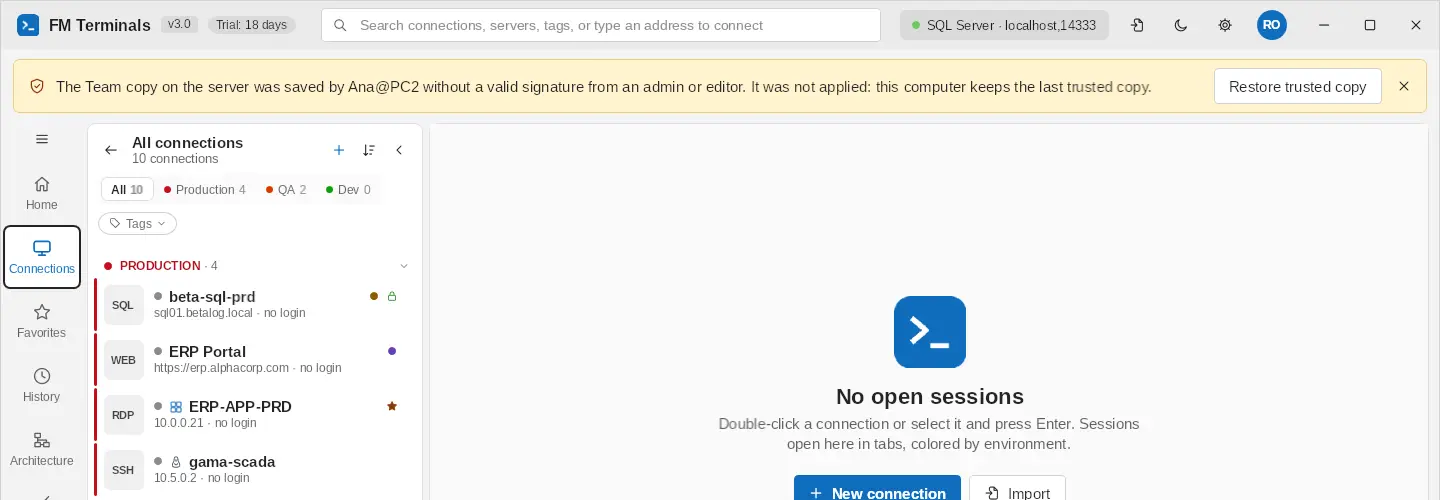
Tokens, import, clean up and restore
- The token carries the data file password: when making a token, FM Terminals uses the data file password kept for you (or asks once). Whoever joins only creates their user. The token becomes a secret: send it only to the person, by a private channel.
- Import asks the space: with a team, choose My space (the default, only you see it) or Team. Clients with the same name in different spaces are different clients.
- When sending to the Team, if the connections use passwords of yours, FM Terminals asks who to share each one with: Only me (the connection still uses it for you; the others see "Flavio's personal password" and choose theirs in My credential), The whole team or a group.
- Delete from the database (right-click in the Team server list) asks for a team admin's login and the file name typed, and deletes everything of it: vault, private spaces, proposals, roles and tokens.
- Start over… (below the list) deletes every data file of the database, with an admin sign-in and the database name typed. The data file that was open stays on this computer, no longer syncing. Then FM Terminals asks what the database gets: a new, empty data file, a Backup with password into My space (the empty file goes to the database and, as soon as you create your user, the backup is imported into your private space) or a Team backup into the Team space. Clients repeated in the backup become one and identical connections come in once.
- Create service on Cloudflare with nothing to restore: choose Start from zero: a new, empty data file. FM Terminals creates the file, asks its password and sends it to the service; no backup is needed.
- Your team user has a name (as the team sees it, e.g. "Flávio Miguel") and a login (it starts as your Windows user). Both show in the user lists and when choosing who signs in.
- Remove from the team deletes that person's proposals, private space and own passwords; the passwords they shared with the team stay.
- Once the first role is set, only 3.6 or later writes to the database: 3.5 only reads and asks to update; older versions save unsigned and 3.6 doesn't apply it (yellow bar).
- Disconnect joins clients and folders with the same name (the Team's Fred-Olsen and the one in your space become one).
- Your passwords don't go to the team: when you send your data file to the team server, its passwords are kept on this computer (protected by your Windows user) and, as soon as you sign in to the team, they become your personal passwords in the vault (only me). When copying to the Team you choose who sees each one; a login typed in the connection itself becomes a password of yours the same way.
- The team file shows by its name in Settings › Data and security › Team server, with Rename the team file… and Delete from the cloud…. Deleting removes everything of that file from the server (the Team space and everyone's My space are inside it): it asks for an admin sign-in and the name typed, and this computer keeps the file, no longer syncing. My space is not a separate file in the cloud: it lives in the team file's vault, encrypted for you only.
- Team sits in the left menu, right below Credentials, when the data file belongs to a team server.
- Between My space and the Team, dragging doesn't change where an item is kept: right-click › Move to the team or Move to My space, which take care of the passwords. If an admin deletes the file from the server (or starts over), the other computers don't send it back: a banner says so, and each one keeps its copy. A Cloudflare service created before 3.6.0 should be updated in Create service on Cloudflare › Update service.
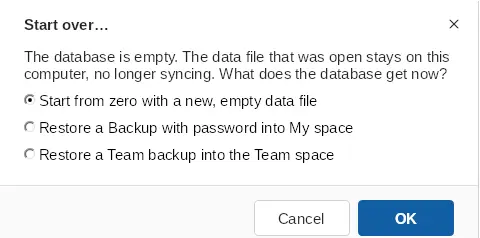
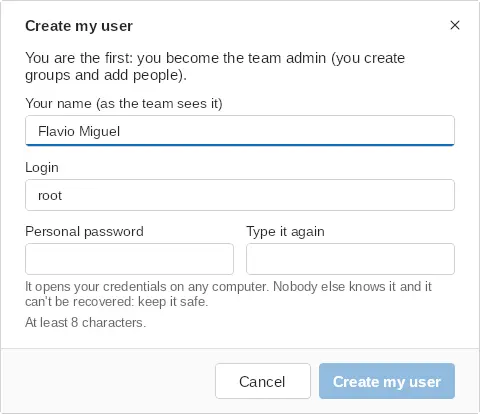
Database permissions (SQL Server)
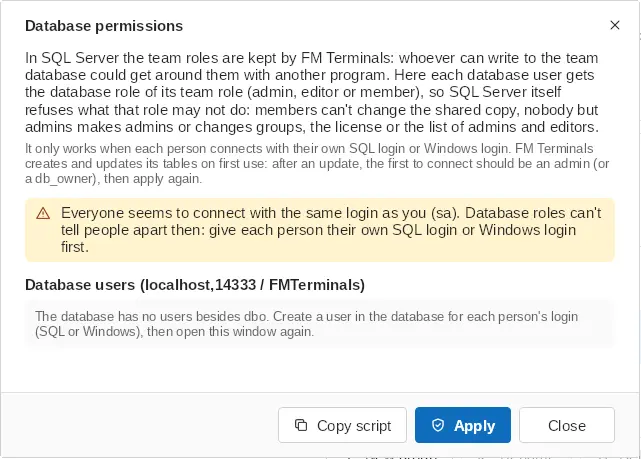
- In SQL Server the team roles are kept by FM Terminals; anyone with write access to the team database could get around them with another program. Team › Connection tokens › Database permissions… (admins only) makes SQL Server itself refuse what each role may not do.
- It creates the database roles FMTerminalsAdmins, FMTerminalsEditors and FMTerminalsMembers: members write credentials and their own user (never IsAdmin) but not the shared copy; editors also write the shared copy; only admins change groups, the license and the list of admins and editors.
- Choose the role of each database user (Admin, Editor, Member or — none); the window suggests one when the user's name matches a team user. Copy script gives the T-SQL to run elsewhere; Apply runs it with your login, which needs db_owner or ALTER ANY ROLE.
- It only separates people who connect with their own SQL login or Windows login: if everyone uses the same login, the window warns that the database can't tell them apart.
- FM Terminals creates and updates its tables on first use: after an update, the first to connect should be an admin (or a db_owner); then apply again. Apply again also after adding people.
Security
- Data file encrypted with AES-256-GCM; password protected with PBKDF2-SHA256 (600,000 iterations).
- "Remember on this computer" uses Windows account protection (DPAPI).
- Lock: when the file has a password, FM Terminals can lock itself after a few minutes of inactivity or when Windows is locked (Settings › Data and security › Protection), or right away with Ctrl+L; sessions stay connected and come back with the password.
- Team credentials with end-to-end encryption (X25519 + AES-256-GCM) per person and per group.
- Production: confirmation before connecting, warning colors and safe transaction in SQL.
- Clipboard: a copied password is removed from the history and cleared after 30 seconds.
- Passwords are never written to the diagnostic log.
Change password (Settings › Data and security) also creates a new key for the data: whoever knew only the old password, such as someone who left the team, can't open the new versions. Your other computers, and in a team everyone else, are asked for the new password once. After removing someone from the team, FM Terminals offers to change it.
Licensing
| Plan | What it includes |
|---|---|
| Trial | The Microsoft Store trial period, with all features |
| Free | Without a license: up to 3 connections, forever |
| Annual license | Bought in the Microsoft Store: unlimited connections and all features for 1 year |
| Business (annual, per user) | License for the team's users, activated once by the administrator; no purchase on each computer and no dependence on the internet |
Buy and renew
- Open Settings › License (or click the "Free mode" badge next to the program name) and choose Buy a license: the purchase is made in the Microsoft Store.
- The purchase is tied to your Microsoft account: reinstalling the app or using another computer with the same account keeps the license.
- The app shows when the license expires and, in the last month, warns you and offers Renew in the Store.
Corporate license
The team administrator activates the corporate serial number in Team and groups › Activate corporate license…. The team's users, up to the number of seats, are licensed on any computer. The window shows "N of M seats in use" and who has "no seat in the license"; when all seats are taken, a new user can only join when a seat is freed or more seats are purchased.
Licenses, corporate license and support: support@brsea.com.br.
Settings and customization
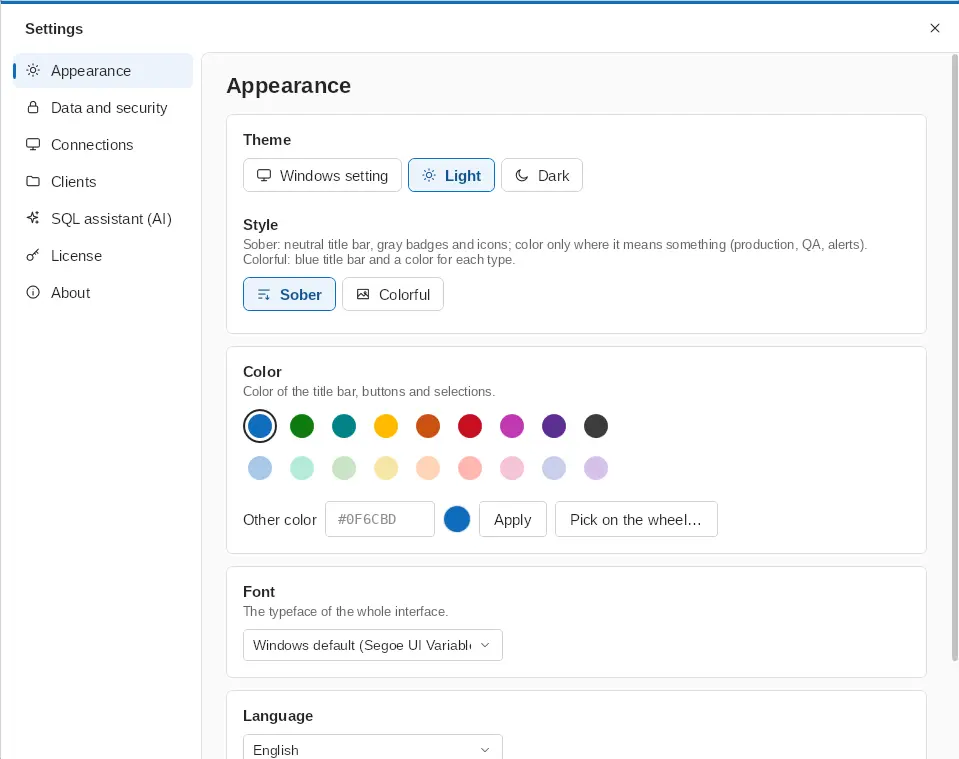
- Appearance: light, dark or same-as-Windows theme, with the accent color of your choice. The moon/sun button on the title bar switches between light and dark in one click. Style: *Sober* (the default) keeps the title bar neutral and the badges and icons gray, with color only where it means something (production, QA, alerts); *Colorful* brings the blue title bar and a color for each connection type.
- Language: Brazilian and European Portuguese, English, Spanish, French, Italian, German, Dutch, Danish, Norwegian, Polish, Russian and Chinese.
- Data and security: file location, password, "remember on this computer", lock, repository, team SQL Server, backups and recovery.
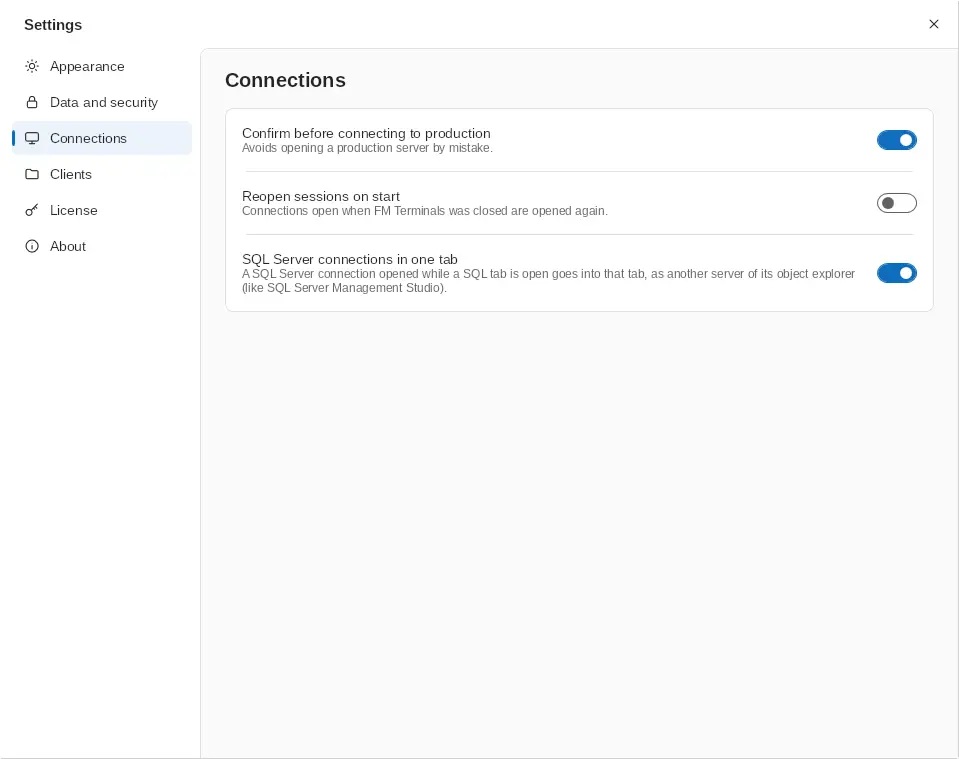
- Connections: Production confirmation, reopen sessions at startup and SQL Server connections in one tab. The names of a database (for the editor's suggestions) are read again when you choose it in the query editor. The date format of the results can be chosen, like NLS_DATE_FORMAT in Oracle.
- Clients: the default systems of a new client and the tags (kind, color and icon).
- Updates: delivered through the Microsoft Store.
- Color and font: besides the ready-made colors there is a row of pastel colors and Pick on the wheel… (a color wheel with brightness below). In Font you choose the typeface of the interface: Windows' own, Inter or Roboto (they come with FM Terminals); Apple's (SF Pro) and Samsung's (SamsungOne) fonts show in the list only when they are already installed on your Windows, as their licenses don't let another program ship them.
Keyboard shortcuts
| Shortcut | Action |
|---|---|
| F1 | Help |
| Ctrl+K or Ctrl+F | Search connections / quick connect |
| Ctrl+Shift+I | Import connections |
| Ctrl+Shift+B | Hide or show the clients and the list |
| Ctrl+, | Settings |
| Ctrl+L | Lock FM Terminals (in the SQL editor: estimated execution plan) |
| Ctrl+N | New connection (in SQL: new query) |
| F2 | Edit the selected connection (in the SQL explorer: rename) |
| Ctrl+W | Close the tab |
| F5 or Ctrl+E | Execute the SQL query |
| Alt+Pause | Cancel the SQL execution |
| Ctrl+M | Include the actual plan in the execution |
| Ctrl+T | Results as text |
| Ctrl+Space | Open SQL autocomplete |
| Ctrl+Shift+F | Format the SQL |
| Ctrl+O / Ctrl+S | Open / save .sql file |
| F7 / Shift+F7 | Next / previous difference (Compare code) |
| Ctrl+0 | Set the cell to NULL (table editing) |
| Del | Delete rows (table editing) or the selected object (SQL explorer) |